Sending a Message to a Current Selection
Through your BrightArrow-PowerSchool integration, PowerSchool administrators can easily select staff or students/parents and send messages to them.
Students can be accessed through the Student Search or through the teacher's roster. With students selected, you'll then be able to choose whether to message the students directly or their families. Note that you must have access to a BrightArrow list that contains the student or parent contact information to send messages to them.
Video Demo
This click-through video tutorial demonstrates how PowerSchool administrators can send a message to a selection of students and/or parents through the PowerSchool-BrightArrow integration.
Selecting students from the Student Search page
Through the student search page you can easily select a large group of students or just a few individuals. Once your students are selected you can move through the BrightArrow message creator with just a few clicks.
- In PowerSchool, navigate to People > Students > Search for Students
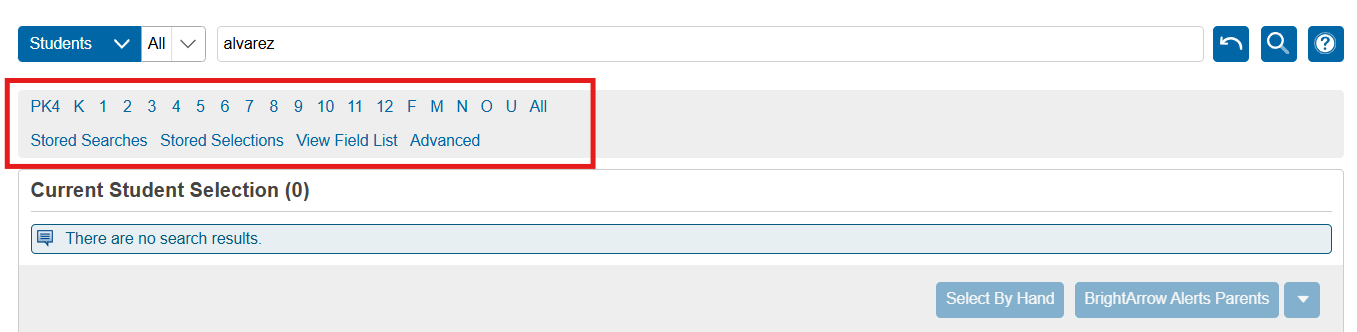
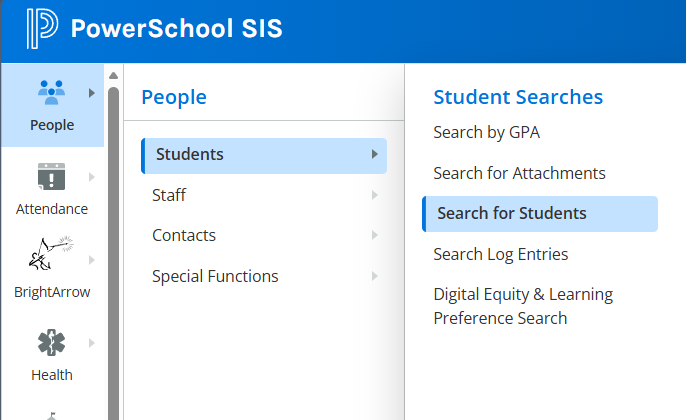 If you will be sending a message to a large group of students/parents, use the quick filter options to help create your selection. This option is helpful for sending messages to an entire grade, multiple grades, or even all students/parents. Here you can also use the advanced options and store selections to use again in the future.
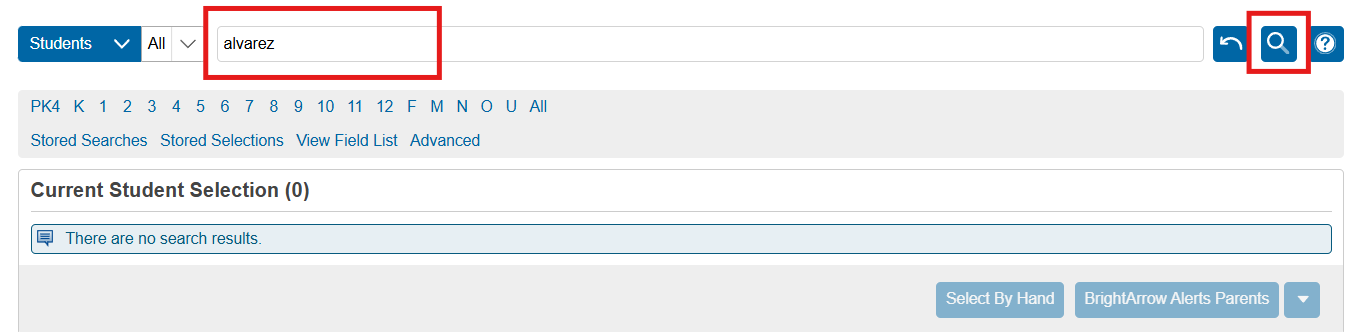
- If you will be sending a message to a few select students, type their name in the search bar then click the magnifying glass icon or just hit Enter on your keyboard.
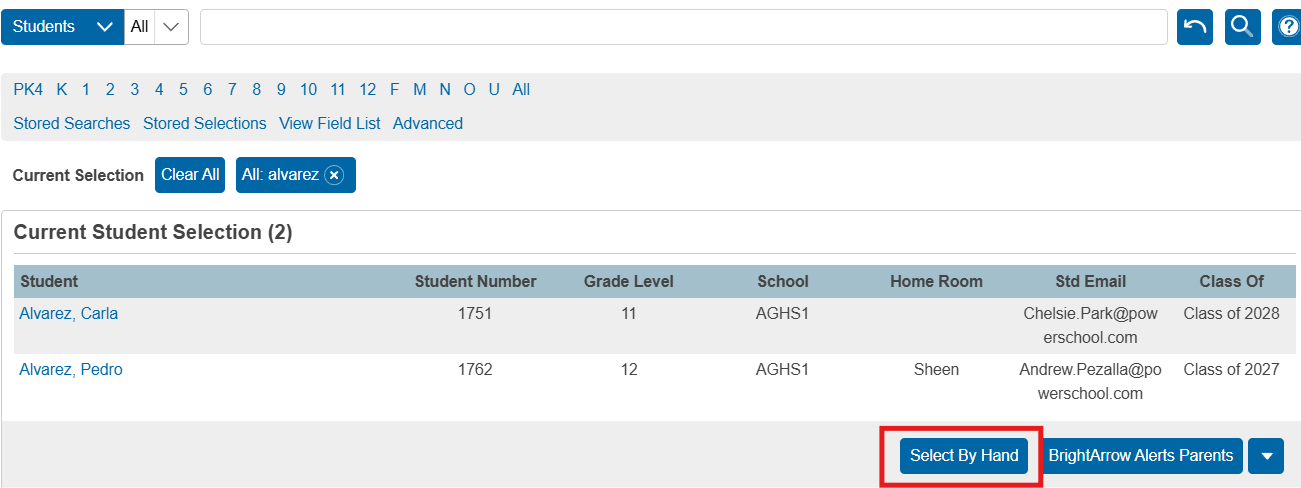
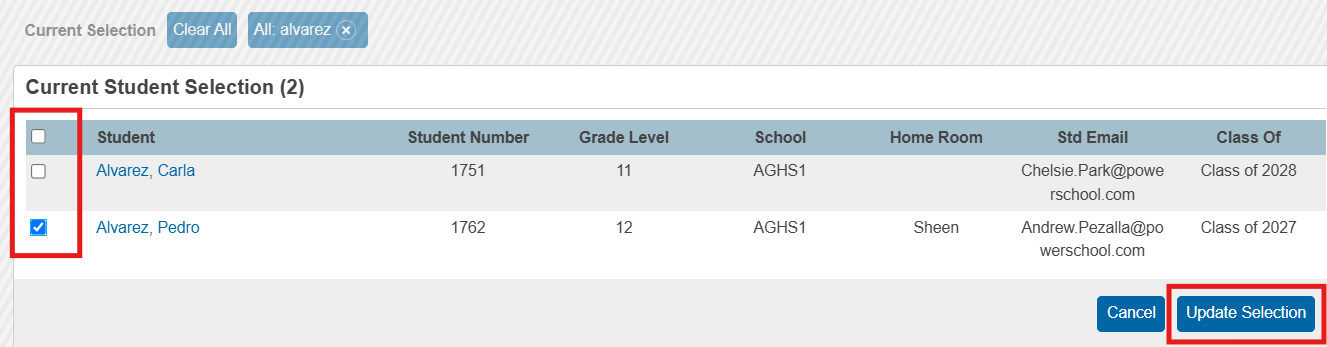
- Use the Select by Hand option to narrow your results further, marking the checkboxes for the specific students/parents that should be used for your message. Click the Update Selection button to save the changes to your selection.
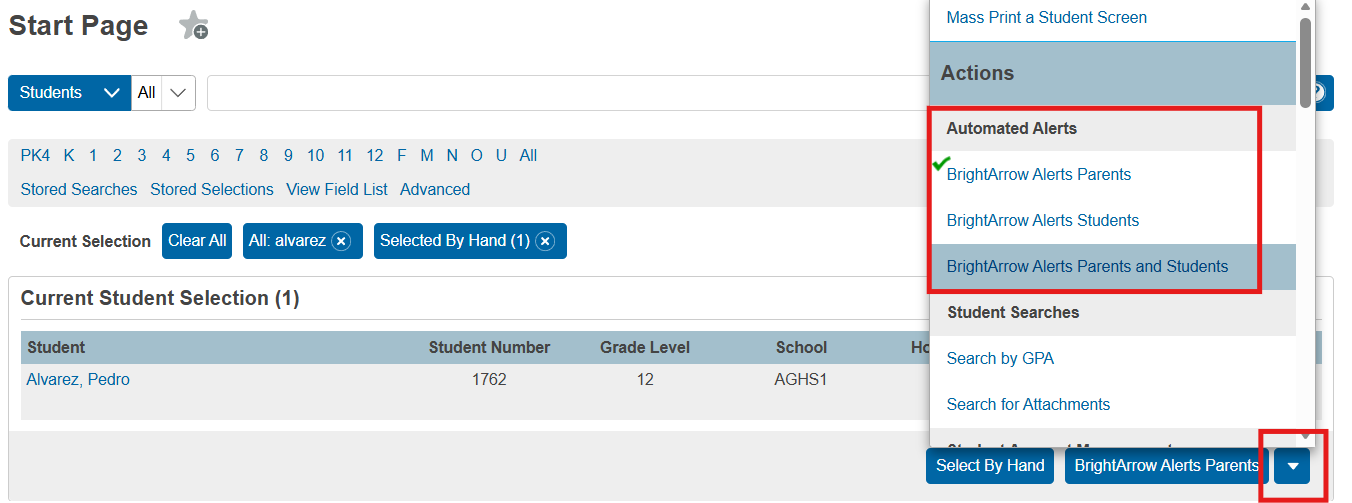
- Click the drop-down arrow under the selection, then in the Automated Alerts section choose if you'd like to message students, families, or both. Note that you must have access to a BrightArrow list that contains the student or parent contact information to send messages to them.
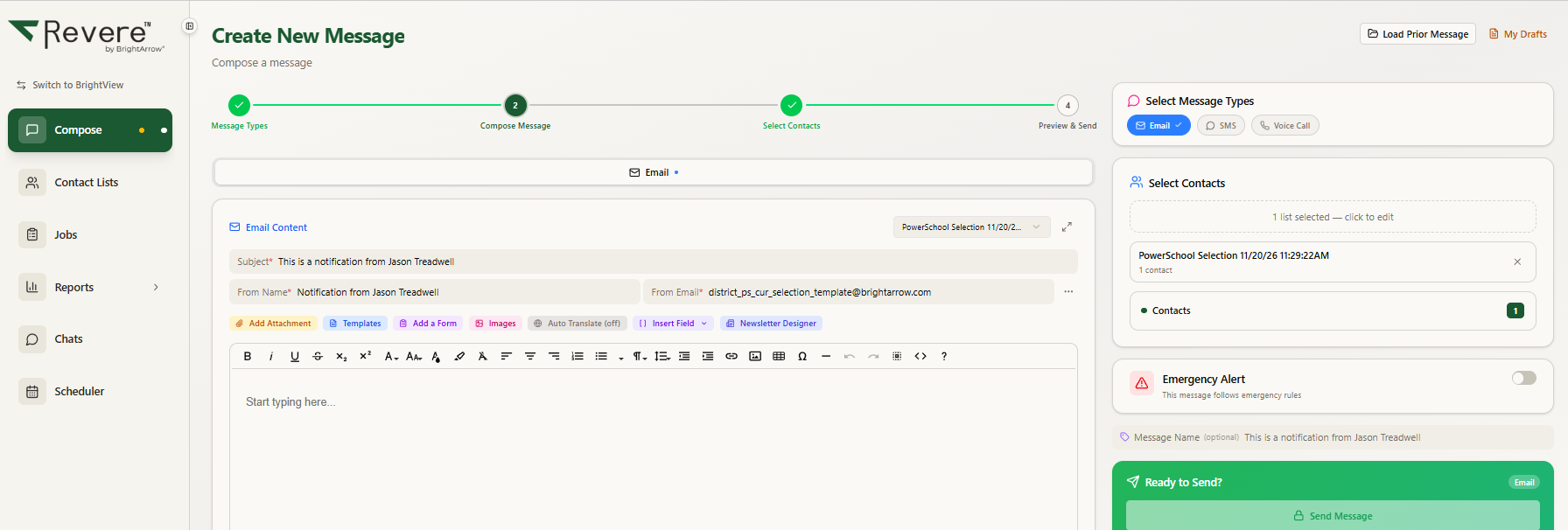
- The BrightArrow Create Message screen will start loading immediately. Select your message types and begin creating your message. Once your message is created, preview, schedule, or send your message.
 If you will be sending a message to a large group of students/parents, use the quick filter options to help create your selection. This option is helpful for sending messages to an entire grade, multiple grades, or even all students/parents. Here you can also use the advanced options and store selections to use again in the future.
Selecting students from the teacher's roster
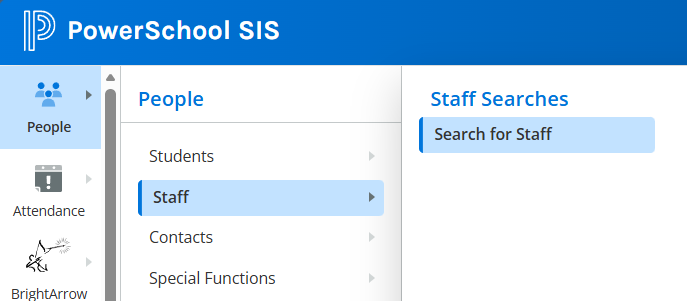
- In PowerSchool, navigate to People > Staff > Search for Staff.
- If you need to search for a staff member, use the quick filter options to help locate them. Here you can also use the advanced options and store selections to use again in the future.
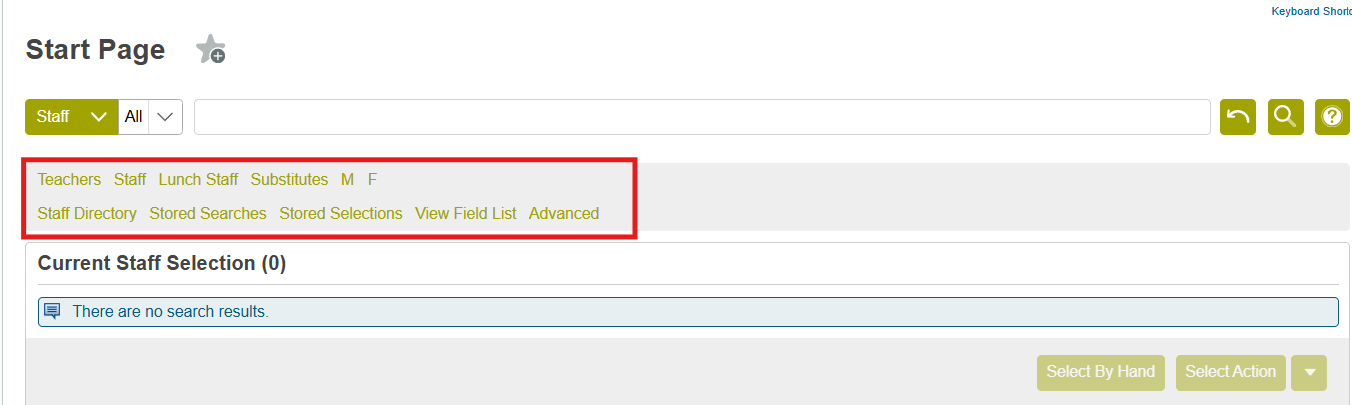
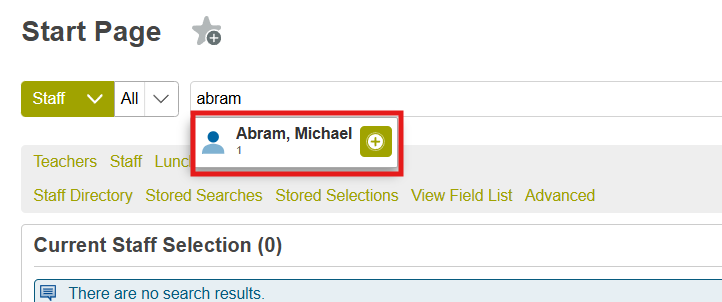
- Alternatively, type the staff member or teacher's name into the search bar then click on the item that shows.
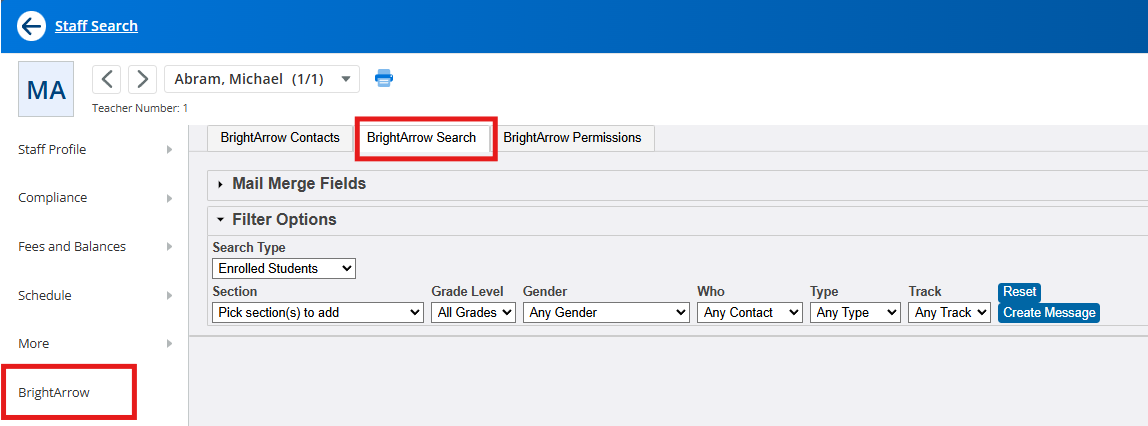
- From the staff member's profile, click on BrightArrow in the navigation panel on the left.
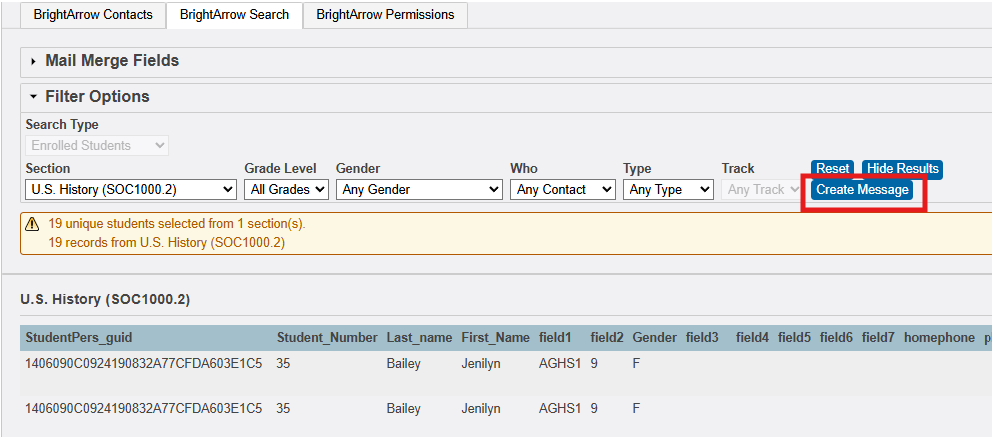
- Click on the BrightArrow Search tab. Not seeing this? Check the teacher's BrightArrow permissions and your own permissions to make sure BrightArrow is enabled (System Management > Data > BrightArrow Settings > Individual Settings).
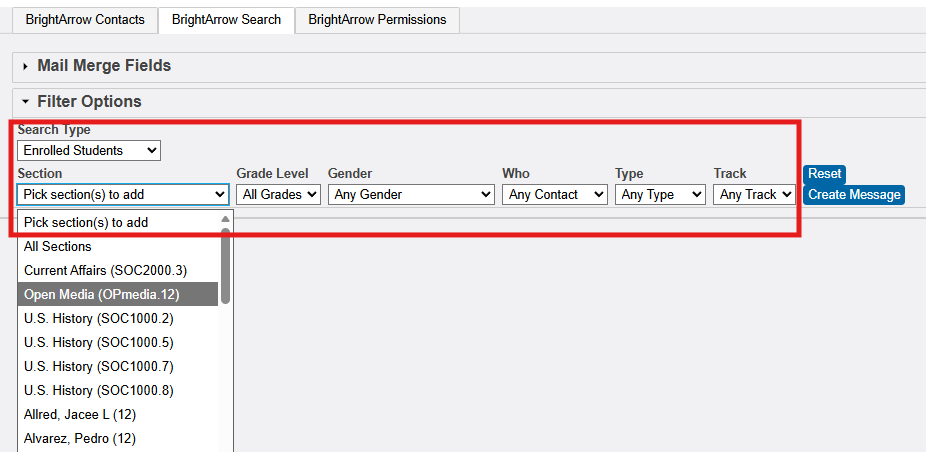
- Use the available Filter Options drop-downs to choose the students or sections you'd like to message.
- With the section or individual students selected, you should see an indication of who was selected. Click Show Results to see more details.

- With your selection chosen, click Create Message.
- The BrightArrow Create Message screen will start loading immediately. Select your message types and begin creating your message. Once your message is created, preview, schedule, or send your message.
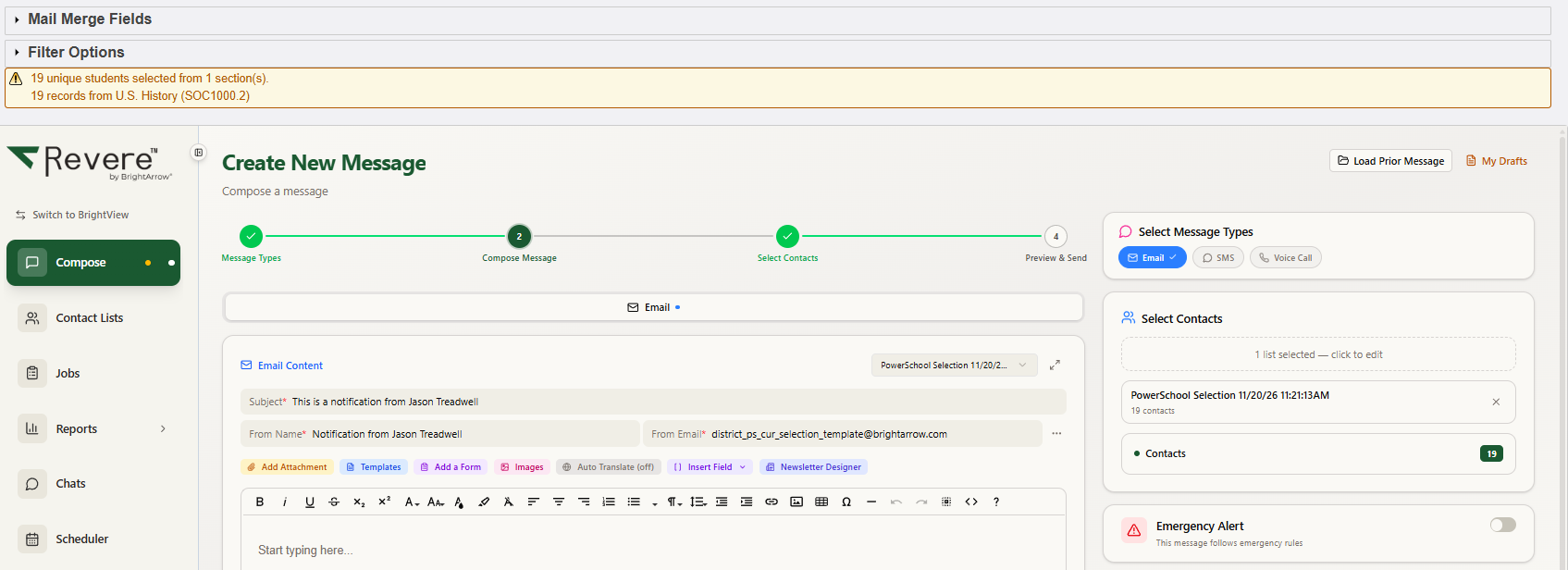
A note on using mail merge fields: Mail merge fields can be used via the [ ] Insert Field button to dynamically insert student information. The mail merge fields available to you might differ based on the Search Type you chose in the Filter Options when creating your selection (step #6 above). To see which mail merge fields can be used for your message, click on the Mail Merge Fields drop-down that shows at the top of the window. The fields listed in the Mail Merge Fields section at the top of the page might be different than the fields you see in the [ ] Insert Field button of the message creation area. The Mail Merge Fields section at the top of your screen are the ones that will be used in your message.

Selecting staff members for messaging
If you need to send a message to a selection of staff members, follow the steps below.
- In PowerSchool, navigate to People > Staff > Search for Staff.
- If you need to search for a staff member, use the quick filter options to help locate them. Here you can also use the advanced options and store selections to use again in the future.
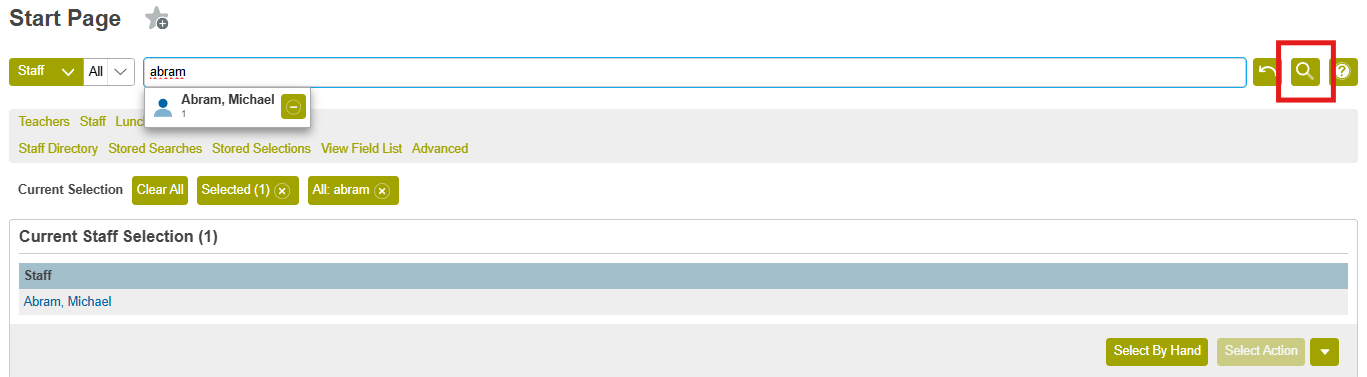
- Alternatively, type the staff member or teacher's name into the search bar then hit enter on your keyboard or use the magnifying glass icon to pull them up.
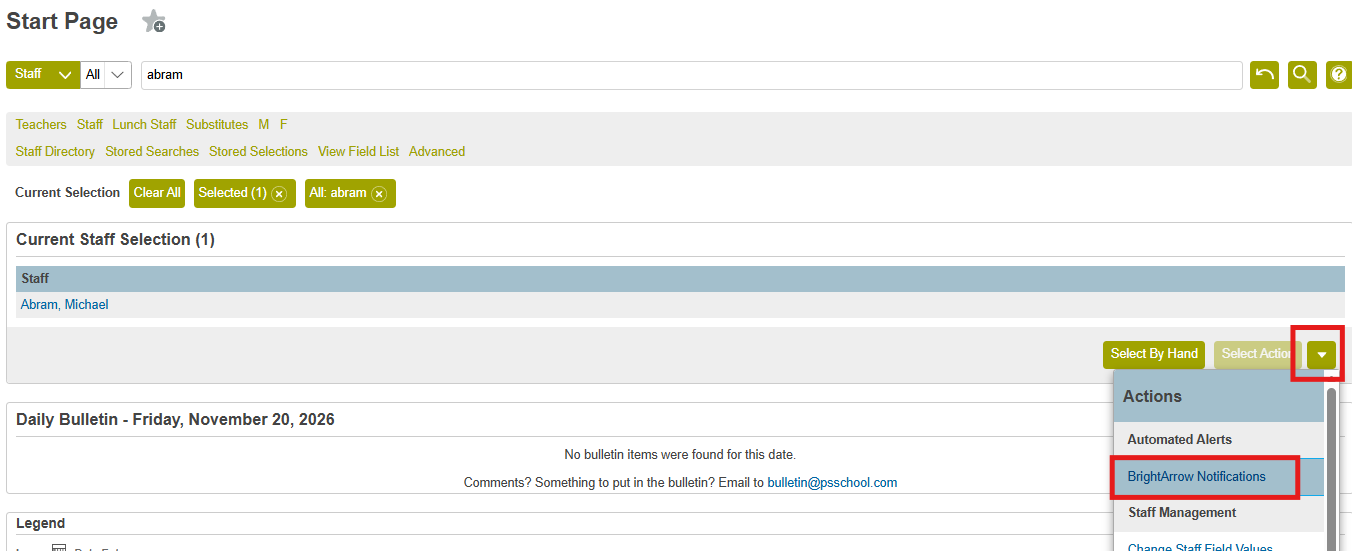
- Click on the Actions drop-down arrow over to the right of your screen, then choose BrightArrow Notifications from the Automated Alerts section.
- The BrightArrow Create Message screen will start loading immediately. Select your message types and begin creating your message. Once your message is created, preview, schedule, or send your message.
