Using Track to Control Automatic Messages
PowerSchool allows for exports to happen each week on specific days and times. However there isn't a great way to alter the schedule if you don't want to send something every Monday at 5pm or every weekday at 9:10am. What if you have a less constant schedule?
One alternative that was introduced in the October 2026 plugin update is using Tracks to control your exports. Tracks are already built into the calendar and available every day of the calendar. What's even better is there are 6 tracks and most schools don't use all 6 so at least 1 may be available for you to use for other purposes.
Should you use tracks?
Before you start using a track for setting up a schedule consider a few things:
- Are your needs daily or weekly? If so the natural export schedule works fine.
- Do your needs change times on different days? If so using tracks is not likely to help you with this. Scheduling multiple exports at different times is what you'll need here.
- Do you have any students assigned to the track already? If so you can't make a lot of changes without changing the days the student is supposed to be in class. If the student's track schedule already matches your needs then you can use the track but if not then you'll need to try a different track or not use any track for this purpose.
Where can I use tracks to schedule?
Using tracks to control when data is sent is only available in the following exports:
- BrightArrow Grading - Search by Store Code - from Filter
- BrightArrow Grade Diary
For all others data will be sent each day that an export is scheduled.
What happens when an export is scheduled and the track is off?
If you've chosen to have the exports obey a track you can schedule the export out of DEM to happen every day. However the export will not include any data if the track you told it to follow is off that day. An empty file will be sent and so an empty file will be imported by BrightArrow so nothing will go out.
The export on a day the track is turned on will include any data that matches the other requirements for that date. The file transferred to BrightArrow will have data which will then be imported and if set up to automatically send then they will send on those dates.
How to decide which track to use?
The first thing to do is to find out which tracks are already in use.
- On the PowerSchool home page search for students who have track assigned ("Track # " ). If no students are returned then all tracks (A, B, C, D, E, F) are available as no student is assigned. However if any students are returned then at least 1 track is being used by at least 1 student.
- (If the above step returns no students skip this step)
You may still have a track available that is not in use so the next step is to find out which tracks are in use. One at a time search for students assigned to each track. In the PowerSchool home screen search for- Track = A
- Track = B
- Track = C
- Track = D
- Track = E
- Track = F
- If a track has 0 students assigned that would be preferred over one with students assigned to give you the most control
The next thing to consider is are there any other reasons a track might already be in use so you can't change it's settings. If some other process also uses tracks even when they are not assigned to a student then take that into consideration.
I've picked my track, what do I need to do to set it up?
Once you've determined a track is the best option for your needs and you've found one suitable to use without other consequences then it's time to configure it to your schedule.
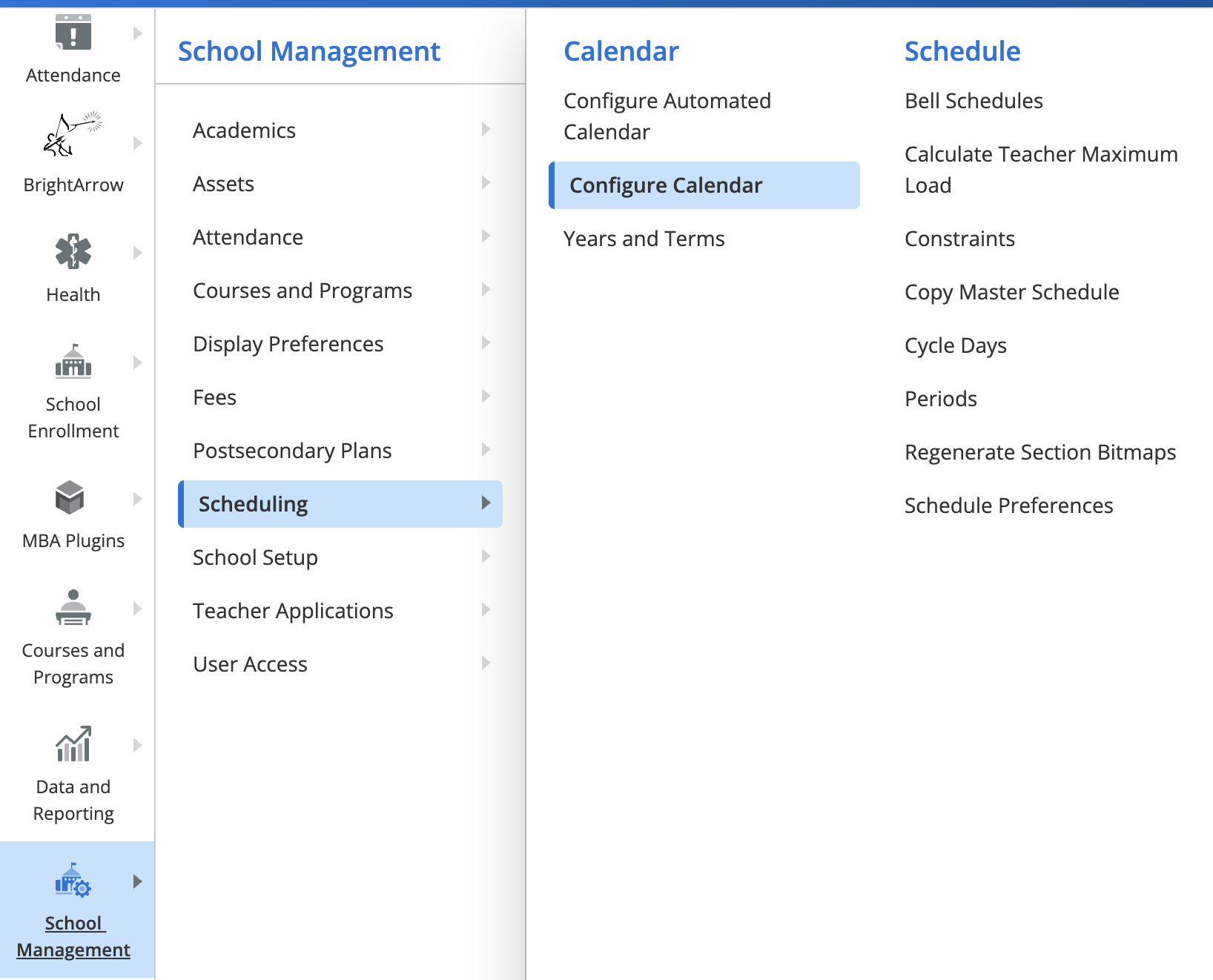
- In the school in question navigate to School Management > Scheduling > Configure Calendar
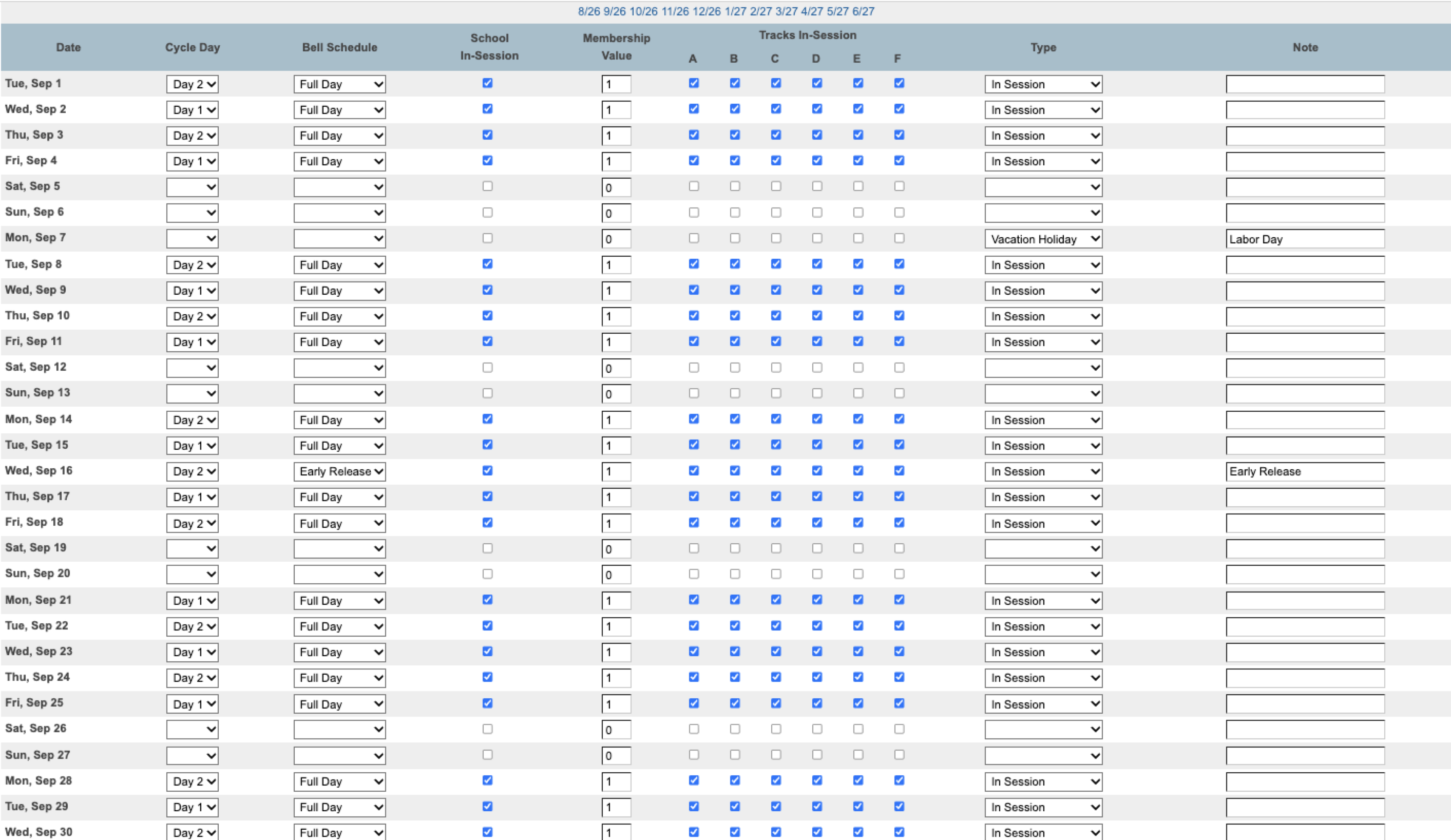
- For each month you will see a list of days, if the day is in session, notes, and a list of tracks represented by checkboxes. If the calendar has already been set up for the year it's likely to have all of the tracks filled in on in session days which would look something like this:
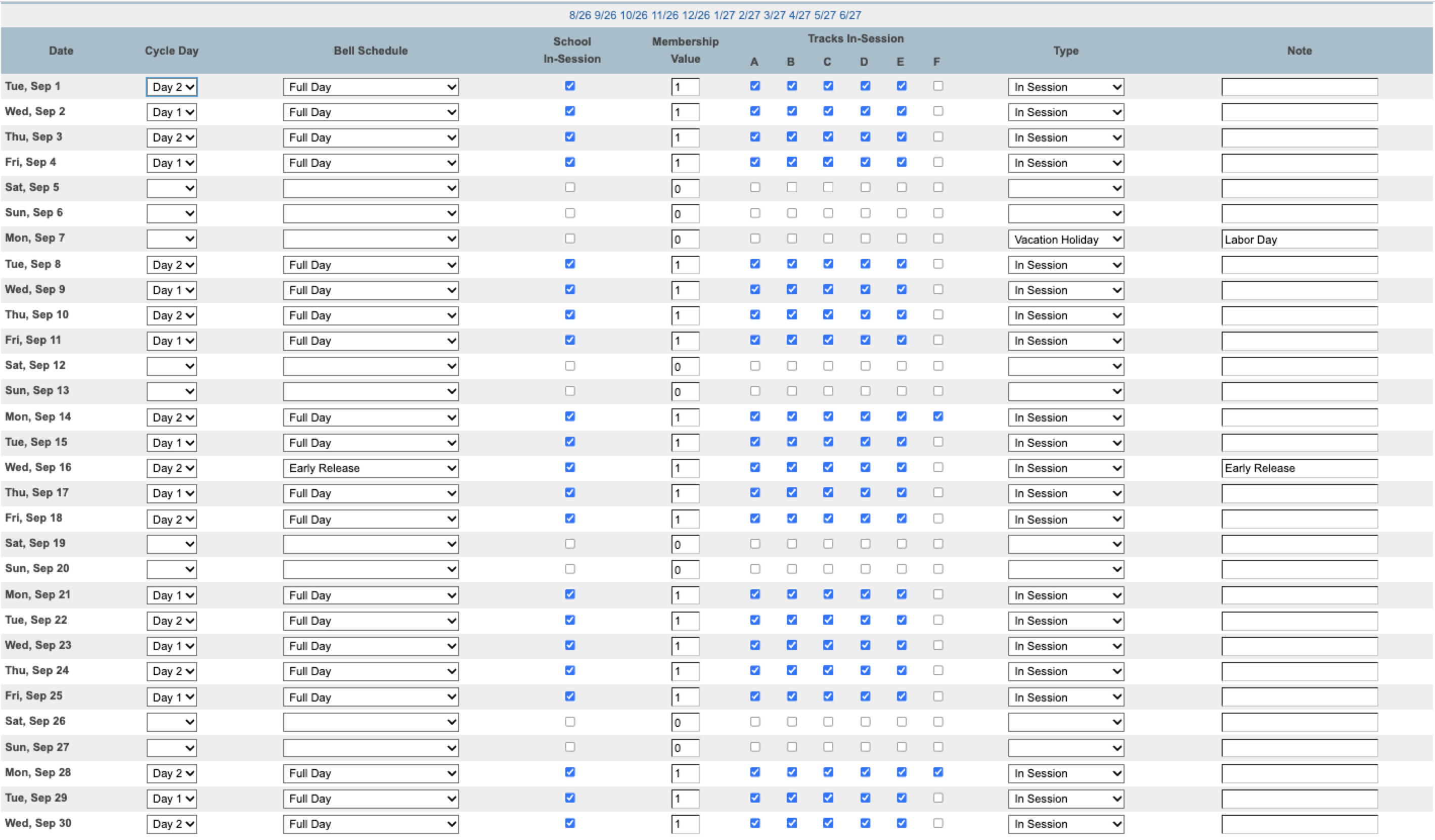
- For the track you are using uncheck all of the boxes where you do NOT want PowerSchool to trigger an automated message for whatever purpose you are using that track. For example if you are doing a low grade export and if it's available perhaps you use the F track for the days you'd like to send low grade reminders. Uncheck the F boxes for all the days you don't want to send a low grade reminder and leave the F box enabled on the days you do want to send the reminder. The result would be something like this:
- Submit
- Repeat step 3 for each month
After the calendar is set up then it's time to tell the BrightArrow exports to only send data when the track says to.
- Navigate to System > Data > BrightArrow Settings
- Click on the Filters link for the appropriate school/district.
- If using the same track for all schools set it using the Filters link in the District row. You'll need to be in District Office to make that happen
- If it may change per school then use the Filters link for the specific school which can be done from that school's page
- The filter slide in page should now show. Click on the Lookup Rules tab
- Click on the tab for the topic you want such as Grading
- Expand the section you want such as Low Grade Reminder Settings
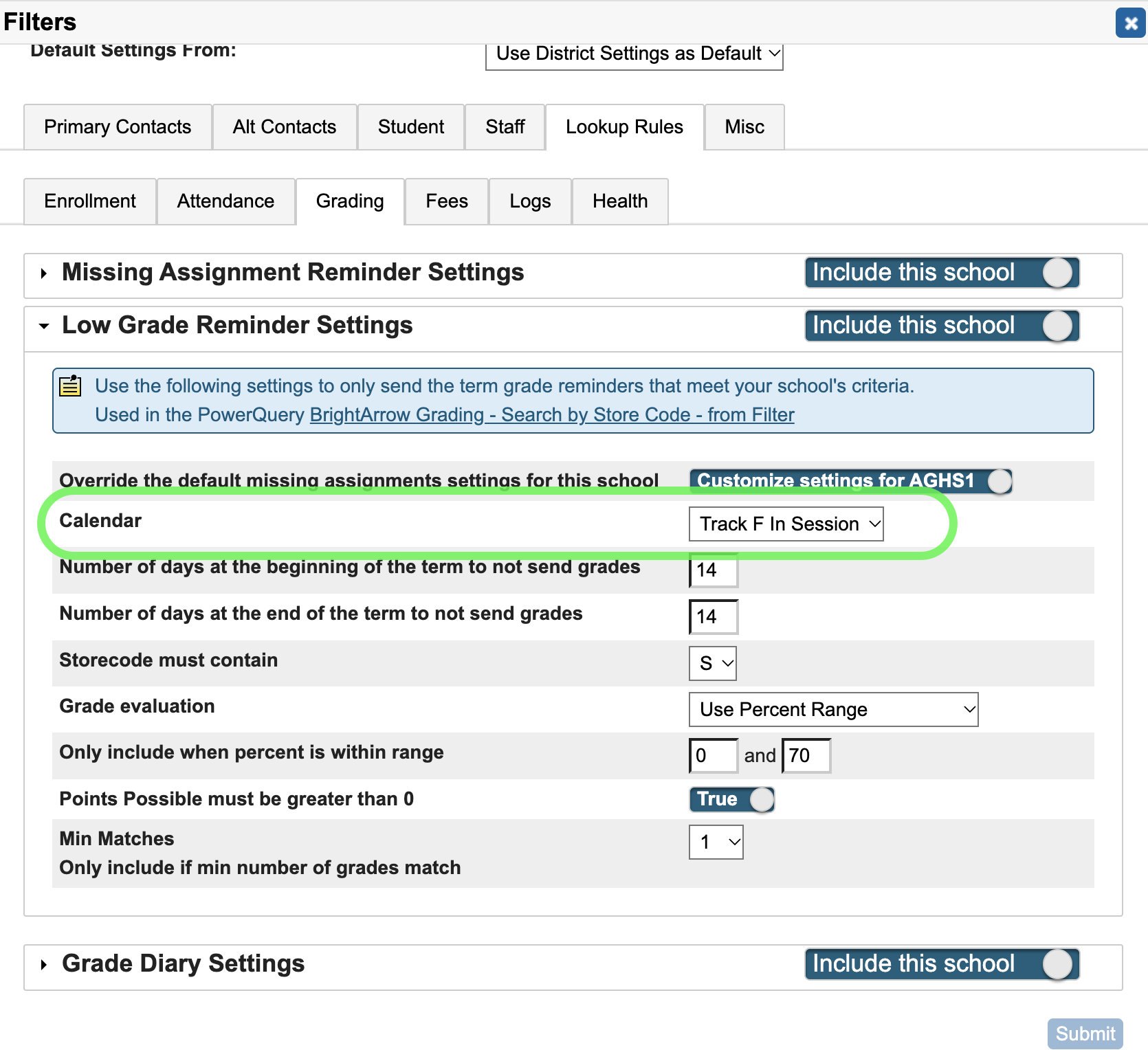
- In the Calendar row select the track you wish to use
- Submit your changes
