Excluding One Student from Exports
In some cases, you may want to stop sending messages such as attendance, multi-day attendance, lunch balance alerts, or grade alerts to a specific student due to their particular circumstances. Maybe the student's family has already been in contact with the school about an on-going health issue and therefore the family doesn't need to receive regularly scheduled attendance messages. Or maybe the student's family has worked out a plan with the school to pay off a lunch balance owed and school staff would prefer to stop sending lunch balance alerts for just that particular student.
If you have one student who needs to be excluded from a particular type of export, you can make that change from inside the student record. This method works for excluding the student from any type of export.
- In PowerSchool, navigate to the student's record
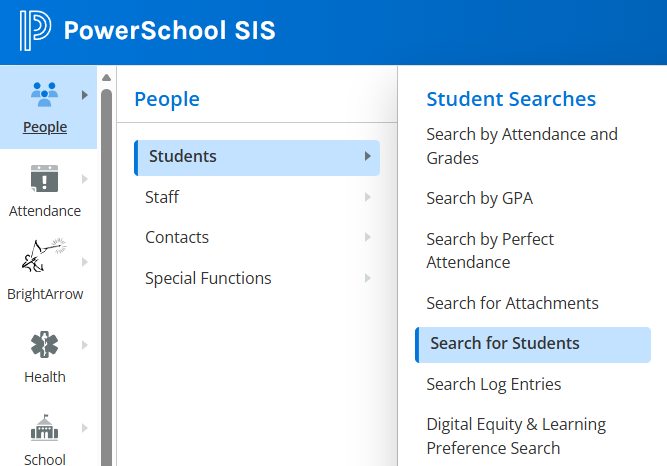
- In your navigation panel, go to People > Students > Search for Students
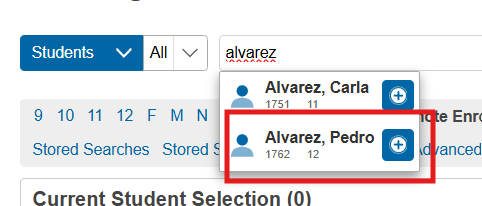
- Type the student's name into the search bar and click on the record that comes up
- In your navigation panel, go to People > Students > Search for Students
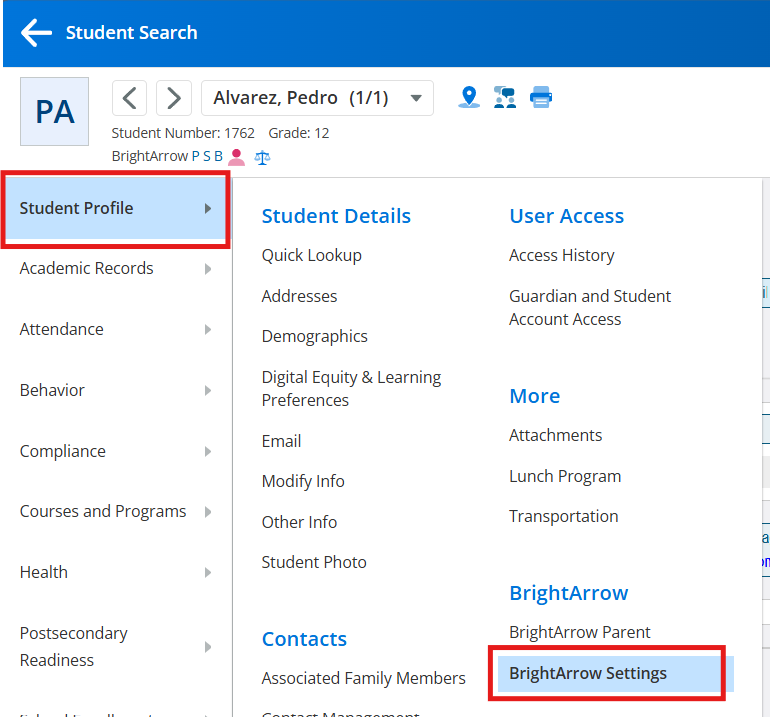
- Navigate to Student Profile > BrightArrow Settings
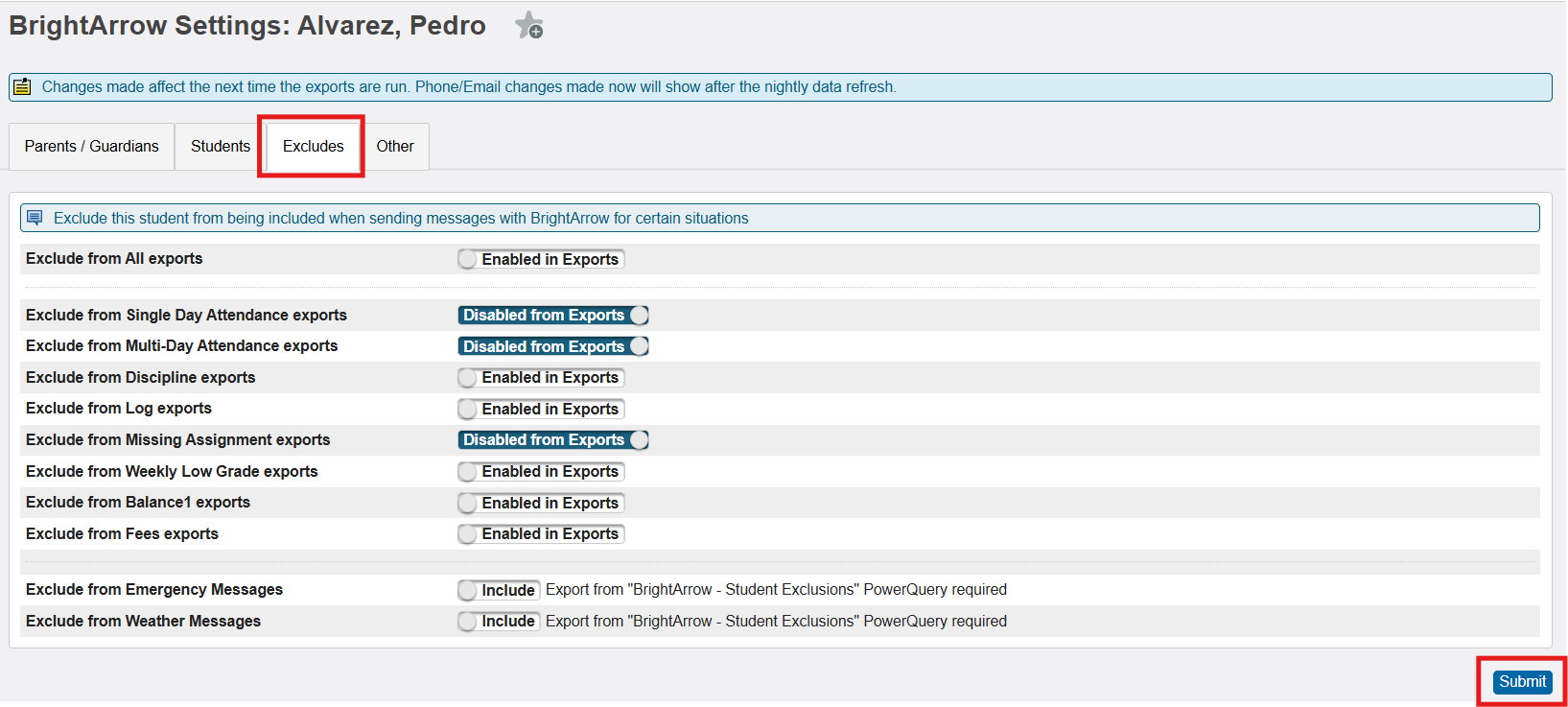
- Click on the Excludes tab
- Exclude the student from whatever type of export you need using the respective toggle
- Click Submit to save your changes
BrightArrow's PowerQueries will obey the setting so you can do that with as many or as few as you need and there's no need to do anything special in the export. It also makes it very quick to undo if the time comes where you don't want to exclude them anymore.