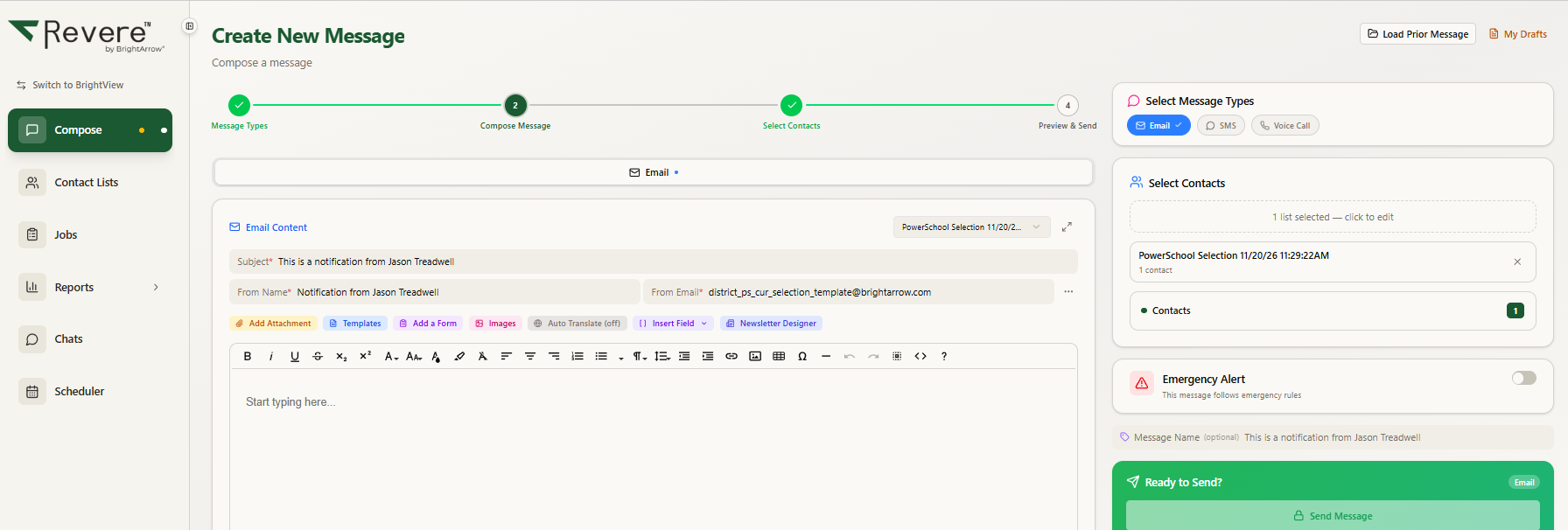
Selecting Staff Members to Message
Through the BrightArrow-PowerSchool integration, administrators have the option to send messages to staff directly through the BrightArrow interface or by selecting staff members in PowerSchool to send the message. This article shows how to make a current selection of staff members in PowerSchool to send them a message.
Note a BrightArrow staff list must be set up for your school to use this function.
Selecting staff members for messaging
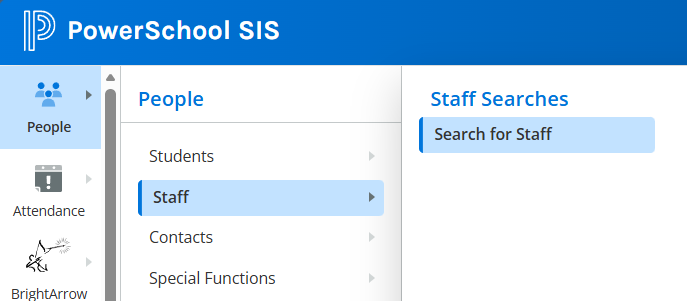
- In PowerSchool, navigate to People > Staff > Search for Staff.
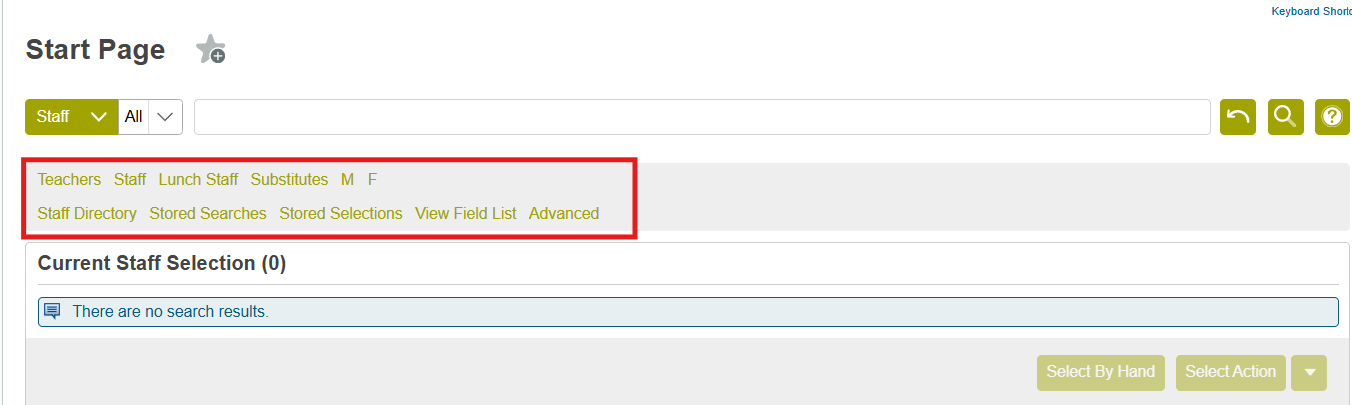
- If you need to search for a staff member, use the quick filter options to help locate them. Here you can also use the advanced options and store selections to use again in the future.
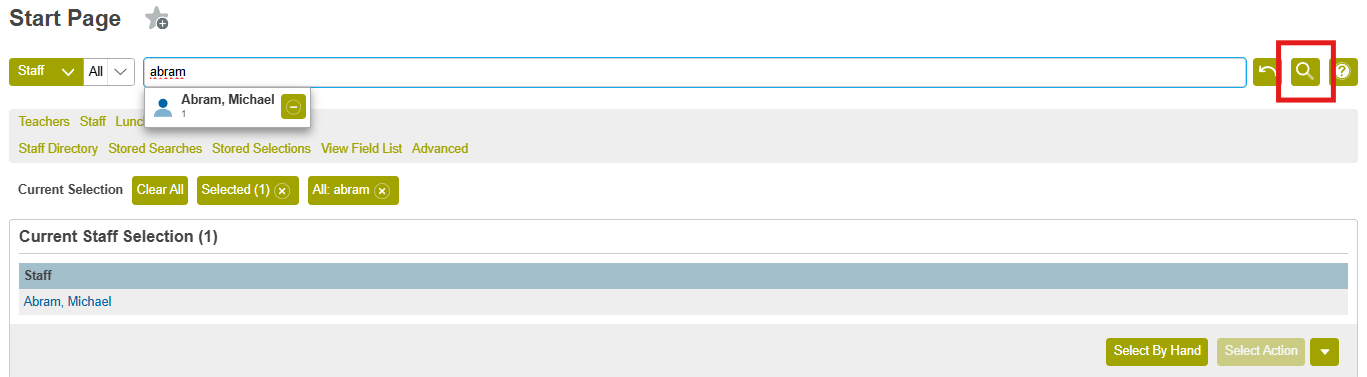
- Alternatively, type the staff member or teacher's name into the search bar then hit enter on your keyboard or use the magnifying glass icon to pull them up.
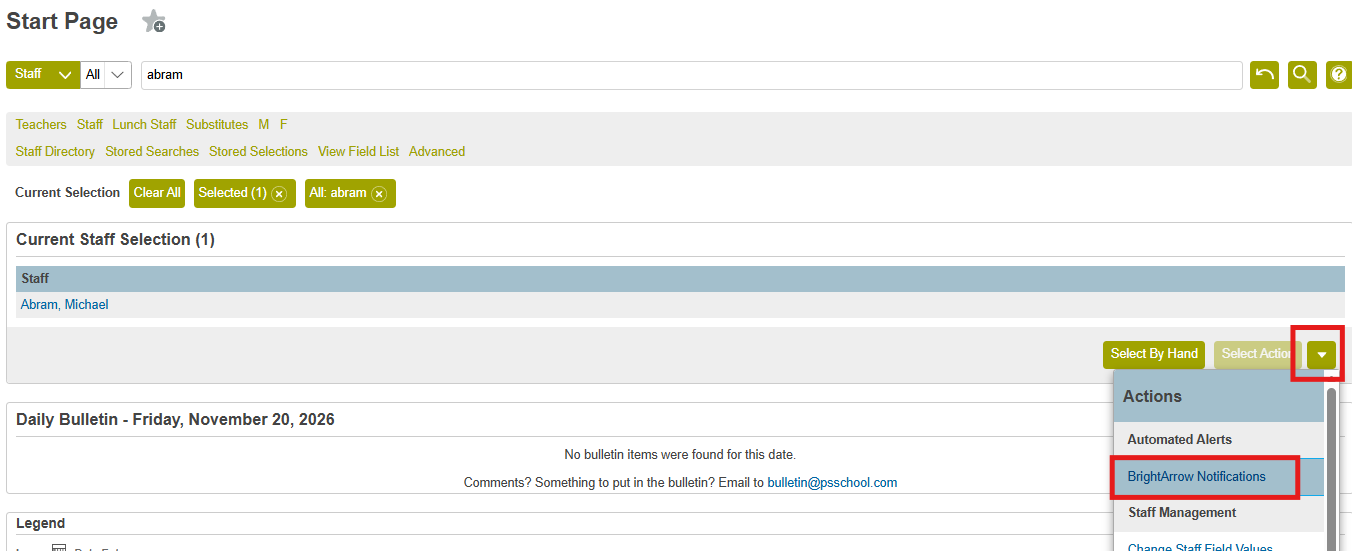
- Click on the Actions drop-down arrow over to the right of your screen, then choose BrightArrow Notifications from the Automated Alerts section.
- The BrightArrow Create Message screen will start loading immediately. Select your message types and begin creating your message. Once your message is created, preview, schedule, or send your message.