Sharing the Primary Administrator (SuperAdmin) Account
When BrightArrow is set up for your organization, login credentials are provided to access the primary "superadmin" account. The superadmin account has the highest level of permissions, with access to all Reports, Lists, Logs, and User Accounts.
Only superadmins for your organization that can create, edit, and delete other user accounts and groups/folders. Through the User Accounts section in BrightView or the User Management settings in Revere, the superadmin can designate which users will have access to the lists or folders. But what if the superadmin wants to share the responsibility of user account management with another staff member?
Previously, only one login could have this responsibility. As of 2026, the acting superadmin can now enable multiple users within your organization to share the responsibility of creating, managing, and deleting user accounts. Please note: We are continuing to restructure the User Management section but at this time you will only be able to grant superadmin permissions to an individual user. If the user is already set up as an alternate login to a group, you will not be able to make them a superadmin on your own. If the user needing superadmin permissions is an alternate user login, please reach out to our support team for assistance.
Can I just add an alternate user to the primary group?
Adding a user as an alternate user login to the primary group will not add all the same permissions to the alternate user as what the SuperAdmin has. The alternate user will have access to all lists, reports, and logs like the SuperAdmin has, but they will not have access to the User Accounts to be able to add, edit, or delete new users from BrightArrow. Please note: We are continuing to restructure the User Management section, and creating new Alternate User Logins is no longer recommended. Please create all new users as an "Individual User" then share the group account with them. This will make for user management easier for you in the long run should you ever need to search for that user account or adjust their permissions.
I access BrightArrow through my SIS, so can I change my login to get to the superadmin account?
If you already have access to BrightArrow through a single-sign-on in your student information system, you cannot access the superadmin account through your SIS if it's not your regular user account.
If that's the case, you can login with your superadmin credentials through our target website instead. Enter https:\\target.brightarrow.com in your browser and login with the superadmin credentials you were provided with.
How to give an individual user superadmin permissions
If you need to give an Individual User superadmin permissions, follow the steps below. If the Individual User has not been created yet, you will need to create their user account first. See here for more help creating the user.
- Login as the existing superadmin.
- If you're in the BrightView interface, click the User Accounts button located on your BrightArrow home page. If you're in the Revere interface, click on Settings in your navigation panel, then click User Management.
- Find the user you need to give superadmin access to. If the user is already set up as an individual user you can proceed to the next step. If the user is already set up as an alternate user login to a group, please contact our support for help.
- Click the edit pencil in the same row as the user you need to give permissions to.
- Scroll down to find the "User and Group Access" section. There are three options. To grant superadmin permissions, you will want to give the user the first option, "System Administrator for all groups and users."
Option 1. System Administrator for all groups and users: Use this option to give the user full superadmin permissions.
Example: A high-level administrator at your organization needs to have access to all information in BrightArrow, including the ability to manage user accounts.
Option 2. Access to all groups and users: Use this option to give the user access to all user folders, lists, and message summary reports. The user will have access to all lists for your organization but they will not have access to manage user accounts.
Example: A high-level administrator at your organization needs to have access to all lists and reports of messages sent by anyone in the organization, but they should not be able to see another user's login credentials or create new users.
Option 3. Access to specific groups and users: Use this option to share lists between specific users.
Example: A secretary at a specific campus or department in your organization needs to see lists and message summary reports sent by other secretaries working in the same campus/department, but they should not see lists or reports sent by other campuses/departments. Here you could share the user group for their campus/department with them. That way they could share lists with other employees who have a similar position in that building without giving them full access to lists they shouldn't see. - Once you've marked the radio dial for "System Administrator for all groups and users" within the user's account, save your changes. In BrightView, the "Apply" button will save your changes. In Revere, the "Save Changes" button will save your changes.
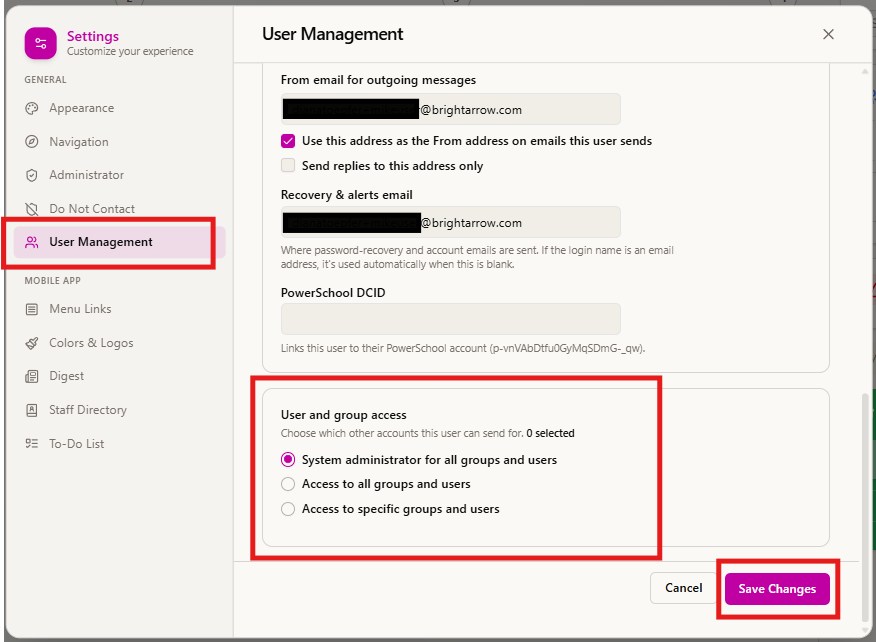 Shown above: Revere's user management section from the settings panel, focusing on the "User and group access" section with the system administrator setting to grant users superadmin access selected.
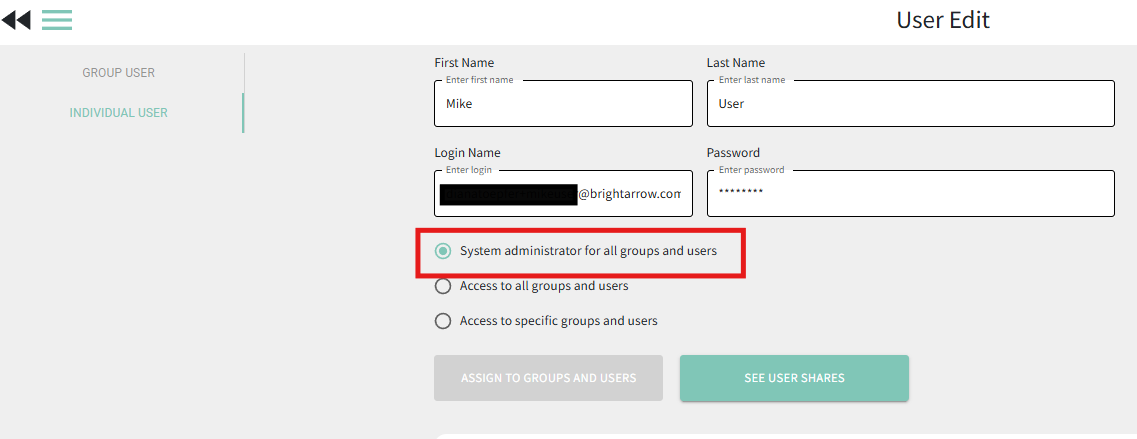
Shown above: BrightView's user Accounts section, focusing on the system administrator setting to grant users superadmin access.
- The user will now have access to the User Accounts / User Management section when they login.
 Shown above: Revere's user management section from the settings panel, focusing on the "User and group access" section with the system administrator setting to grant users superadmin access selected.
