How to Email a Newsletter that you Created in Smore
If you're using a Smore account to create newsletters, you can share the newsletter(s) with your contacts through BrightArrow by following the steps below.
- In Smore, create your newsletter and click the "Publish" button when finished.
- Click the "Share with Email" button and send the newsletter to yourself.
- Enter your own email address in the "To" box, then click "Send email now" to send an email of the newsletter to yourself. Due to some restrictions in Microsoft Outlook, we recommend that you use a different email provider to complete the steps below.
- Open the email that you just sent to yourself.
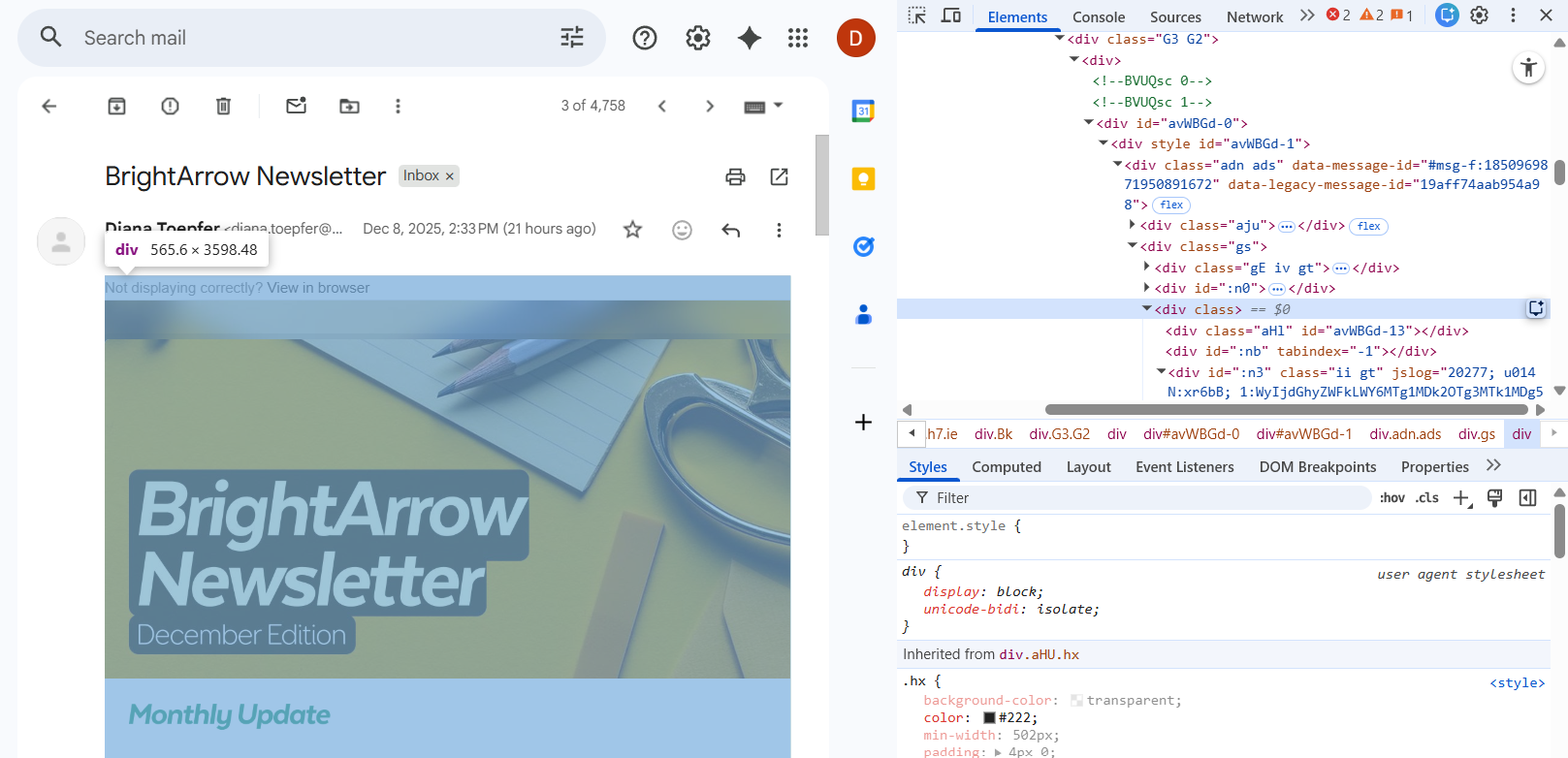
- The next step is to "inspect" the email so that you can view the HTML code. Right-click on the email and choose "Inspect" from the list of options.
- If you are using Safari, you may first need to enable the "Inspect Element" option in the advanced settings under Safari's preferences.
- Outlook does not allow you to right-click>inspect. If you have access to a different email provider, we recommend using that for this task. If you only have access to Outlook, click on the 3 dots in the upper right of the email window. Then, click Save As > Save As EML. You will then need to open the EML file in Notepad or another software that allows you to view and edit the HTML to proceed.
- You now need to remove some of the HTML code before pasting it into your BrightArrow message. Otherwise, your newsletter will show all the code associated with the email you sent yourself, like the to and from address, email subject, etc.
- In Gmail or any other email provider that allows you to right-click and "inspect," in the window scroll down through the HTML elements until you get to the LOWEST <div> line that highlights all of the newsletter and none of the other information that's specific to your email like the to or from address.
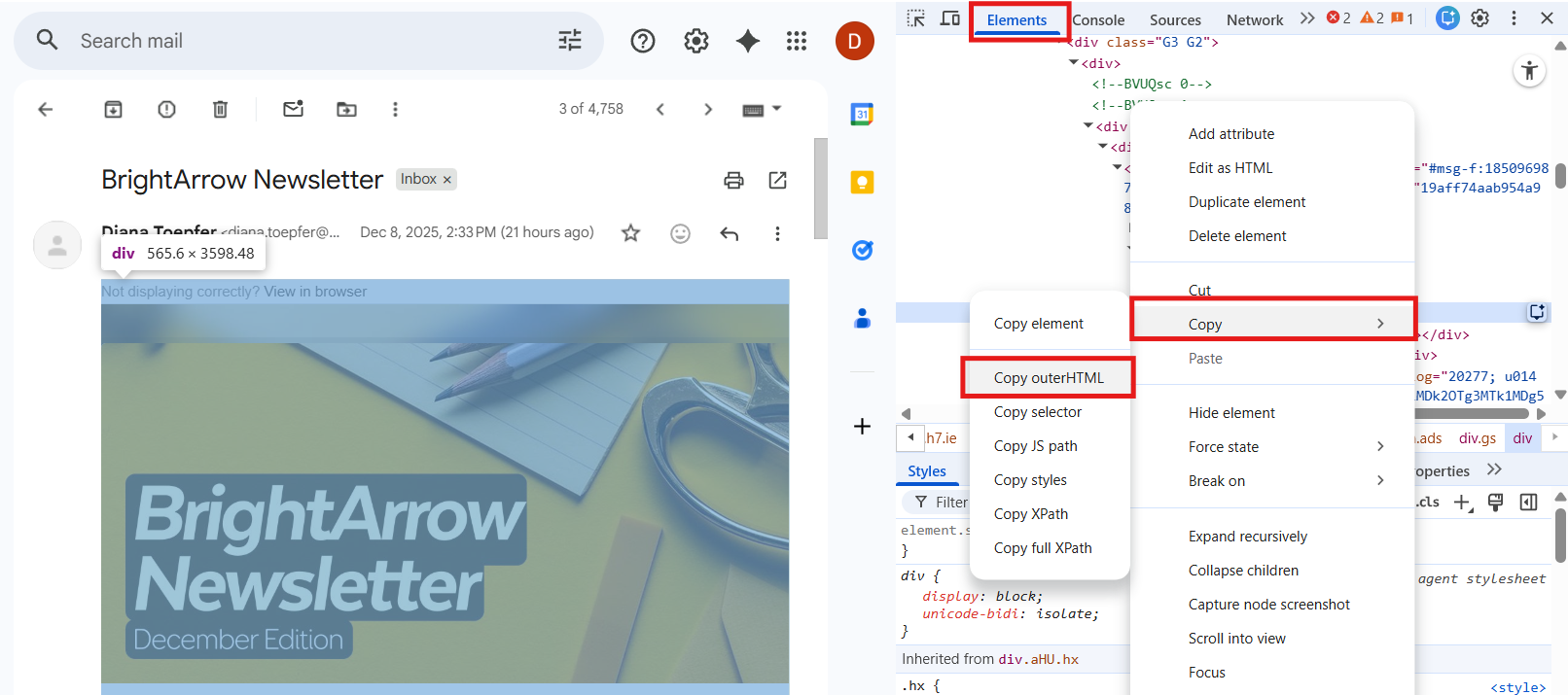
- With that <div> line highlighted, right-click on it then select Copy > Copy outerHTML
- With the newsletter now copied to your clipboard, open BrightArrow. You're going to paste the HTML into a new BrightArrow message.
- In BrightArrow, navigate to your My Lists page and click on the name of the list you want to send the newsletter to.
- Click Create Message.
- Select "Email" as the message type and name your message if you wish.
- Naming the message is optional but highly recommended to make the message easier to find in your Reports page.
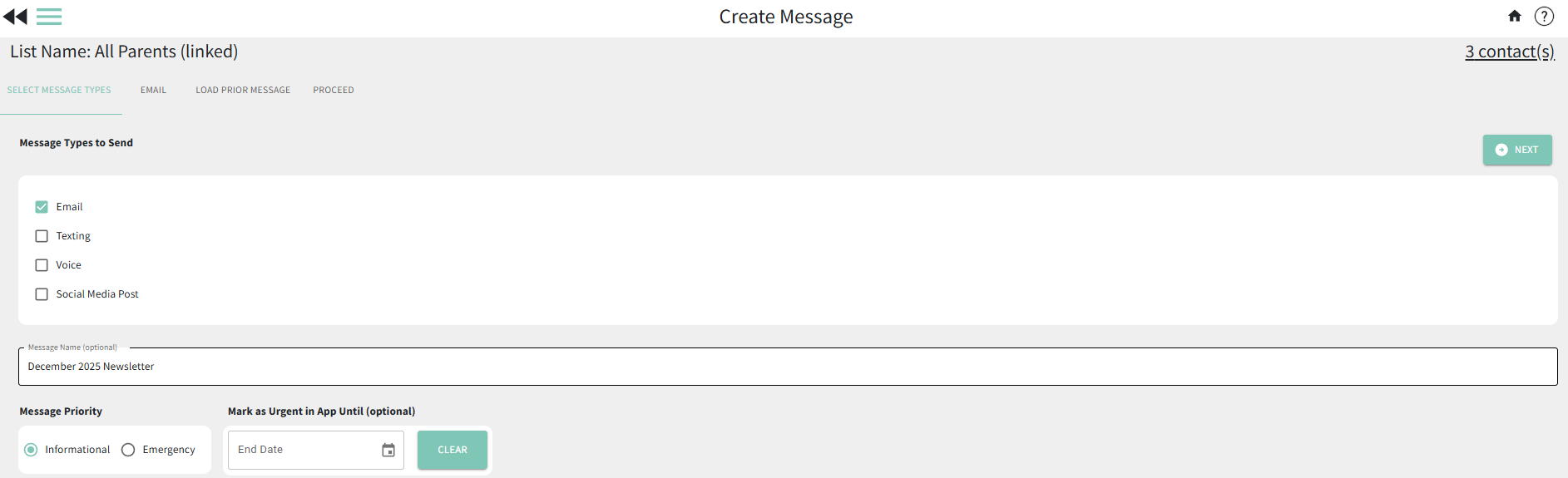
- Click "Next" to start creating your email message.
- Adjust the "from name" and subject line as needed.
- Toggle ON "Paste Newsletter HTML."
- In the email body, paste the HTML that you copied from the newsletter email you sent yourself.
- You can scroll down on the email creation page to see the preview of what your pasted newsletter will look like.
- Click "Next" to proceed to the message sending page.
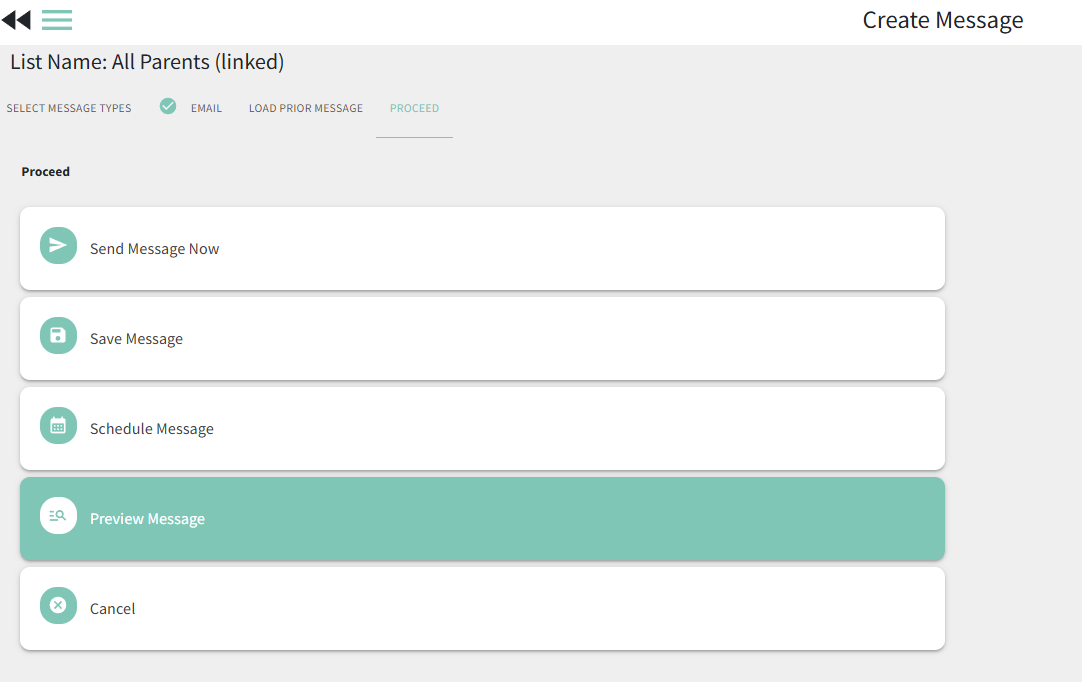
- Here you can send the message now, save the message for later, schedule the message to send at a future date/time, or preview the message.
- We highly recommend that you send the message Preview to yourself to make sure it will look the way you want it to when you send it to your contacts.
- Remember that some email providers (like Outlook) are defaulted to not show images. You may need to click "Show Blocked Content" to see the images properly in your email.