Scheduling Meetings through the In-App Scheduler
If your organization has enabled BrightArrow's meeting Scheduler feature, you can use the ParentHub or BrightHub app to schedule meetings with your constituents. The meeting Scheduler is available in the web version of BrightArrow as well.
Creating the meeting invite
- Login to the ParentHub or BrightHub app.
- Navigate to the Menu tab.
- Tap Scheduler.
- Click the clock icon to start creating a meeting.
- In the "Appointment Type" box, give your meeting a title. Your recipients will see this when the open the link to schedule the meeting.
- Enter a meeting location and any additional notes. Your recipients will see this when the open the link to schedule the meeting.
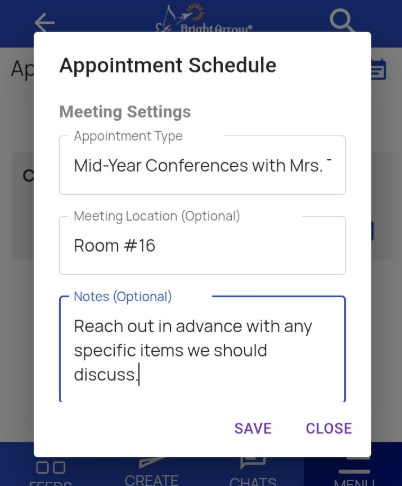
- Enter a Meeting Duration. This is how long each individual meeting will last.
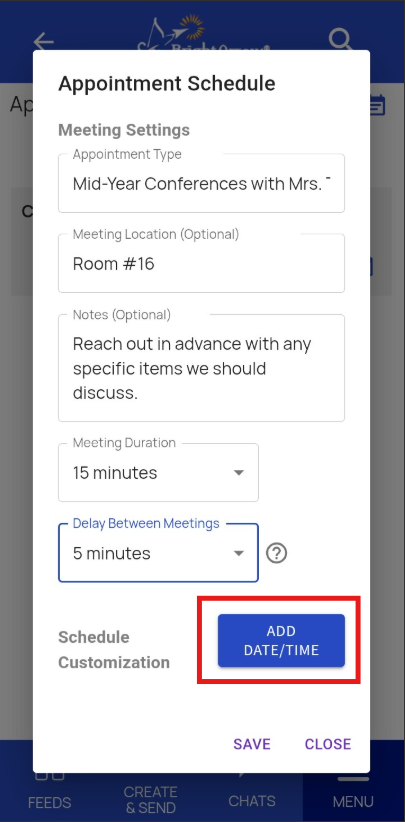
- If you're sending invites to schedule multiple meetings, you can add a Delay Between Meetings. This is the amount of "down time" you'll have in between each individual meeting. Selecting 0 minutes means that your meetings can be scheduled back-to-back.
- Choose a date (or dates) for your meeting by clicking the "Add Date/Time" button at the bottom of the screen.
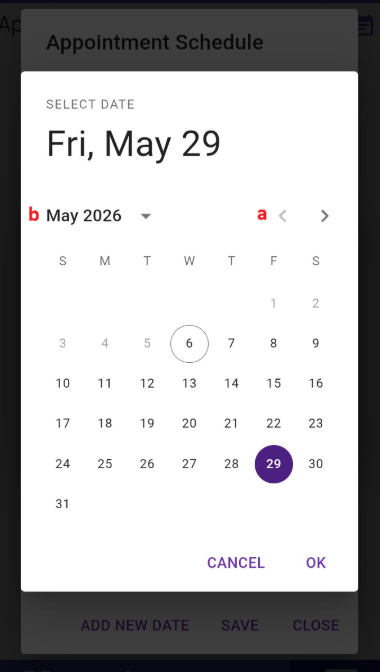
- The current date will populate in the Start Date box. Tap inside the box to change it.
- Tap on the day the meeting(s) will take place, then click OK.
- Tap on the arrows in the upper-right to move to the next month.
- Tap on the [Month, Year] once to schedule your meeting in a different year. Tap on it twice to quickly choose a different month.
- With your date selected, click OK, then click Confirm. If your meeting schedule spans multiple days, you will be able to add additional date(s) as well (see step #13-e).
- You can now block out the time(s) for your meetings to take place. With your date now selected, you will see Start and End times appear on your screen. Tap inside the Start or End block respectively to change the time.
Example: You are inviting recipients to schedule 15-minute long meetings with you, but all those meetings need to take place between 3:00pm and 7:00pm. Here you will block out the 3:00-7:00 time slot and each individual recipient will schedule a 15-minute meeting within that 4 hour block of time.
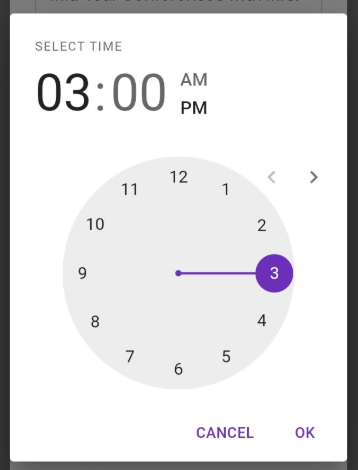
- Tapping inside either the Start or End box will open up the Select Time window for you to choose the time block. Tap on hours or minutes, then use the clock to choose the time. Remember to tap either AM or PM to indicate a morning or afternoon time as well.
- If you are scheduling only one meeting, use the start and end time boxes to enter the exact time for that meeting.
- If you are sending invites to schedule multiple meetings in one day, use the start and end time boxes to block out the entire time that you will be available for appointments.
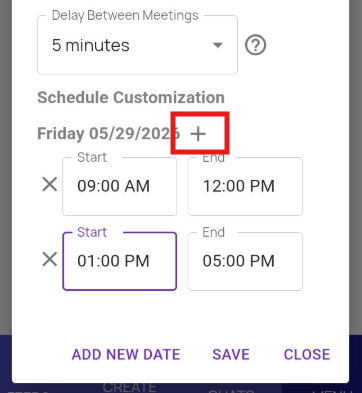
- Use the + icon to add an additional time block for that day's meetings.
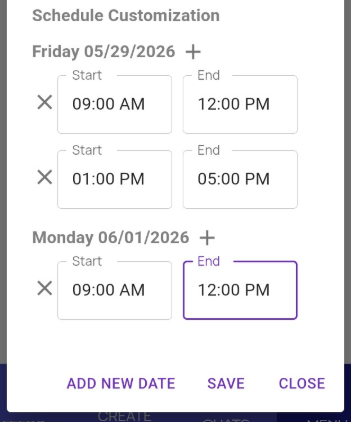
Example: You are inviting recipients to schedule 15-minute long meetings with you. Meetings can be scheduled any time throughout your work day but you need a 1 hour break for lunch between 12:00pm and 1:00pm. Create the first time block for your morning meetings before your lunch break, then use the + icon to add an additional block of time from 1:00pm to 5:00pm. This way, meetings cannot be scheduled during your lunch hour. - If you need to add timeslots for an additional date to the meeting, tap the Add New Date button again to add subsequent days and times.
Example: You are inviting recipients to schedule 15-minute long meetings with you for a mid-year conference. You can host these meetings on May 29th at any time except for your lunch break, and you are also available for the meetings during the morning of June 1st.
With your first date and time blocks added, click Add New Date again and choose the second date that you are available to host the meeting(s).
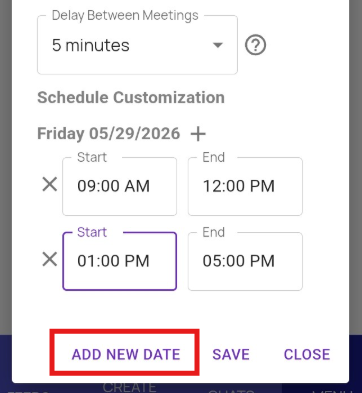
Repeat steps #9-13 as detailed above to add your time block(s) to the second date. Repeat those steps until all dates and time blocks for your meeting are entered.
- With all meeting details now added, tap Save in the bottom of the window. Note: Tapping Close will delete your meeting. You will not be able to pull it back up to work on it more later. Be sure to tap SAVE if you want to save any changes (you can always edit it later before sending).


Sending the meeting invite
Once you have created and saved the appointment schedule, you can now send it to your contacts.
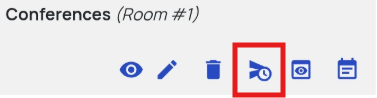
- With your appointment schedule already created, tap the icon that looks like a send arrow with a clock on it, or navigate to the Create & Send tab in the app.
- Mark the checkbox(es) next to the contact list(s) you want to send the invitation to.
- If you used the send icon directly from the Scheduler tab, once your lists are selected you can simply tap the green circled arrow in the lower right of the screen to proceed to the next step, and skip step #5 below. If you did not click the icon in the Scheduler tab and instead went to the Create & Send tab, tap "Select an Action" in the upper left and choose Schedule Appointments from the Actions drop-down menu.
- Confirm that you have the correct list(s) to send your meeting invitations to. Click Confirm.
- Find the appointment schedule you with to send to your contacts. Click the Send arrow icon to proceed.
- The message creator screen will open for you to create the email message to send your meeting invitation to. Meeting invitations can be sent by email. Use the Next button to view and edit the email message.
**Meeting invitations can be sent via Text message ONLY if your organization uses BrightArrow's short code (#79041) for sending text messages. This encompasses most customers located in the continental United States. If you are not sure if text messages from your organization are sent through the number 79041, please contact us. - A standard message has been pre-populated for you, but you can edit it however you wish with the exception of changing the actual link. Once you have the message to your liking, click Next.
- Send, save, schedule, or preview your message using the options on the screen.


How to preview the meeting before sending it
If you'd like to see what the meeting invitation will look like for your recipients, you can preview it before you actually send it out.
- In ParentHub/BrightHub > Scheduler, find the meeting you want to preview.
- Click the icon that looks like a square with an eye in it.
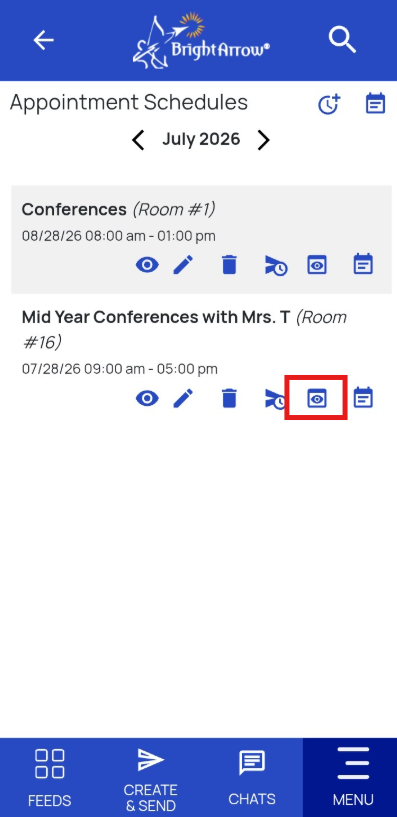
- You will see exactly what your recipients will see. Tap on a "date" to view the available time periods that can be scheduled.
- Tap the back arrow in the upper left to return to the previous page.

How to see who is scheduled to meet with you
In ParentHub or BrightHub, you can see who scheduled an appointment with you. You can view the appointments specifically for one meeting, or you can view all appointments that are scheduled with you across all meetings.
Viewing all appointments scheduled within a specific "meeting"
If you want to see everyone who scheduled an appointment with you in regard to a specific meeting invitation you sent, follow the instructions below.
Example: You created a meeting for "Conferences" and you want to see everyone who scheduled a timeslot to meet with you for the conferences. You also created a meeting for "Annual Reviews" but you don't want to see those scheduled appointments right now. You are only concerned about the "Conferences" right now.
- Login to the ParentHub or BrightHub app.
- Navigate to the Menu tab.
- Tap Scheduler.
- The Appointment Schedules page will open to the current month. You can use the Month/Year selection arrows at the top of the page to find a meeting that is scheduled in a different month. Find the meeting you wish to review.
- In the same section as the meeting you want to view, tap the icon that looks like a calendar.
- You will now see the Scheduled Appointments page that shows details for each timeslot that is scheduled for your meeting.
- To see any notes that you OR the person you're meeting with entered for the meeting, tap the icon that looks like a notepad.
- To cancel the specific appointment / timeslot, tap the icon that looks like a circle with an x in it.
- To send a reminder for your upcoming meeting, tap the icon that looks like an envelope. Note that you and the person you're meeting with will automatically be sent an email reminder 24 hours before your scheduled meeting time.


Viewing all appointments scheduled for all "meetings"
If you want to see everyone who has an appointment scheduled with you regardless of which meeting they signed up for, follow the instructions below.
Example: You created two meetings, "Conferences" and "Annual Reviews," and you want to see all scheduled appointments for both of them at the same time.
- Login to the ParentHub or BrightHub app.
- Navigate to the Menu tab.
- Tap Scheduler.
- The Appointment Schedules page will open. Tap the calendar icon that is located in the upper right of the screen, next to where it says "Appointment Schedules."
- All scheduled appointments for the current month will show. You can use the Month/Year selection arrows at the top of the page to find a meeting that is scheduled in a different month. Find the meeting you wish to review.
- To see any notes that you OR the person you're meeting with entered for an appointment, tap the icon that looks like a notepad.
- To cancel the specific appointment / timeslot, tap the icon that looks like a circle with an x in it.
- To send a reminder for your upcoming meeting, tap the icon that looks like an envelope. Note that you and the person you're meeting with will automatically be sent an email reminder 24 hours before your scheduled meeting time.


How to close down a meeting so no more appointments can be scheduled for that meeting
If you already sent out meeting invitations to your recipients but now are unable to host the meeting, you can close it. Any time slots that have already been scheduled will still need to be cancelled, but by closing the meeting you will stop anyone else from scheduling appointments for that meeting.
Example #1: You sent out a meeting invitation to your recipients, but afterward you realized that you had PTO that day and will have to host your meetings on a different day.
Example #2: You sent out a meeting invitation to 30 recipients thinking that you could host all 30 meetings in a single day. Now that you see 15 meetings on your calendar, you want to stop anyone else from being able to schedule on that day. You plan to create a second meeting date for the remaining 15 recipients to schedule.
- Login to the ParentHub or BrightHub app.
- Navigate to the Menu tab.
- Tap Scheduler.
- The Appointment Schedules page will open to the current month. You can use the Month/Year selection arrows at the top of the page to find a meeting that is scheduled in a different month. Find the meeting you wish to close.
- In the same section as the meeting you want to close, click the icon that looks like an eye.
- In the pop-up window, confirm that you would like to close the meeting by tapping OK.
- With the meeting now closed, your recipients will not be able to schedule an appointment within that "meeting."
- If you need to re-open the meeting to allow others to schedule, you can tap the eye icon again to re-open it.


How to cancel a meeting
If your recipients have already scheduled a meeting with you but you need to cancel it, you can cancel individual appointments through the app.
- Login to the ParentHub or BrightHub app.
- Navigate to the Menu tab.
- Tap Scheduler.
- The Appointment Schedules page will open to the current month. You can use the Month/Year selection arrows at the top of the page to find a meeting that is scheduled in a different month. Find the meeting that contains the appointment you wish to cancel.
- In the same section as the meeting you want to cancel, click the icon that looks like a calendar.
- Locate the specific appointment you want to cancel.
- Tap the icon that looks like a circle with an x in it.
- In the Appointment Cancellation window, enter a note to state why you are cancelling the appointment. Both you and the person who had scheduled the meeting with you will be able to view the note. Once your note is entered, tap "Cancel Appointment."
- In the app, the appointment will now show the status: Cancelled.
- An email will be sent to you and the other party to notify them of the cancelled appointment. The note you entered will be sent in that email.


Appointment reminders
By default, the meeting host and the attendee will each receive an automated reminder via email 24 hours before the scheduled appointment time. If you want to send an additional reminder to the person you're meeting with, you can do that too.
- Login to the ParentHub or BrightHub app.
- Navigate to the Menu tab.
- Tap Scheduler.
- The Appointment Schedules page will open to the current month. You can use the Month/Year selection arrows at the top of the page to find a meeting that is scheduled in a different month. Find the meeting that contains the appointment you wish to send a reminder for.
- In the same section as the meeting you want to send the reminder for, click the icon that looks like a calendar.
- Locate the specific appointment you want to send a reminder for.
- Tap the icon that looks like an envelope.
- A window will pop-up asking you to confirm that you'd like to send the appointment reminder. Tap OK.
- You'll see another pop-up window to let you know the reminder was sent. Tap OK again.
- Your recipient will receive the reminder in their email inbox.


