Using Mail Merge Fields with Current Selections
When you create BrightArrow messages in PowerTeacher, you can use mail merge fields to dynamically insert information in your message. Depending on your selection, different mail merge fields will be available to you to use.
When you use BrightArrow Search to send messages you will see the Mail Merge Fields section at the top of the screen.
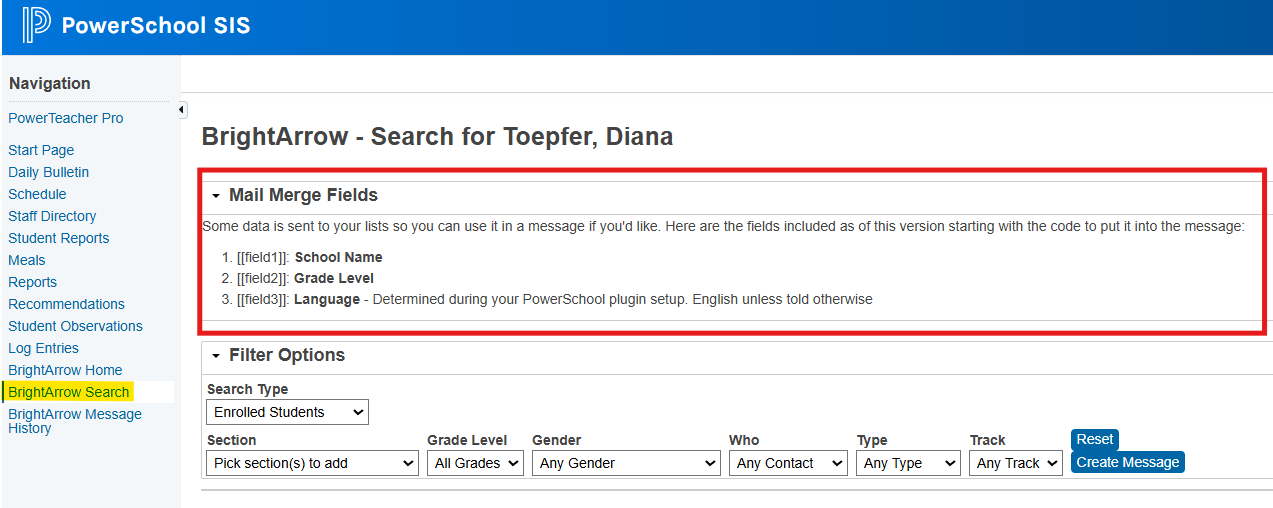
Mail Merge Fields for an "Enrolled Students" search type
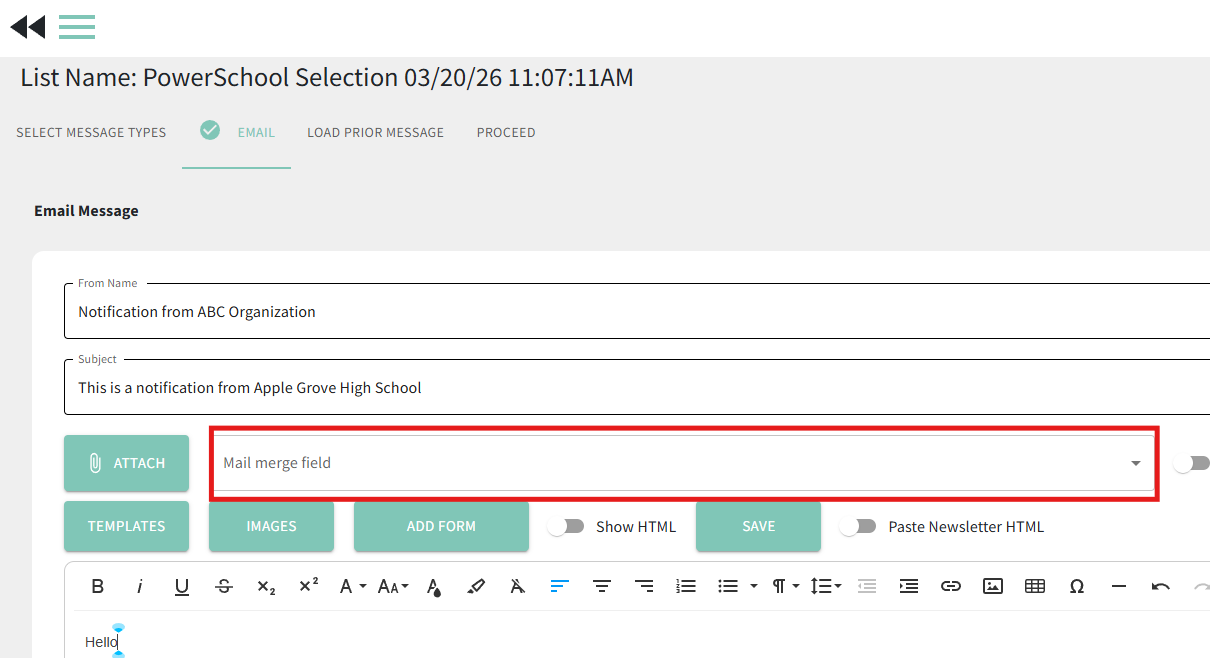
With the "Search Type" as "Enrolled Students" you will see 3 mail merge fields listed in the Mail Merge Fields section. When you are creating your message in BrightArrow, there is a Mail Merge Field drop-down that will allow you to select these 3 fields along with some other options as determined by your organization's administrators. If your Search Type in PowerSchool was set to Enrolled Students, you can use any of the mail merge fields in BrightArrow.
Simply select the mail merge field to add it into your BrightArrow message. The field will dynamically use the correct information for each respective recipient.
Mail Merge Fields for a "Final Grade" or "Missing Assignments" search type
With the "Search Type" as "Final Grade" or "Missing Assignments" you will see additional mail merge fields listed in the Mail Merge Fields section. These fields will change depending on the Search Type you chose. When using "Final Grade" or "Missing Assignments" as the search type, the fields shown in PowerSchool will override any fields shown in the BrightArrow create message screen's Mail Merge Field drop-down.
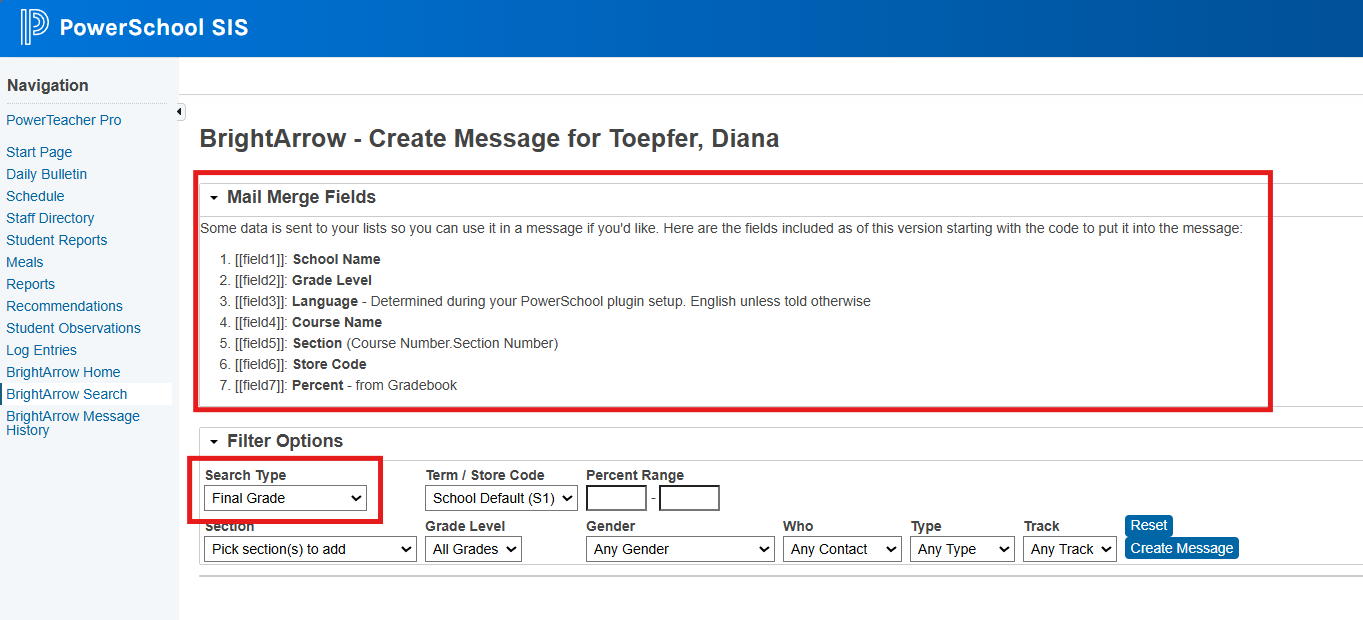
When using "Final Grade" or "Missing Assignments" as the search type, the fields you see in the BrightArrow create message screen will not apply. Only the fields listed in the PowerSchool > BrightArrow Search screen will be used. If the fields you see in the BrightArrow create message screen are different than the ones you see in the PowerSchool > BrightArrow Search screen, rely on the fields listed on the PowerSchool page when you send your message.