Saving and Using Drafted Messages in the Revere Message Center
Maybe you started creating a message but didn't have time to finish it, or maybe you want to get ahead during some downtime and start drafting messages that you know you or your colleagues will need to use in the future. With the My Drafts option in the Revere Message Center, you can easily save, share, and revisit drafted messages.
How to create a draft of a message
In the Revere Message Center, start crafting your message. When you're ready to save a draft of it, follow the steps below.
- With your message started, click the "My Drafts" button in the upper-right corner of the Revere Message Center
- The Message Drafts window will open. Click the button to "Save Current as Draft"
- In the "Draft Name" text box, give your draft a name that will make it easy to reference again later
- If you want other BrightArrow users to have access to the draft, use the "Who can see this draft" drop-down options to select users to share the draft with
- Only me (default): You will be the only person with access to the draft
- Admin created share group: If you are part of a BrightArrow user group (usually administrators), you can share the draft with everyone in your group
- Everyone system-wide: Shares the draft with all BrightArrow users in your entire organization
- Everyone in selected building: Gives you the option to choose a specific building to share the draft with
- Specific users: Gives you the option to enter email addresses for the specific users who you would like to share the draft with
- Once you've named and shared your draft, click "Save Draft" at the bottom of the window


How to load a message you saved as a draft
If you have a draft that you would now like to continue to work on or are ready to send the message out, you can load it to the message creator to proceed.
- In the Revere Message Creator, click the "My Drafts" button in the upper-right
- The "Message Drafts" window will open. If you have just a few drafted messages saved, you will see them in the window and can click the "load" button for the draft to load it into the message creator to continue working with it.
- If you have more draft messages saved than what shows in the window, you can use the search and sort options at the top of the window to narrow down your results.
- You can use the preview option (eyeball icon) to quickly review the draft if you're not sure if it's the right one.
- Once you've located your draft message, click the button to Load it as per the previous step.
- Your message is now loaded for you to continue to revise it or send it out to your contacts.


How to update your draft and re-save it
If you had previously created a draft message and now want to save new changes to it, you can overwrite an existing draft message easily. There are two different methods for doing this, depending on if you are starting the message from scratch or if you are saving changes to a draft you've already pulled up again to work on.
Method #1 - Open an existing draft to make updates to it
Use this method if you want to load a previously saved draft, make some changes to it, then re-save.
- In the Revere message creator, click the "My Drafts" button in the upper-right
- The "Message Drafts" window will open. Find the draft you would like to make edits to and click the "Load" button
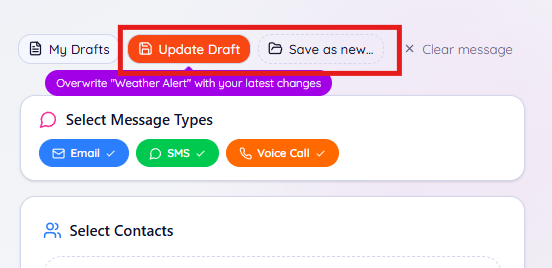
- Make your changes to the message content as needed, then use one of the buttons in the upper right corner of the screen to save the updated version of your draft
- Update Draft: Overwrites the draft message you loaded with the current content of the message
- Save as new draft: Save the current content of the message as a new draft. You'll keep the previous version of your draft and this new version too.

Method #2 - Craft a new message to save over the existing draft
If you crafted a new message and want to use it to overwrite an existing draft, use this method.
- In the Revere message creator, start creating your message
- Click the My Drafts button in the upper right
- Choose the draft message you wish to overwrite. You can use the "Search Drafts" search bar in the top of the window to locate the draft you want to replace. Once you've located the existing draft you want to save over top of, click the edit pencil for that draft.
- In the Edit Draft window, you will need to mark the checkbox to "Also overwrite message content". You can also make changes to the draft's name and/or who it is shared with.
- Draft Name: Change the name/title of the draft message
- Who can see this draft: Use the drop-down menu to see the options of who the draft should be shared with
- Also overwrite message content: Replaces the draft's content with whatever you have in the message creator
- At the bottom of the window, click "Save and Overwrite Content"


How to change who the draft is shared with
If you want to share your draft with co-workers, you can do that when you first create the draft or any time after.
- In the Revere Message Center, navigate to the Compose tab where you would create messages.
- Click the My Drafts button in the upper right
- Find your draft in the list. If you know the name of your draft message, you can use the search bar to look it up without having to scroll through all of your drafts.
- If you just wanted to see who the draft is currently being shared with, you can see that right away (highlighted in the screenshot below). To change who it's shared with, click the edit pencil.
- In the Edit Draft window, use the "Who can see this draft" drop-down options to select users to share the draft with
- Only me (default): You will be the only person with access to the draft
- Admin created share group: If you are part of a BrightArrow user group (usually administrators), you can share the draft with everyone in your group
- Everyone system-wide: Shares the draft with all BrightArrow users in your entire organization
- Everyone in selected building: Gives you the option to choose a specific building to share the draft with
- Specific users: Gives you the option to enter email addresses for the specific users who you would like to share the draft with
- Once you've made your selection, click Save Changes at the bottom of the window. The other people you selected will now have access to the draft.


