Email Headers
If you normally add the same "From Name" or "Subject" line to your messages when you're crafting emails in BrightArrow, you can set those as defaults instead of typing it out every time. Defaults can be set up for any specific list. BrightArrow support can also set email header defaults for the entire organization, specific buildings, or even specific users if your organization's administrators request it. After a default is set up, it can still be manually overwritten when you're creating the email message if needed.
Example #1: You are a teacher and you want to make sure your students and parents don't overlook an email you send because they think it's going to be something generic that the district sent out. So every time you create an email, you are typing in your name as the "From Name." For this scenario, you'll either go to the list settings for each of your lists to add your name as the default "from name" or you can ask your BrightArrow administrator to request the change with our support team.
Example #2: You are an administrative assistant and you have a contact list that you regularly use for sending weekly newsletters. Once in a while, you use that list for another purpose, but typically it's used for newsletters. For this scenario, you can go to the list settings for that list and add a default subject line for "Weekly Newsletter." Now when you go to send an email to that list, "Weekly Newsletter" will populate in the subject line so you don't have to type it out each time. You can always manually overwrite the default subject line when you need to, so when you do need to use that list for a different purpose you can easily enter whatever you want as the subject.
Example #3: You are the Marketing Director for your organization and you want to limit the potential for employees to misspell the company name in the subject line. For this scenario, you can ask BrightArrow support to update the default subject line so that it pre-populates with the correct spelling of the company name. That way, other staff won't be manually typing the company name into the subject line so you can reduce the risk of human error.
Default email headers vs. custom email headers
Having a default email header set up on any list can be helpful if you are using the same header every time you send a message to that list, and you can always update it manually when you need to change it for a message you're sending. With your default email headers set up, you will have the option to use them in your email message or you can overwrite the default with whatever you wish.
In Revere > Compose, when you add your contact list(s) to your email message you will be given the option to use the default header or to keep what you already typed. You can review the different header options before sending a message too without needing to worry about having to rewrite anything.
- In Revere, click on the Compose tab on the left to start creating your message.
- Select Email as your message type (you can also add SMS and Voice Call message types if needed).
- With the email creation screen showing, you can start crafting your email message or you can start by adding your contact list(s) first.
- Once your contact list(s) have been applied you will see the option to choose which email header you want to use. A warning will also show at the top of your screen to remind you that there are multiple email headers available for the list(s) you selected.
- Select the email header you wish to use from the drop-down.
- Options:
- Default Header: If your organization has chosen to apply a default email header to all of your messages, that will be the "default header."
- Custom Header: If you typed out the email header (subject line and/or from name), you will see the option to use your "custom header."
- [List Name] Header: If you have an email header saved in the list settings for any of the contact lists you chose to send the message to, you will see the list's name in the drop-down. Click on it to insert the email header for that list.


How does BrightArrow know which email header to use?
In Revere, you can apply the default email header (set up by your organization), apply the list's email header (set up in your list's settings), or apply a custom header that you typed out yourself. Revere lets you choose which email header you'd like to use from a drop-down list, but if you do not choose one the system will add it for you based on the following workflow.
- Custom headers override other defaults, so if you manually enter the email header that will override any list settings or system defaults.
- List headers override system-wide defaults. If your organization has set up a "default header" but your have a different email header saved to the list settings for the contact list you chose for the message, the header in the list's settings will override the default header that was set by your organization.
- Default headers are only applied if no list header or custom header is used.
For example, if your organization has set a default header for you, when you first select "email" as your message type, the default header will automatically be applied to the email. You will see "default header" as the only option in the Email Header drop-down. If you type over the default header to change the email's subject line or "from name," you will then also see "custom header" in the drop-down. Once you choose contact lists to send the message to, any email headers saved in those lists' settings will then show in the drop-down as well. You can click on any of them to see the associated email header and choose the one you like.
How to find and change the email header for a list
If you want to change the email header for any list, you will do that through the List Settings within the Contact List.
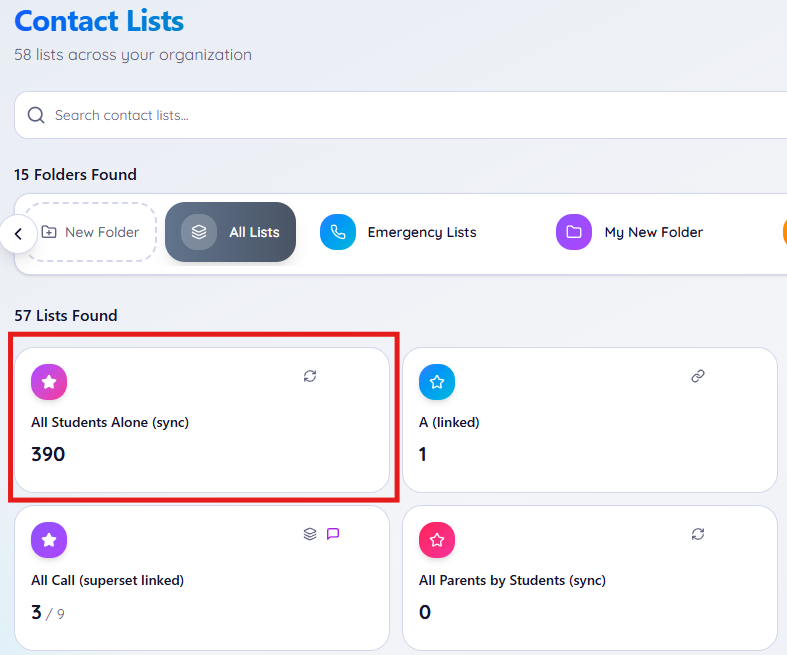
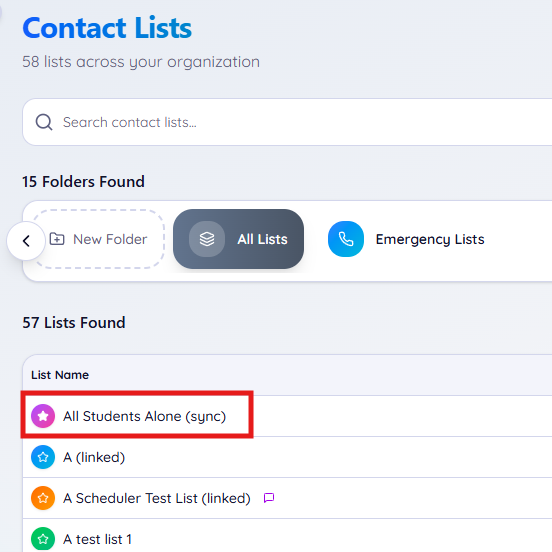
- In Revere, click on the "Contact Lists" tab on the left.
- Click on the list you want to review the email header for.
- Grid View:
- Table View:
- Grid View:
- With the list details screen now showing, click the List Settings button.
- In the panel on the left, click "Email."
- Review and adjust the settings that apply to the list's email header.
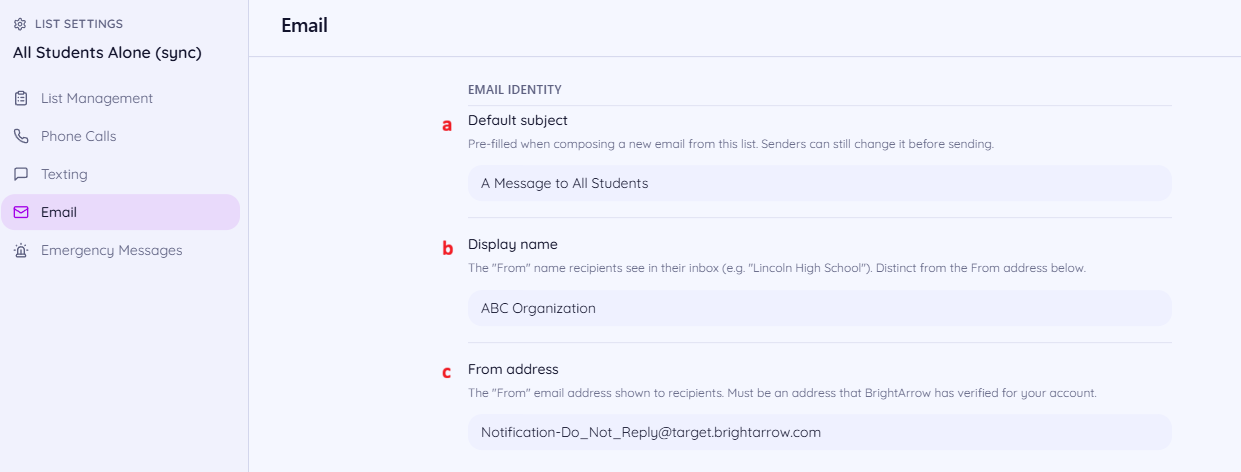
- Default subject: This is the subject line that will be used as the default when you apply this list's email header to your message.
- Display name: This is the "from name" that will be used as the default when you apply this list's email header to your message.
- From address: *Must be verified with BrightArrow to use* This is the "From email" that will be used as the default when you apply this list's email header to your message.


