BrightHub Alerts
If you are sending an urgent message and want to make sure your recipients are alerted to it, BrightHub users have the option when creating the message in Revere to mark it as urgent. This article details how to mark messages as urgent so that they show up in the "Alerts" tab in the BrightHub app.
- In Revere, start creating your new message in the Compose tab or find a message that you pre-saved to a list in Contact Lists > Manage List Message.
- In the column on the right, turn on the Emergency Alert toggle. See here for more help understanding the Emergency Alert toggle's function.
- In the "Mark as Urgent in App Until" box, choose the date and time that the urgency of your message should expire. For example, if you need to notify arents that buses are running late, you may want to set the urgency expiration to end sometime after you expect all children will be dropped off.
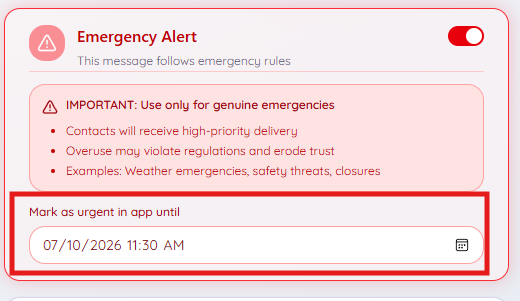 *You can use the calendar icon to choose the date and time or enter it manually.
- Continue creating your message as usual. When you send the message, recipients will see the alert when they view the message in ParentHub.
- Messages that show the alert icon will show in your "All" messages feed will also appear in the "Alerts" tab.
- Once the urgency expiration time you set has passed, the messages will no longer show the alert icon and will disappear from the "Alerts" tab. Recipients will still be able to view the message in their "All" messages feed, just like any other message.


