How to Unlock a Message to Edit It
In BrightArrow Revere if you need to edit a message that's saved to one of your Contact Lists but a warning shows that the message is locked for editing, you can unlock the message through that list's settings. Once you've made your edits to the message and re-saved it, you can go back into the list's settings to lock the message again. It's as easy as switching a toggle off or back on.
Why is the message locked
You or someone else who has access to the list might lock the message to put it into read-only mode. If BrightArrow's support sets up a message for you we might lock it to for added protection, for example we may lock the automated messages that send for your recurring scheduled jobs. Locking a list's message adds protection to the message to ensure it isn't accidentally changed or deleted. As long as you have been granted access by your system administrator to change a list's settings, you can unlock the message with a few clicks. *Remember that your message was locked to add protection to it. After making any changes to your message be sure to lock it again.
How to know if a message is locked
If you clicked "Manage Message" for your list on the Contact Lists screen and see a warning similar to the one shown below, your message is locked for editing. You will not be able to make any changes to the message contents until it is unlocked. You can still send the existing message, but you cannot make any edits to the message until you or your administrator unlocks it.

Unlocking the message
If your message is locked, you can easily unlock it through the list's settings. Note that for some users, the option to change the list's settings is turned off by your system administrator. If that is the case, reach out to an administrator in your organization to request they change the message. *Remember that your message was locked to add protection to it. After making any changes to your message be sure to lock it again.
- In BrightArrow Revere, navigate to the Contact Lists tab
- Find the list that contains the message you want to edit
- Use the search bar to search for a list by name
- Click on the All Lists folder to see all lists you have access to
- Click on the Filters option to narrow your results to a certain type of list (for example, all sync lists)
- Click directly on the list bubble (in grid view) or row (in table view) to open the list's details
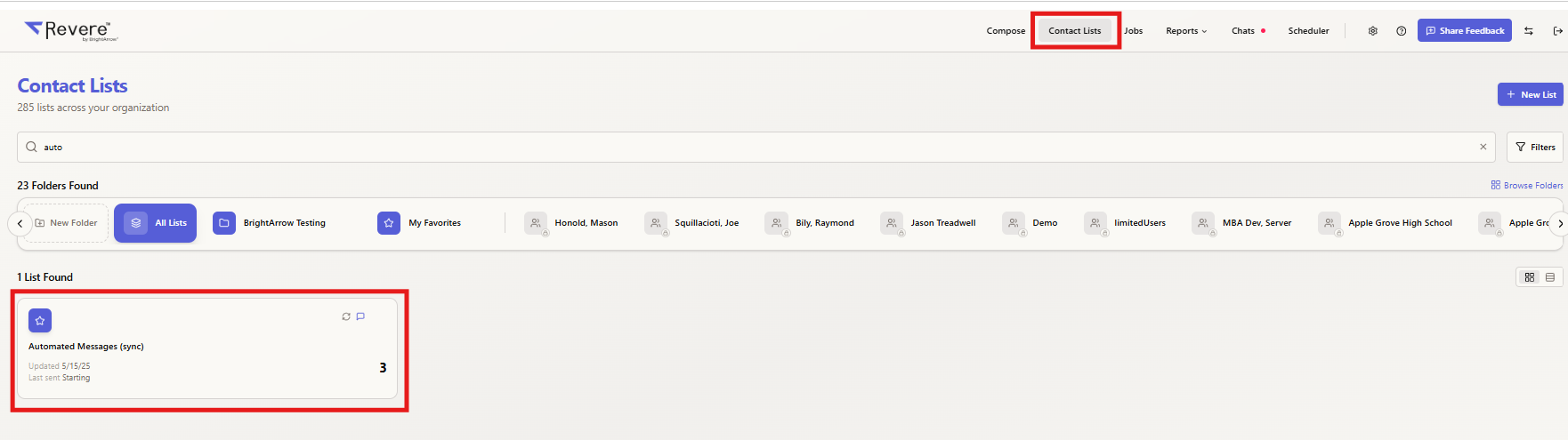 Shown above: Search applied to the All Lists folder in Contact Lists with top navigation, highlighting the list bubble in grid view.
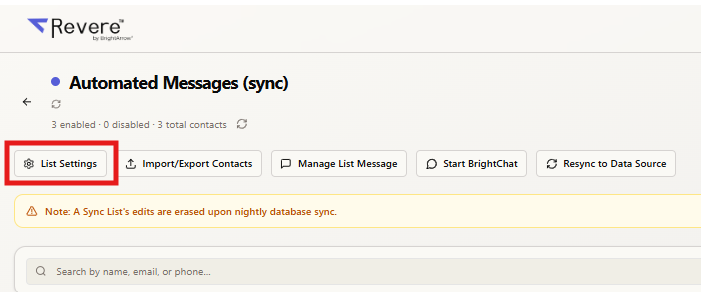
- In the upper left, click the List Settings button
- The list's settings will open to the List Management tab by default. Notice that the toggle for "Disable Deleting Current Message" is turned on. That's what is locking your list from being editable. Turn OFF the toggle "Disable Deleting Current Message."
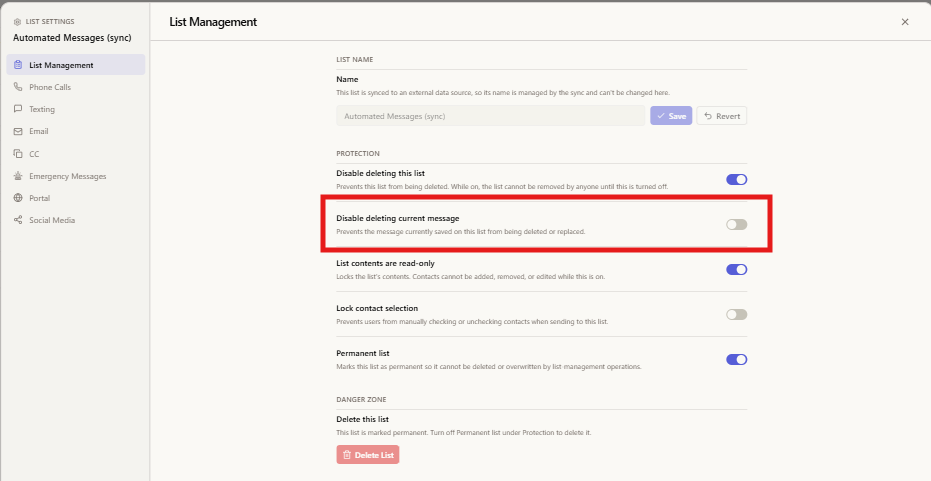
- "X" out of the list settings window to close it. Your changes will be saved automatically.
- You should now be back on the list details screen. Click the "Manage List Message" button to start editing your message.
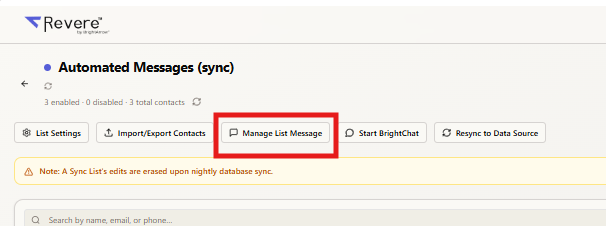
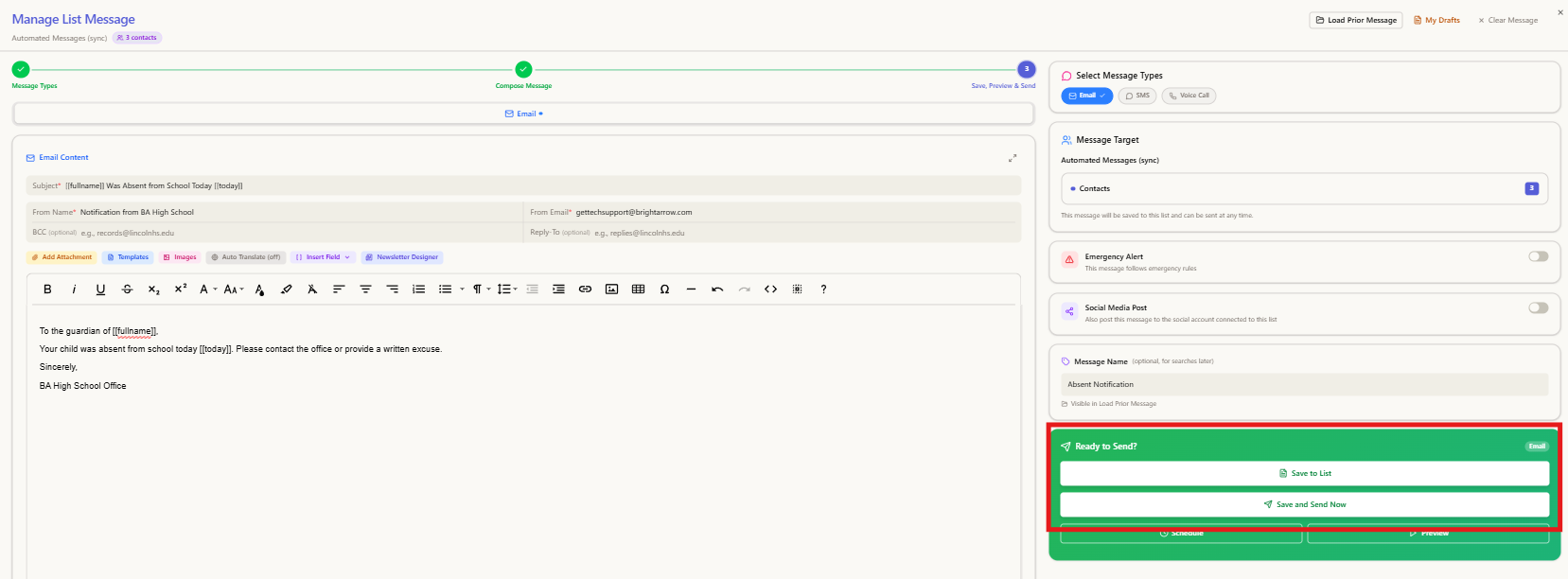
- Make your changes to your message as necessary. When you're finished, either Save to List to save your changes without sending the message right away or Save and Send Now to save your changes and send your message now.
- Once you've saved your changes, remember to go back to the list's settings to turn the protection back on for your message so it cannot accidentally be changed. Go to the List Settings button again but this time turn the toggle for "Disable Deleting Current Message" ON.
 Shown above: Search applied to the All Lists folder in Contact Lists with top navigation, highlighting the list bubble in grid view.
