How to Pause or Resume Automated Messages
If you need to pause automated messages for a short time, you can easily make the changes through the BrightArrow interface. The instructions below pertain to BrightArrow's Revere interface, but similar functionality exists in BrightView (BrightArrow Central) as well.
Note: The instructions below are only for pausing or resuming paused automated message schedules temporarily. If you need to change the time or days the message sends permanently, see here.
How to temporarily pause a recurring automated job
- Login to BrightArrow as an administrator.
- In your Revere navigation panel, open the Jobs page.
- Below the calendar you will find all scheduled and recent jobs listed out. Find the "Recurring Scheduled Jobs" section.
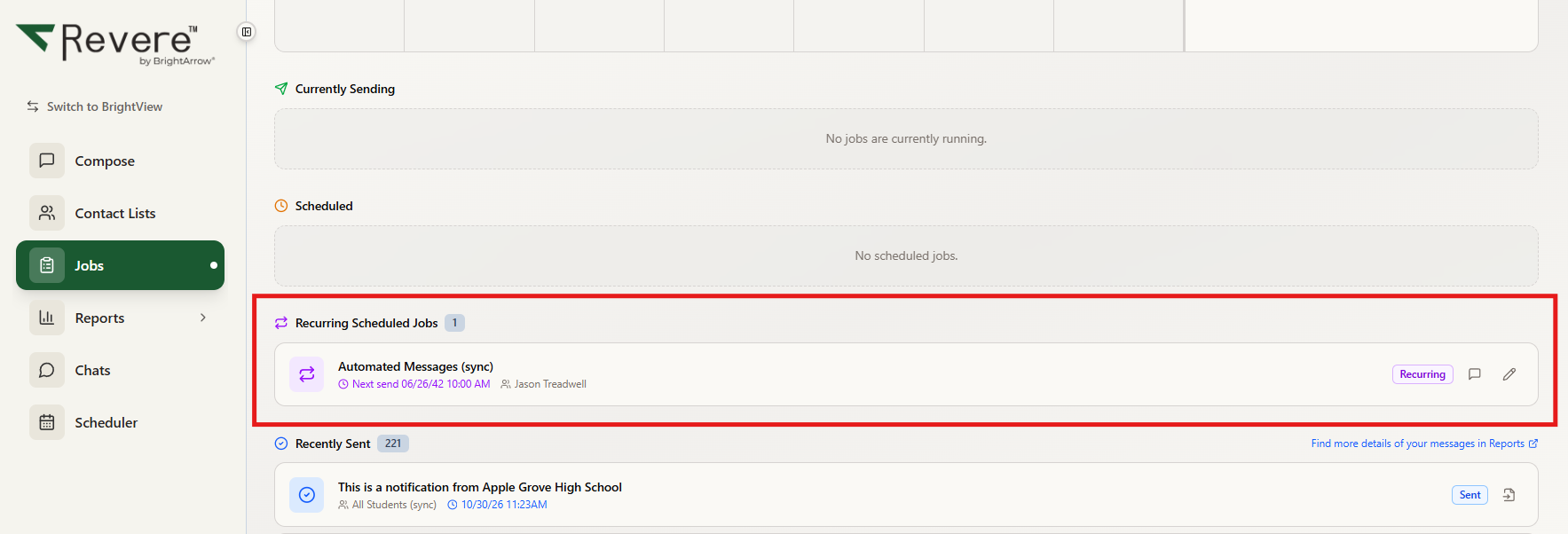
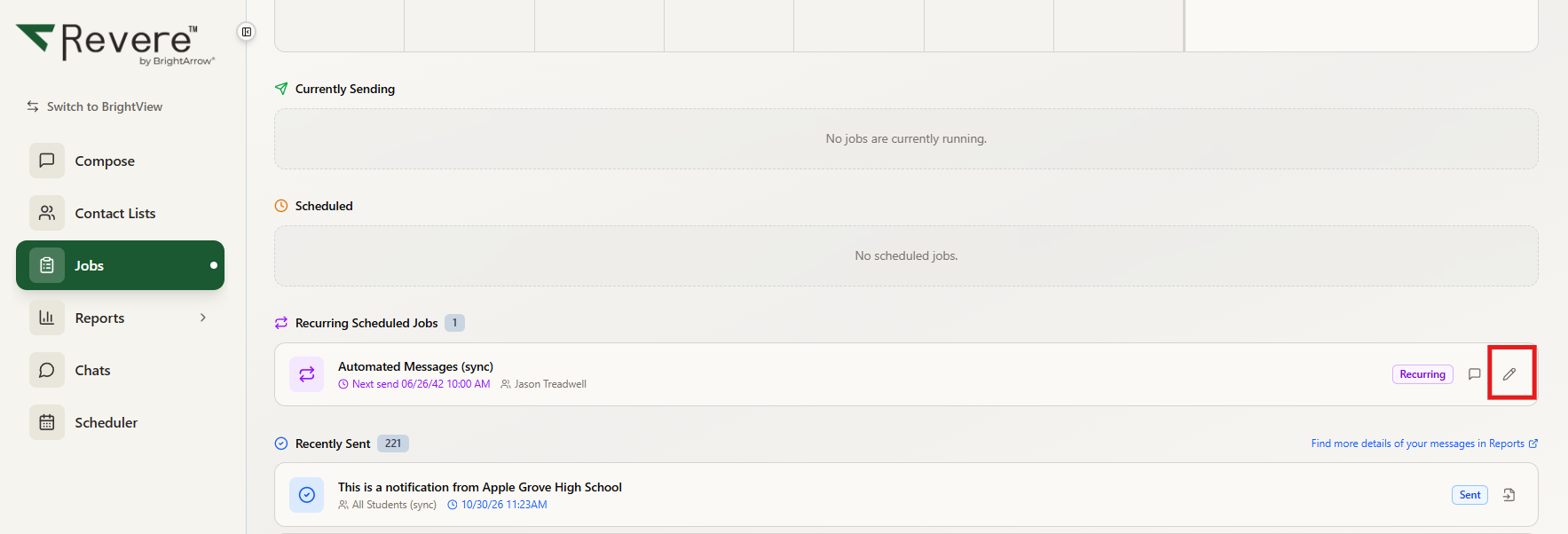
- Each automated recurring message will be listed as a separate job. Locate the item you need to pause or resume, and click the edit pencil on the right.
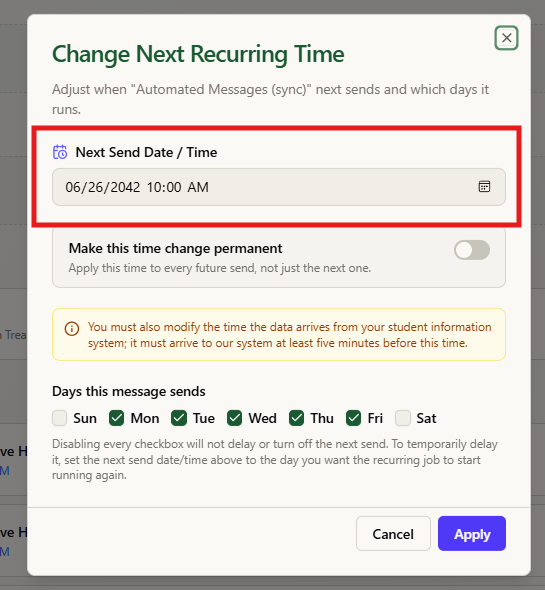
- A window to "Change Next Recurring Time" will pop-up. Click on the "Next Send Date/Time" box at the top. Note that the date/time must be changed in the top box. Adjusting the checkboxes for the "days this message sends" will NOT pause or resume the schedule for the recurring job.
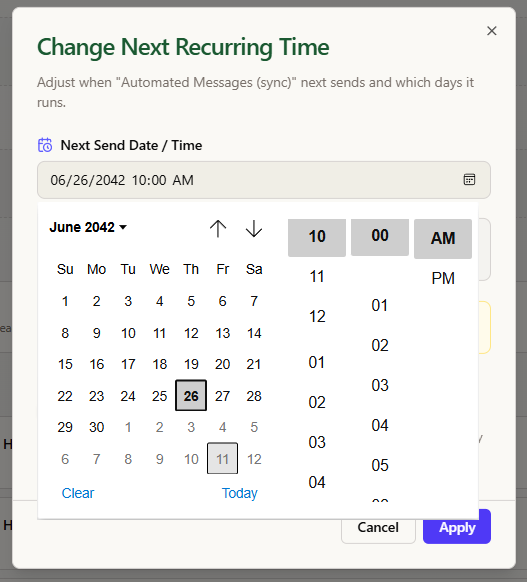
- Use the calendar and time picking options to update the date/time at which the job will send next. To pause the automation from sending the message, change only the DATE of the next send.
Example: There are parties happening throughout the day so you know attendance might be entered late. You'd rather manually send attendance jobs for the day. Change the next send DATE to tomorrow. Do not change the time and do not change the days of the week this message sends. Simply change the next send date to tomorrow.
To avoid any issues, please refrain from changing the schedule within 5 minutes of the scheduled send. For example, if you're pausing today's message that is scheduled to send at 10:00am, please ensure your changes are entered into the system prior to 9:55am.
Note that if you are changing the time of the next send, you must also modify the time the data sends from your SIS. Data must arrive to BrightArrow from your SIS 5 minutes before the job sends. *PowerSchool customers would need to also update the exports that send from PowerSchool to make sure accurate data is sent. For example, if you are making an adjustment for a two-hour delay, the PowerSchool export must be updated as well.
- Click Apply to save your changes. Your message will resume sending on the "next send date" you entered.
Pausing an automated job indefinitely
If you need to pause an automated job indefinitely but are not ready to permanently cancel it, simply follow the instructions above but change the "Next Send Date/Time" to a far-off future date and turn on the toggle to "make this time change permanent." For example, change the next send date to 1/1/2099. This way, your jobs will not send but if you do choose to resume it you can do so easily.
Resuming a job that was previously paused
If you previously paused a recurring message indefinitely and now need it to start sending again, simply follow the instructions above and set the next send date to the next date you want the message to resume. PowerSchool users should also review the scheduled data exports in PowerSchool to ensure the schedules are still set up.
When do I need to pause my notifications?
If you are a school and need to stop automated messages from going out when school is not in session, you may not need to do anything. It depends on the type of notification.
Attendance
If you want to pause attendance for the summer or another school break and your attendance defaults to present, then there isn't anything needed. Attendance messages are sent based on specific criteria determined by your business logic. Most are based on absences. If your student system defaults students to present and someone changes them to mark them absent, then any day where attendance isn't recorded is present by default and thus no attendance messages would be generated anyways.
If your student system starts students as absent until proven present, then you do need to turn off your attendance syncs. You can change the next recurring time to a future date when school will be back in session.
If you are a school and have a snow day, you may likely want attendance skipped that day. If your staff only records attendance for the current date, then a snow day won't have attendance so it doesn't need to be skipped. But if your staff can enter attendance early when they know it (when a family is going on vacation for a week for example) then you may want to skip attendance messages for that date.
When it comes to 2-hour delays, you likely still want attendance to send but at a later time than usual. In these cases, simply change the next send time to whatever time you need. Note that if your database is sending us files (like PowerSchool), you must also modify the time the data exports from your student information system. We must receive the data to our system at least 5 minutes before the notification sends.
Fee Balances
Unlike attendance notifications, fee balance notifications, such as low lunch balances, will exist regardless of whether school is in session. Families still owe their fees even when school is on break. If you do not want the notifications to send to families when school is not in session, pause your notifications by changing the dates/times they send until you would like the notifications to start back up.
Grade Notifications
You may want low grade notifications to be paused for the beginning of each semester/trimester and school breaks. Similar to fee balances, low grades stay "low" in your database even when school is not in session. If you do not want parents to receive low grade notifications during school breaks, it is best to pause them during that time. You may also want to pause the notifications near the time of report cards or progress reports.
Conversely, if you are sending notifications to congratulate students with high grades, consider when those notifications should be sent and update the messaging schedule as needed.
Missing Assignment Notifications
You may want to pause missing assignment notifications for a specified time period at the beginning or end of each semester/trimester. Since your database will log assignments as missing until they are submitted, you may want the notifications to continue to send during some school breaks (like Fall break) but not others (like Summer break). If you would like to pause the notifications, simply change the next send date to the date in which you would like the notifications to resume.