How to Change a Chat Member's Name in Revere
When a message recipient (such as a student's parent) signs up to use the ParentHub app, they are prompted to enter their name. They also have the option to change their display name in the app to their liking. As a message sender (such as a staff member or teacher) if you want to customize the parent's name to help you understand who you're chatting with you can do that in BrightArrow Revere.
Defaults:
- Message recipient enters their name when signing up for their account in the mobile app. This name will be used unless a display name is added by them.
- In ParentHub > Settings > Change Display Name, the message recipient can enter a different name as their "display name." This name overrides the full name that was entered upon sign-up.
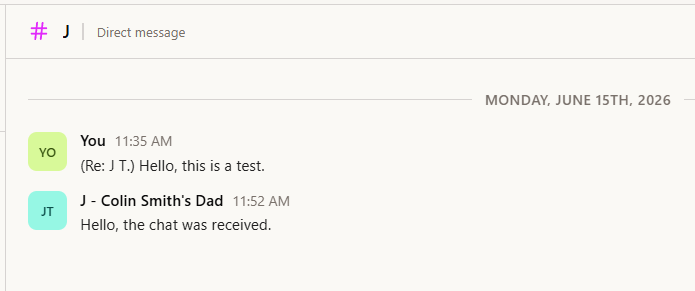
- In Revere, message senders can add a "display nickname" which does not affect the recipient's account but will display only for the user who enters it. This option overrides the display name and the full name that the message recipient entered. It shows only to the user who entered it and is used strictly to help avoid confusion.
Use case: A teacher has two students in their class with the same last name, "Colin Smith" and "Addison Smith." The students are not related. Both student's fathers have the same first name "John". So that the teacher can more easily know which student's parent they're chatting with, the teacher enters a display nickname for each parent, such as "John Smith - Colin's Dad".
- In your Revere navigation panel, go to Chats.
- In the column on the left, find a conversation in which the person you want to add a display nickname for is a member. Click on the Chat in the left column to reveal the full conversation.
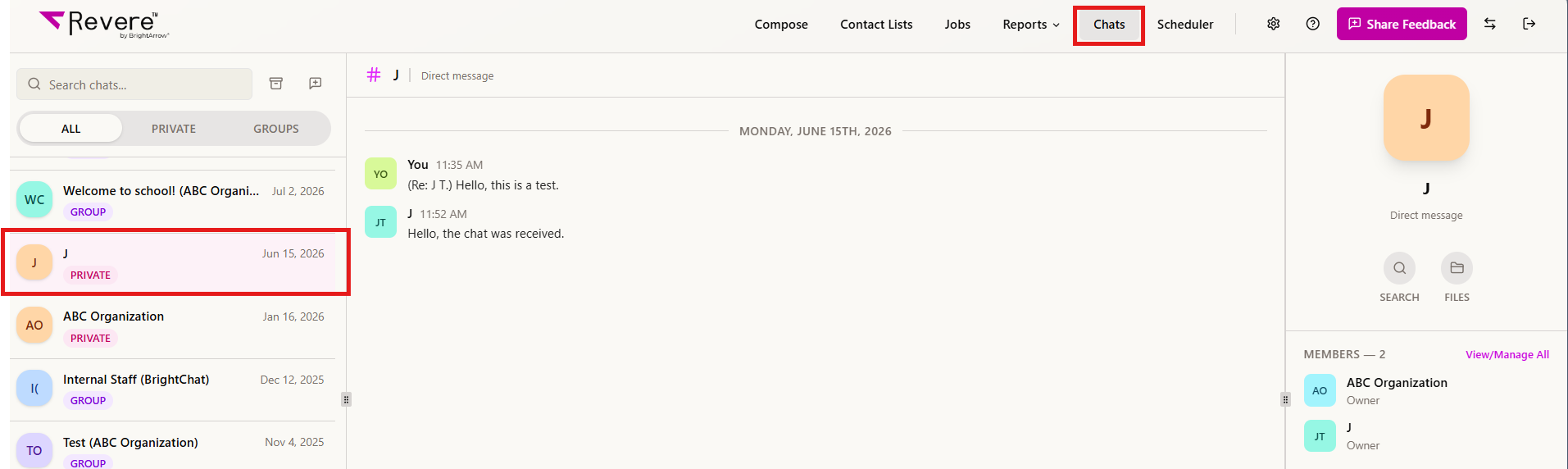
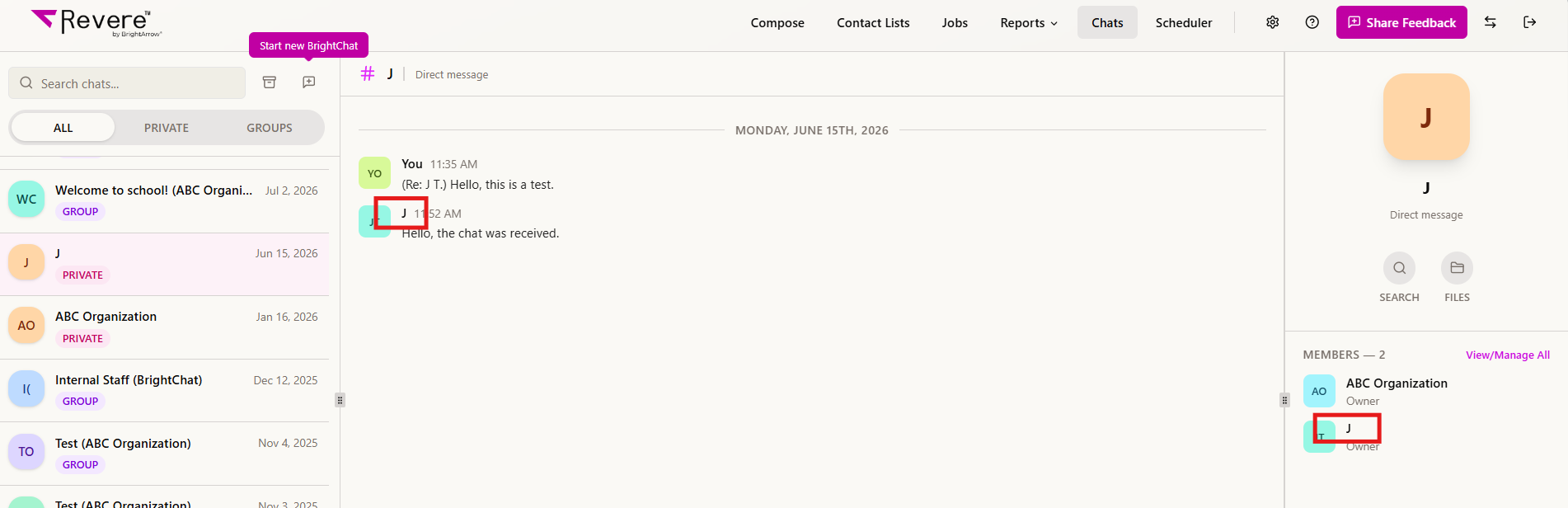
- To add a display nickname, either click on the person's name in the conversation feed or click on their name listed in the "members" section on the right.
- A window will pop-up. Enter a "display nickname" to help you internally to know who exactly you're speaking with. You may also add notes to the person's profile to help you. Display nicknames and notes are for you only and will not be shown to other members of the Chat conversation.
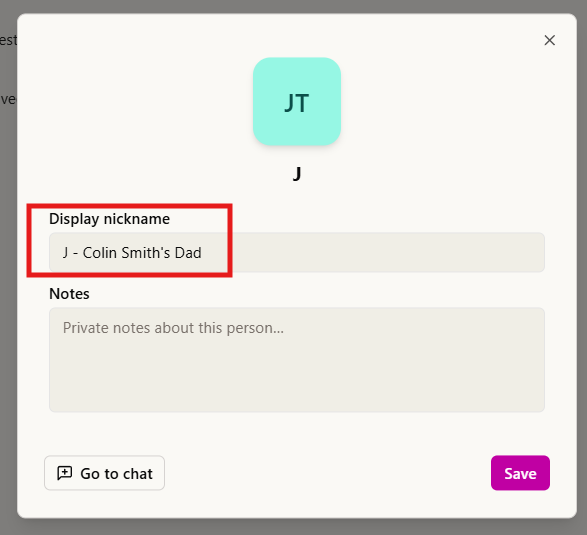
- With the "display nickname" now entered, click "Save."
- The "display nickname" will now show for all your conversations involving this member in Revere.