Searching for a Contact Across All Lists
In BrightArrow, each contact is associated to one or many lists. Whether you have a large number of contact lists or just a few, there are times you may want to search for a specific person to see which list(s) they are in. In BrightArrow Revere, you can search for a contact's name, email address, or phone number across all lists.
- In your Revere navigation panel, go to Contact Lists.
- In the upper-right of the page, click in the "Search Contacts" search bar.

- Enter the contact's name, email address, or phone number into the search and hit Enter on your keyboard.
- Results will show all lists containing that specific contact name, email, or phone number depending on what you entered.
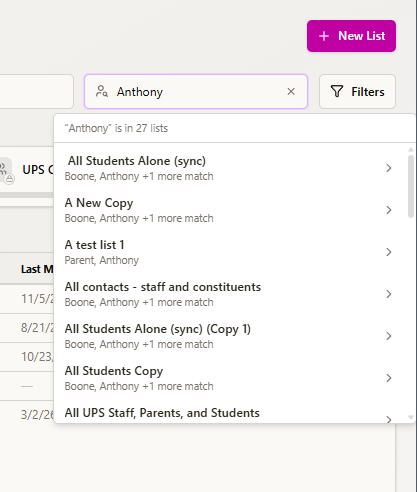
- Scroll through the results to locate a particular list if you want to go to that list. When you find the list you'd like to pull up, click on it.
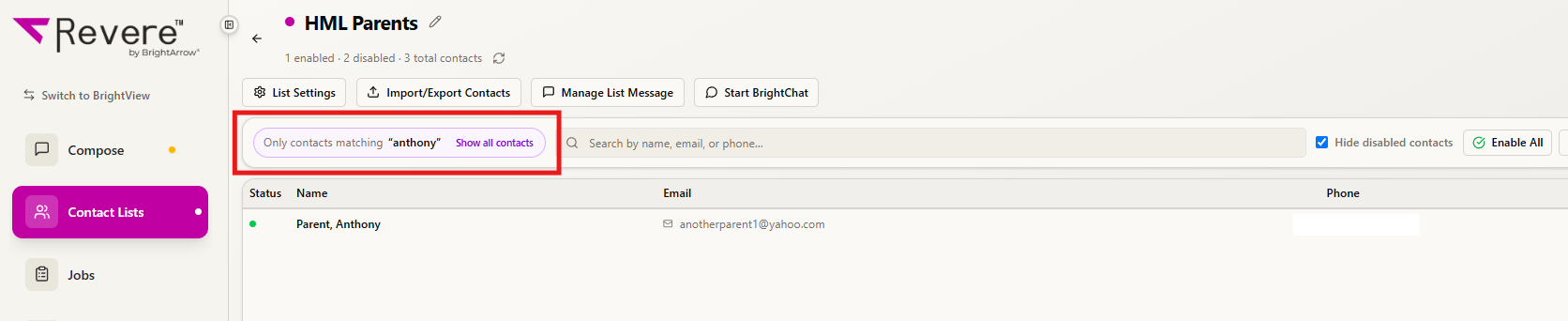
- The selected list's details will open, showing only the contact(s) that met your search criteria.
- To see all contacts contained in the list instead of just the one you searched for, click "Show all contacts" in the upper-left.
Note that if you have the option to "hide disabled contacts" turned on for the list, all disabled contacts will remain hidden even though you clicked "show all contacts" in the bar highlighted in the screenshot below.