Scheduling a Meeting on the Attendee's Behalf
Maybe you need to meet with a client or parent who is not able to book a timeslot on their own. Through the Scheduler in BrightArrow Revere, as the meeting host you can book a timeslot on the attendee's behalf. System administrators with access to view the host's bookings will also be able to schedule on behalf of the attendee.
Example scenario: A teacher created a meeting schedule and sent it to parents. One parent had an issue with their email and wasn't able to book a timeslot and requested the teacher's help. The teacher (or a district administrator with access to the teacher's schedule) can book the timeslot on the parent's behalf.
This article assumes you already created the appointment schedule in BrightArrow. For more help creating the full schedule, see here.
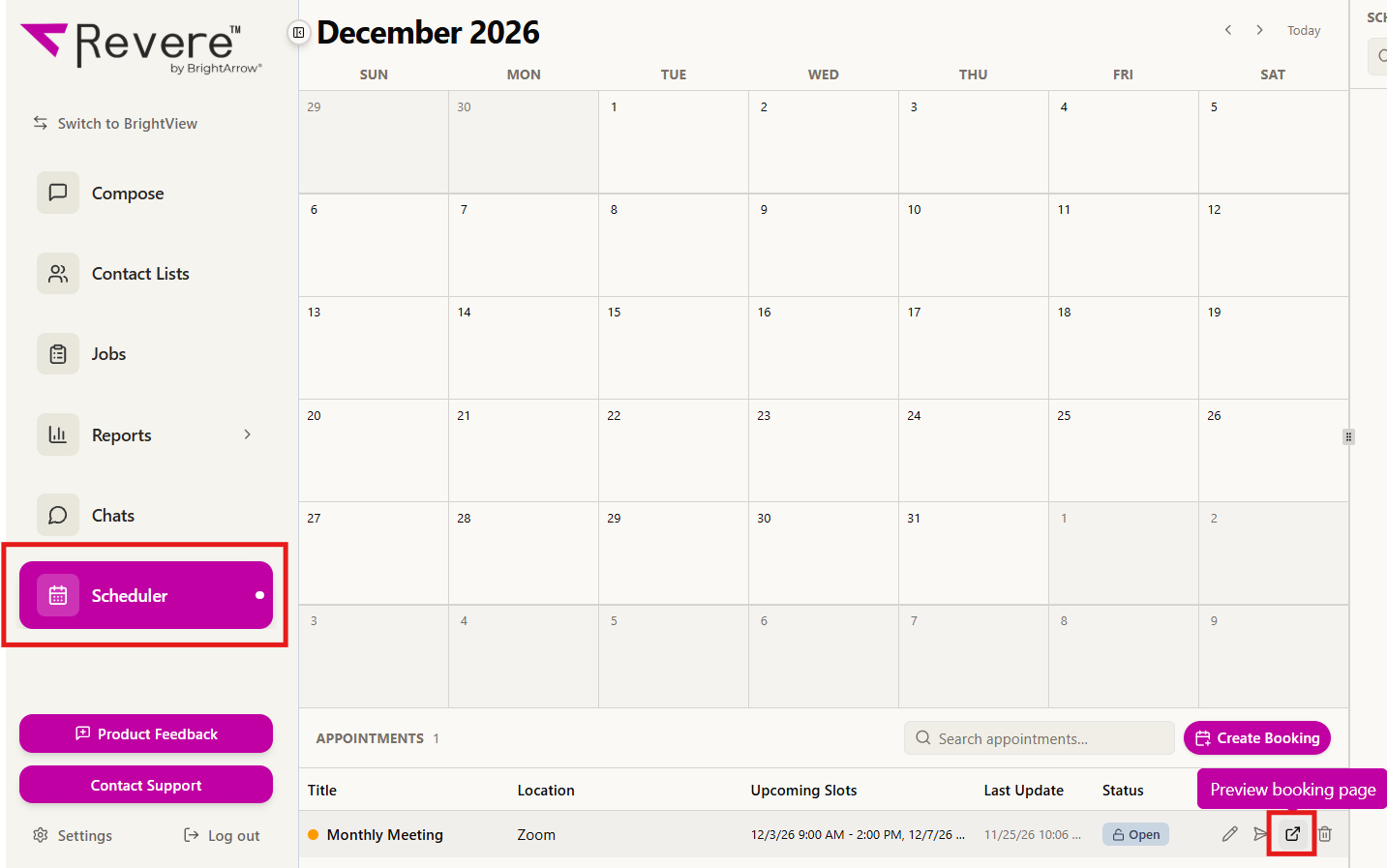
- In your Revere navigation panel, click on Scheduler.
- You'll see all the appointment schedules you've created at the bottom of the page below the calendar. Find the appointment schedule you need to book a timeslot for and click the icon that looks like a square with an arrow coming out of it to Preview Booking Page.
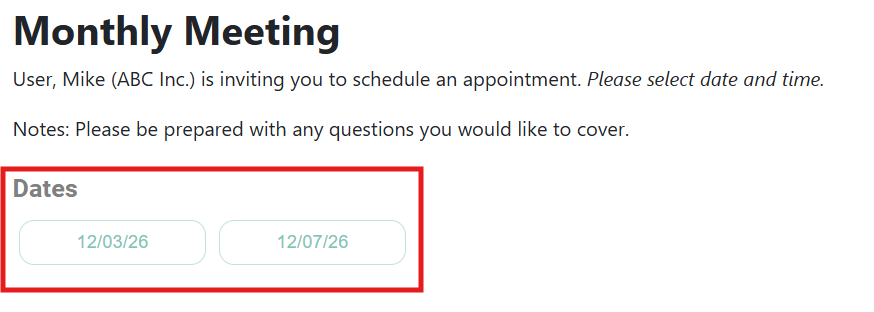
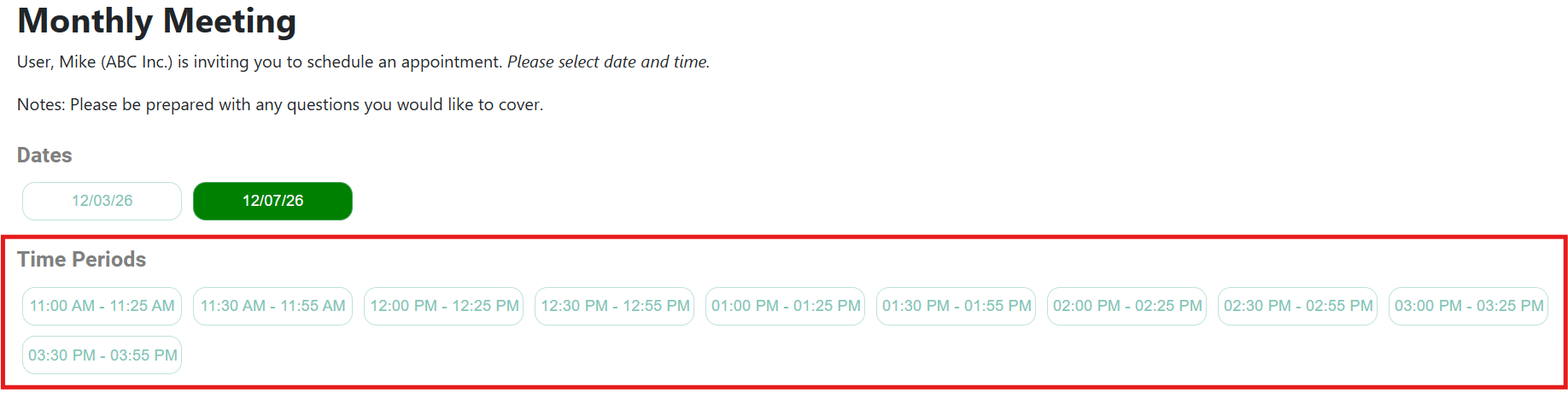
- If there are multiple dates to pick from, choose the correct date the attendee would like to schedule for.
- The available timeslots for that day will show. Click on the timeslot the attendee would like to schedule for.
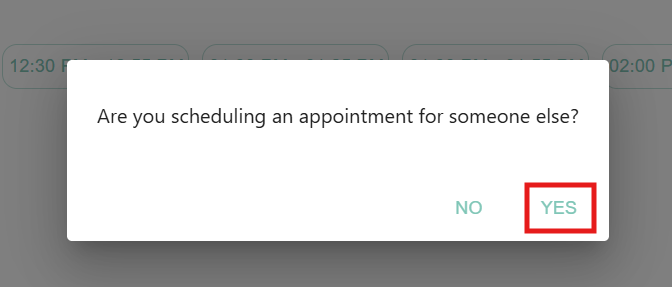
- A pop-up window will ask if you're scheduling for someone else. Click Yes to proceed with booking a timeslot on someone else's behalf.
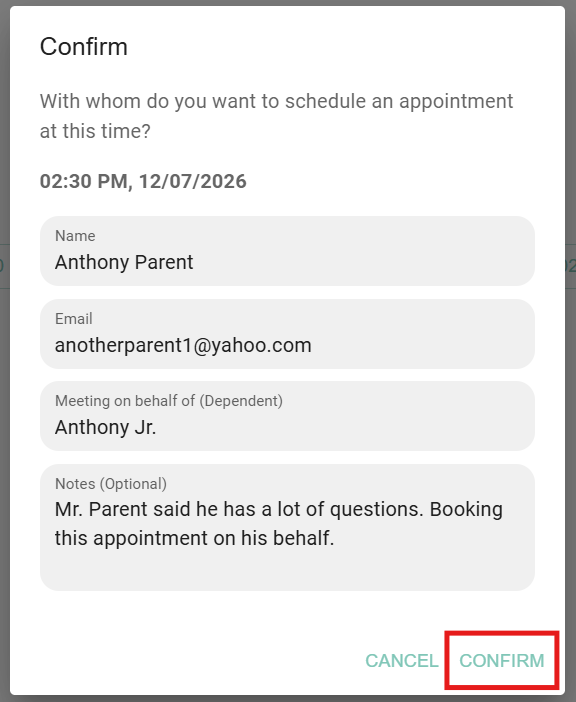
- Enter the attendee's information in the Confirm window including their name, email address, their dependent's name (if applicable), and any notes. *Notes can be viewed by the attendee too.
- Click Confirm to schedule the appointment on the attendee's behalf.
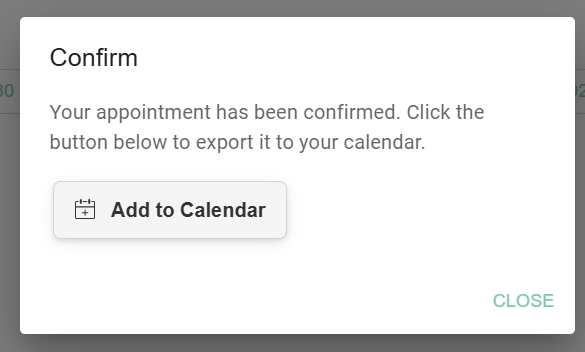
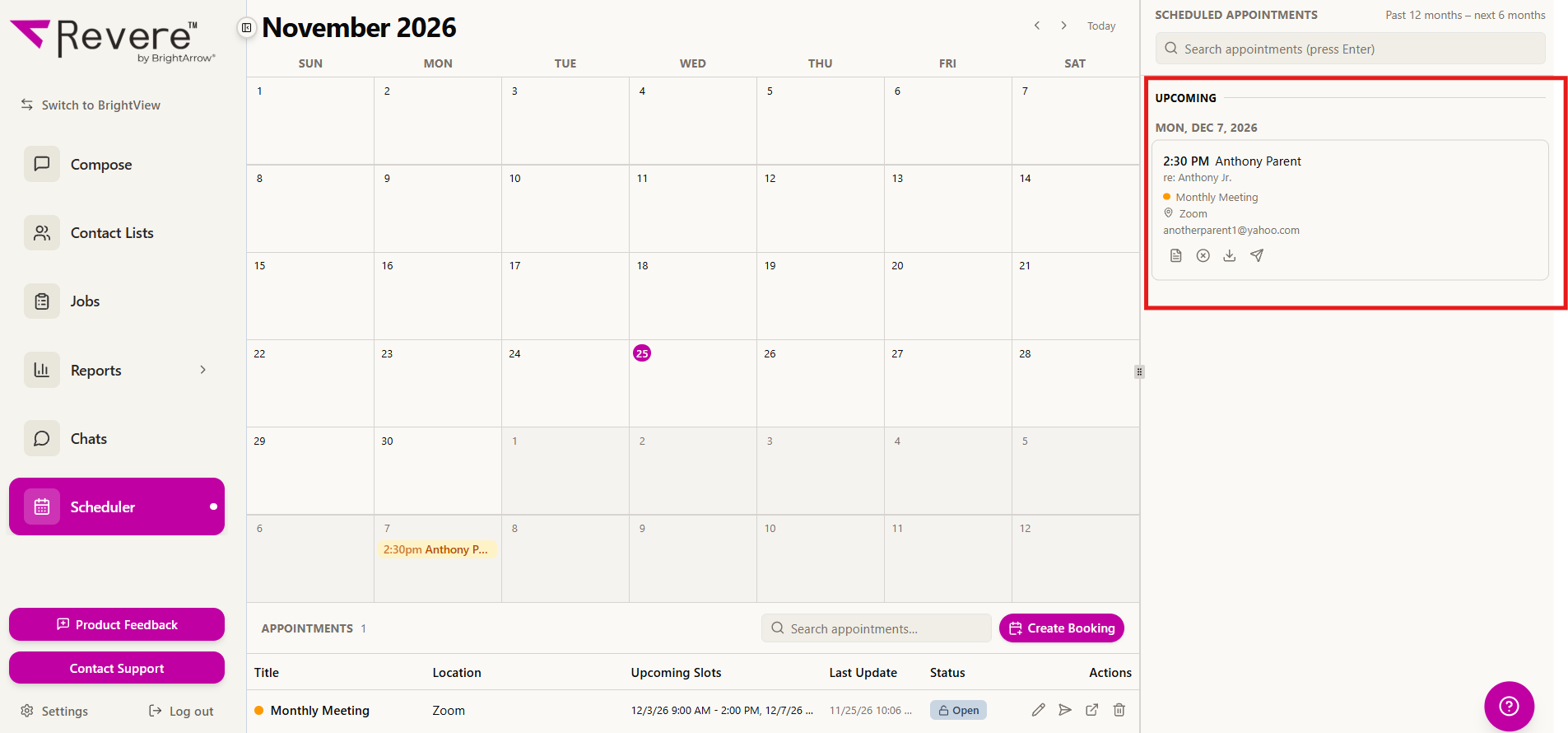
- The meeting is now scheduled and will show in your scheduled appointments in BrightArrow. If you'd like to add the booking to your personal calendar, click Add to Calendar in the pop-up window.