Troubleshooting: Why Some Contacts Did Not Receive the Phone Call
If you sent out a phone call but are now hearing from some contacts that they did not receive the call, there are a few common things to check to help you troubleshoot. This article will help guide you to the most common reasons why one or a few contacts may have not received the call. If you need any additional help, please contact our support for assistance.
Review the message sent report
The Reports page in BrightArrow shows the details of every message that was sent, who it was sent to, and whether it was delivered. If you're trying to troubleshoot why a call (or any message type) was not received by a contact, the Message Sent Report is the first place to look.
- From the BrightArrow Central home page, click the Reports button.
- In the "All Messages" tab, click on the name of the report that you suspect your contact did not receive the call for.
- If you don't see the report for the message you sent, check to see if a filter is applied to the page by clicking the "Report Filters" button. If you still don't see the message, contact us.
- Once you are clicked on a message, you can use the search bar at the top of the page to search for the phone number. If the phone number doesn't come up in the report at all, proceed to the next section of this document to help determine why the message wasn't attempted to that number.
- In the report details, there are a number of different codes that you may see in the "Call Result":


- Error: Undeliverable - indicates that the phone number is either invalid or the number was unable to accept a voice call (usually an issue with the contact's phone carrier). Verify that the phone number is correct for the contact. If it is a valid phone number, contact us so we can investigate further.
- Complete (vm) - indicates that the call was made and a voicemail was left. If the report shows that a voicemail was left but the recipient is saying they did not get it, contact us so we can run some tests to ensure they receive future calls.
- Complete (live) - indicates that the call was made and a person answered the call. If the report shows that the call was answered but the recipient is saying they did not get it, contact us so we can run some tests to ensure they receive future calls.
- Busy - indicates that a busy signal was reached. Review the List Settings Phone Call Settings to make sure your calls are being "retried" when a busy signal is reached the first time.
- In "Do Not Contact" - indicates that the phone number has been added to the Do Not Contact list. See the last section of this article for more assistance.
- Invalid phone - indicates that the phone number is invalid. Verify with the contact that the phone number is correct. If your lists sync with an outside source like a SIS, HR Database, or Google Sheet, you will need to correct the phone number in the source.
- No Answer - indicates that the call was not answered by a person or voicemail. Review the List Settings Phone Call Settings to make sure your calls are being "retried" when a busy signal is reached the first time.
- The above codes are the most common ones you will see, but there are many others. If you have a question about what any code indicates, contact us.
Review the List Settings
If the report shows that one phone number for the contact was called but not other phone numbers, that is most likely due to the list's settings.
- Navigate to the List Settings page.
- Click on the "Phone Call Settings" tab on the left.
- Review the settings under the section "Phones to call for each contact."
- If the radio dial for "Try first number, and then onward until delivered" is selected, BrightArrow will stop attempting the call for any contact once the recipient either answers the call "live" or has a voicemail answer the call.
- If the radio dial for "Call all numbers" is selected, BrightArrow will send your call to every phone number in the list.
- If the radio dial for "Call specific numbers" is selected, ensure that the contact's phone number will be picked up based on if it is listed as Phone 1, Phone 2, or Phone 3. Review the Edit Contact page to see which phone number is Phone 1, Phone 2, or Phone 3.
- Example: If the Phone Call Settings are set to call only phones 1 and 3 but not "Phone 2," you can navigate back to the List Details > Edit Contact page to see which phone number is "Phone 2." In this example, Phone 2 will not receive a call even though the phone number is enabled in the Edit Contact page.
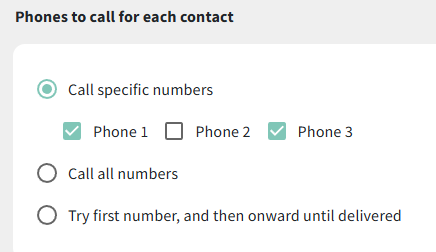
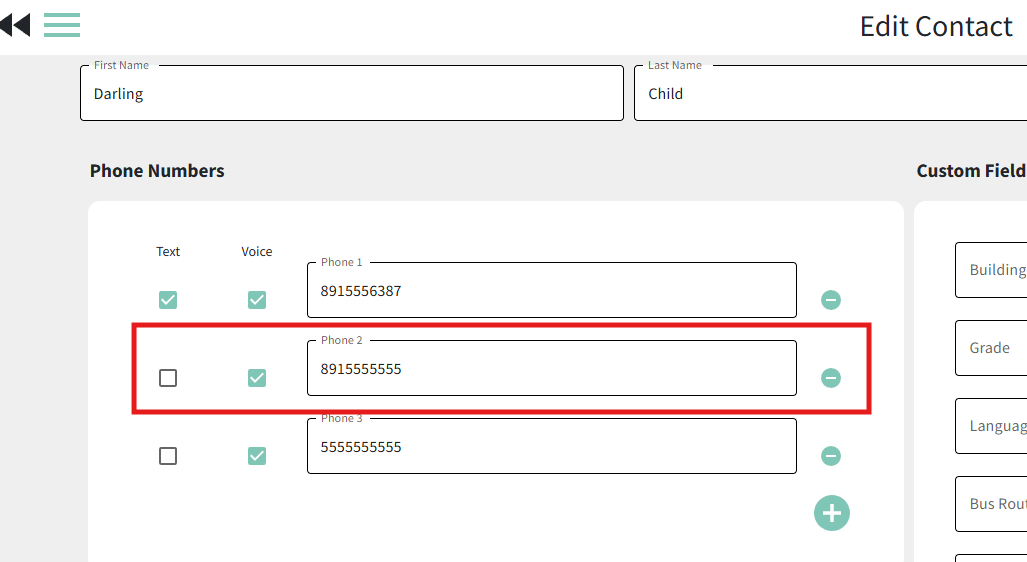
- Example: If the Phone Call Settings are set to call only phones 1 and 3 but not "Phone 2," you can navigate back to the List Details > Edit Contact page to see which phone number is "Phone 2." In this example, Phone 2 will not receive a call even though the phone number is enabled in the Edit Contact page.

Review the contact's settings
You can review the contact card for any contact that did not receive a call to ensure BrightArrow has them enabled to receive the call.
- From the My Lists page, click on the name of the list that you sent the message from. That will bring you to the List Details page where you can see every contact in the list.
- From the List Details page, you can use the search bar to search for a specific name, phone number, or email address.
- Ensure that the checkbox for the contact is selected. If the checkbox is not selected, your contact will not receive any messages sent to the list until you have enabled them by marking the checkbox.
- Ensure that the contact's phone number is coming through to the list. If the data is in BrightArrow it will show under the Contact Information column.
- If the list syncs to BrightArrow from an outside source like a SIS, Google Spreadsheet, or HR database, that will be indicated by the red note under the List Name box to remind you that any changes to the contact information will be erased and overwritten by the nightly sync. If the phone number is not appearing in the Contact Information column, that means it is not coming over to BrightArrow from your source. If we are not getting the data but you have confirmed that it is in your source, please contact us so we can investigate the cause.
- If the contacts in your list have been entered/imported manually, you will not see the red note as described in step #4-a. If your list is a manual / static list that does not sync to an outside source, you can click the edit pencil next to the contact's name to enter their phone number.
- If the contact has the checkbox selected AND their phone number is showing in the "Contact Information" column, click the "Edit" pencil in the same row as their name to bring you to the Edit Contact screen to see additional details.
- On the Edit Contact screen, ensure the "Voice" checkbox is marked. If the checkbox is not marked, BrightArrow will not consider the phone number as an option to send voice calls to.


Review the Do Not Contact list
If the contact's phone number was added to the Do Not Contact list in BrightArrow, calls will not be sent to them even though they are in the list that the message was sent from.
- From the BrightArrow Central home page, click the menu (3 horizontal lines) in the upper left of the screen.
- Click on the "Do Not Contact List/Time" option.
- If the contact's phone number is in the Do Not Contact list shown in the left side of the screen, they may not receive phone calls
- If the phone number is listed with "Send Emer Only" next to it, calls will only send to the number if the message was designated as "Emergency" priority when it was created.
- If the phone number is listed with "Send Text Only" next to it, voice calls will not be sent to the number but text messages will be.
- If the phone number is listed by itself with nothing next to it, no messages will be sent to the phone number.


System-Wide do not contact times
Some users have the ability to set a system-wide do not contact time. This option will block any scheduled messages or dial retries from sending out during the specified times. Messages can still be sent manually during these hours, but your calls will not "retry" if there was no answer on the first try.
In the Do Not Contact page, review the "System-Wide Do Not Contact Times" to see if your message might have been blocked from sending due to it being sent during the "blocked" hours.
