Setting Up Current Day Bussing Exports
Minimum version: BrightArrow Base 2 v24.05.24
The Current Day Bussing export is used for creating bus lists based on information from the transportation page. Since students can ride different buses on different days or even different morning and afternoon buses, the export looks for what bus the student should be on in each direction for the current day or for the following day, depending on the time of the export.
Assumptions
- If a transportation record does not have a start date, then it will use the student's entry date as the start date for the purposes of the calculations
- If a transportation record does not have an end date, then it will use the student's exit date as the end date for the purposes of the calculations
- If two values for the same day for the same direction (To/From) exist for a student, then the shorter value is meant to be a temporary override
Ex:
Johnny rides bus 15 to school and 28 from school as his normal bus. The school has entered those values into the transportation page with a start date of the first day of school and an end date of the last day of school. Let's say this is 300 calendar days.
Tomorrow Johnny is going to his friend's house and needs to ride bus 3. The school puts in bus 3 as a new From school with a start and end date of tomorrow's date.
The export sees Johnny should be on 28 and 3 tomorrow. Since 3 is a 1 day length and 28 is a 300 day length it assumes that the shorter one is a temporary override and uses that instead. The following day it'll return to bus 28.
Filters
This export will respect the settings from the BrightArrow Settings area as well as obey the individual student exclude all setting. For purposes of figuring out if the bus list should be for the current date or the following date it will compare the local time vs the Time To Switch Days setting in the filter rules.
Setting up the Current Day Bussing export
The export should be set up in DEM from District Office. For information on getting to DEM read Getting to Data Export Manager (DEM)
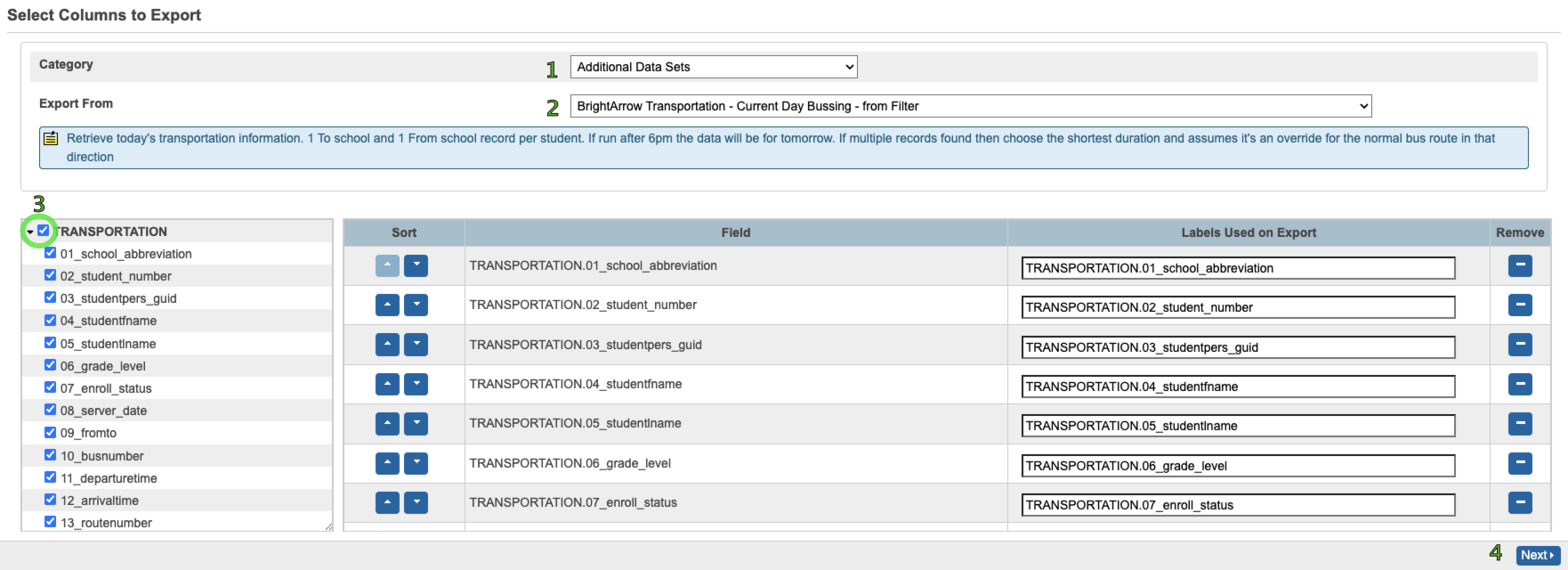
- Category = Additional Data Sets
- Export From = BrightArrow Transportation - Current Day Bussing - from Filter
- Fields -> Select the checkbox next to "TRANSPORTATION" to select all fields. Fields are already listed in proper order.
- Click Next
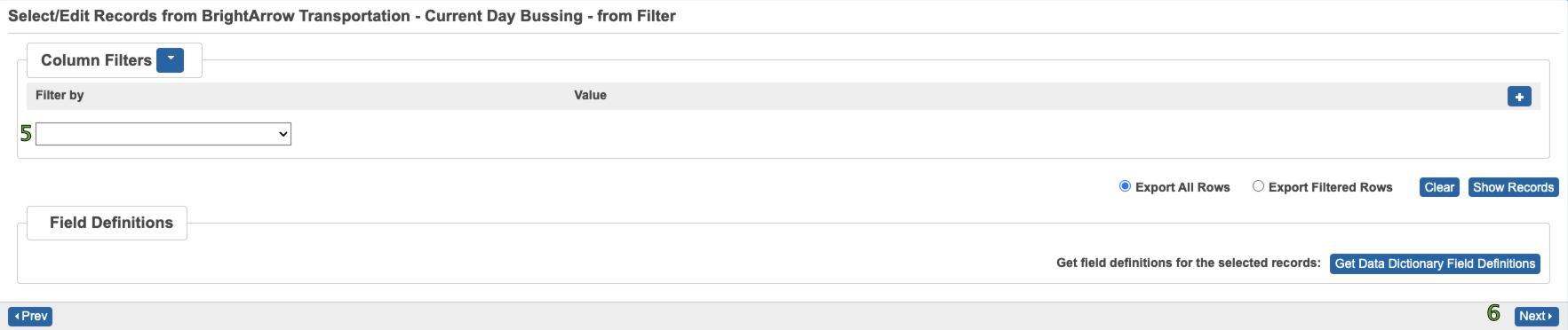
- No filters here, controlled by the settings page filters
- Click Next
Note: Before the next section becomes editable the entire template must run. This is not a quick process and the larger your district the longer this will take
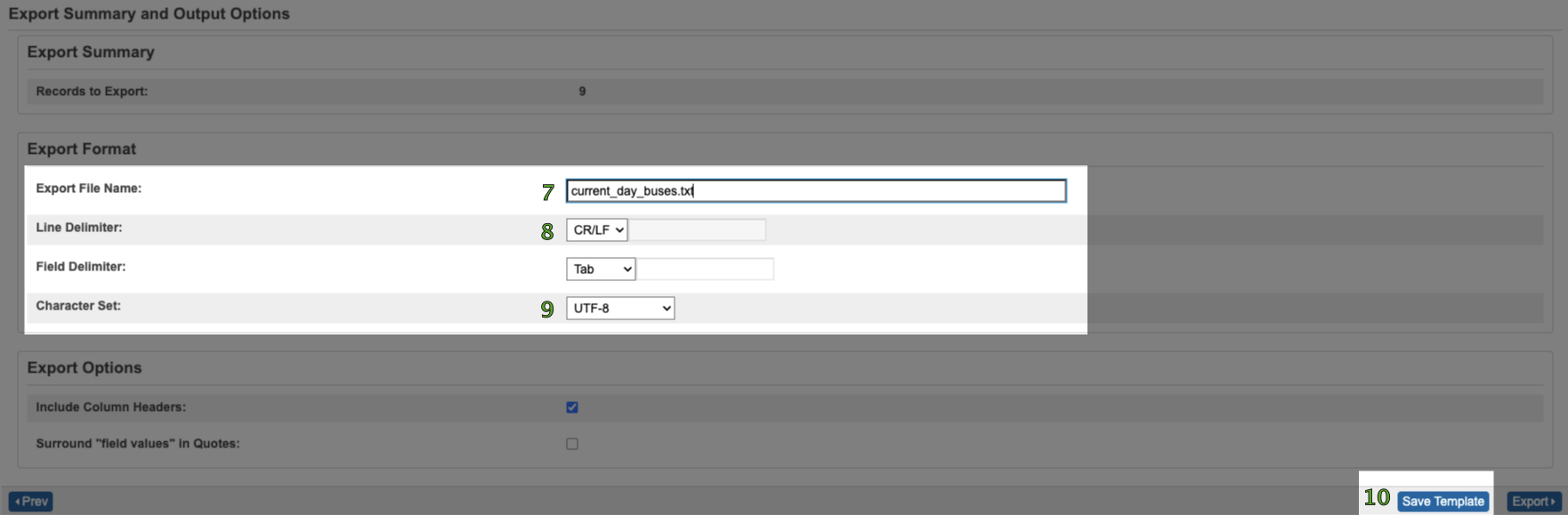
- Export File Name = current_day_buses.txt
- Line Delimiter = CR/LF
- Character Set = UTF-8
- Click Save Template
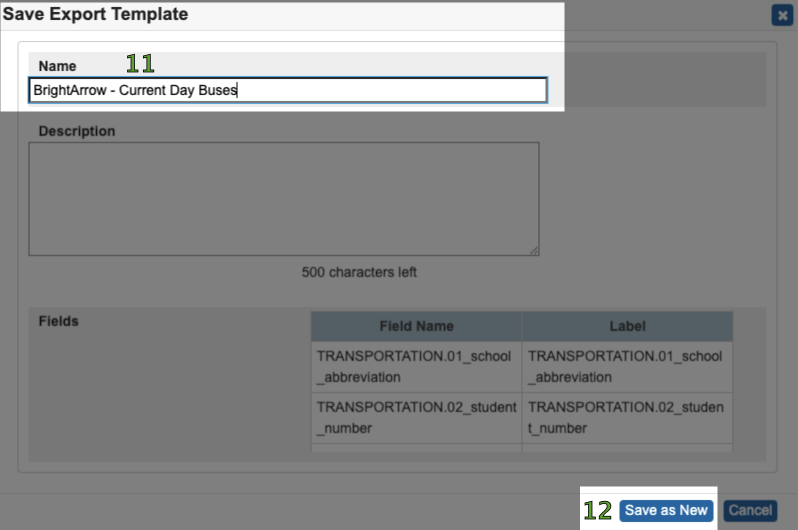
- Name = BrightArrow - Current Day Buses
- Click Save as New
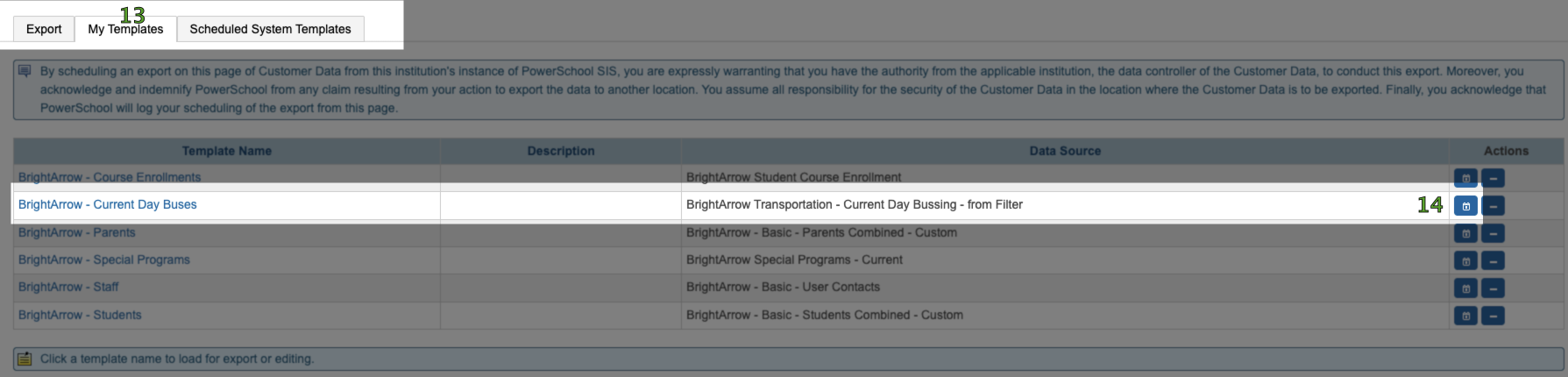
- Switch to the My Templates tab
- Find the row for the new template and click the calendar button to schedule this template. If you do not see the calendar button or the Scheduled System Templates tab you don't have permission to schedule exports. For more information on that read Enabling DEM Scheduling
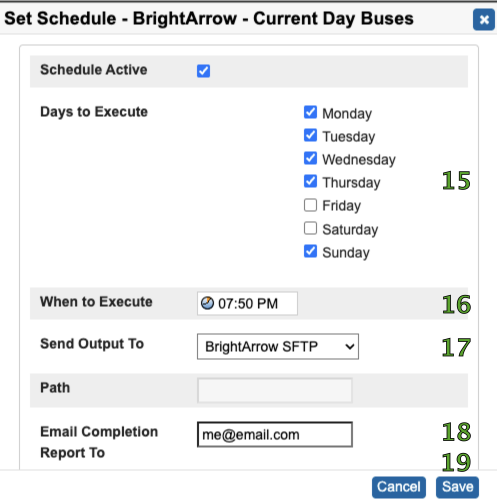
- Days to Execute = All Days or weekdays
- When to Execute = pick a time to run the export
- Send Output To = BrightArrow
- Email Completion Report To (optional) = your email or an email to keep a record of if the export and file transfer was successful or if it failed.
- Click Save
- Your export will go at the scheduled time and day(s). To send a copy now so that we can get started setting up the import of the file you can click the Send Now button which looks like the Play button from DVD player

- Let us know that the file is ready so that we can set up your import. Also let us know if you want phone/emails to come from parents, students or both.
