Using Digests to Consolidate Messages
Especially with larger organizations, your constituents may have trouble managing all of the messages that are sent to them on any given day. If your organization sends out multiple informational emails and/or text messages to recipients each day, a message summary can be sent at a pre-designated time each day to help make your messages more digestible for your contact base. With BrightArrow's Digests feature, you can help make sure no messages are getting missed.
If your organization has a Chat subscription with BrightArrow, the Digests feature can be enabled for you at no additional cost.
What are message Digests?
Message Digests are summary texts or emails that send at a specific time each day. Instead of sending each text message and/or email right away, BrightArrow will essentially hold the day's messages and send them all at once as one convenient message. This way, your recipients can easily read through and "digest" the information your organization has sent throughout the day. Note that all messages will still post to your recipients' ParentHub Feeds page, so your recipients will always have immediate access to the messages even though they won't receive the email and/or text version until the Digest time. There are also certain message types that will always be delivered right away (like emergency messages), and we'll cover that in more detail later in this article.
Your organization will determine the preferred time for the summary messages to send, and each individual recipient can decide if they want to receive the consolidated messages or not. This way, you can effectively manage messaging throughout your organization without needing to worry about those constituents who may not like receiving all the messages at once.
Once the Digests feature is enabled for your organization, each ParentHub user can choose to receive a consolidated message with all of their "informational" email and text messages each day instead of receiving each message as soon as they are sent through BrightArrow. With the feature enabled by the organization, each message recipient will have the option to turn Digests on or off, and they can change their individual preference in the ParentHub app at any time.
Setting up the Digests feature (Administrators)
Contact BrightArrow support to enable the Digests feature for your organization. Since each individual ParentHub user can opt to use the feature, you will be able to test it among staff before letting your contacts know it's available to them.
Once Digests are enabled for your organization, login as the BrightArrow superadmin to set up and review the Digests settings.
- Login to the BrightArrow superadmin account
- From the BrightArrow Central homepage, click the hamburger menu in the upper left (3 horizontal lines)
- Click Digest Settings
- In the Digest Settings window, you can set the time you want the Digest summary messages to send for your organization.
- ParentHub users (message recipients) will NOT have the ability to choose the time they want to receive messages from you. All recipients enrolled in Digests will receive messages based on the time you set here.
- We recommend choosing a time in the evening to help ensure that your staff is done sending messages for the day and your recipients will be available to review each message.
- In the lower box, you can add keywords based on the list name for messages that you want to go out to your contacts right away. For example, if you want to make sure that all attendance messages are sent right away and your attendance messages are sent from a list named "Attendance," enter "Attendance" as the keyword in the box. Remember that the keywords are captured based on the name of the list.
- Once your changes are made, click Save.


Exceptions
To help ensure that your recipients are receiving important messages timely, there are a few message types that will always send right away even if the message recipient is enrolled in Digests.
- Voice calls will send right away. If you've scheduled the voice call to send at a later date/time, it will send at the time you scheduled it for. Voice calls are never included in the message Digests.
- Emergency messages will send right away. If you've marked the message with the "Emergency" priority, it will send without regard to the scheduled Digests time. When the Digest summary goes out, it may also include the emergency message so your recipients may receive it again at that time.
- Report emails sent through your report emailing list will send right away and will NOT be included in the message Digest summary.
- Chat invites and messages will send right away. When the Digest summary goes out, it may also include the Chat message so your recipients may receive it again at that time.
- Attendance related messages will send right away. When the Digest summary goes out, it may also include the attendance message so your recipients may receive it again at that time.
- Message previews will send to the previewer right away and will not be included in Digest summary message.
- All messages will still post to your recipients' Feeds page in the ParentHub app at the time they are initially sent. This way, no one has to wait for a message to send at the specified Digests time. The message will be viewable in the app, but the recipient will not receive a text or email for the message until the specified time.
- Use the "Keyword Exceptions in List Name" box in the Digest Settings to add any additional exclusions. If the list name contains the keyword entered in the box, the message will send right away and will also be included in the Digest summary message.
How to enroll in Digests (Recipients)
Once the organization has set up the Digests feature in BrightView (web version of BrightArrow), message recipients will see the option to enroll in Digests in their ParentHub app Menu settings. Each ParentHub user can enroll to receive Digest emails and/or Digest text messages. ParentHub users can change their enrollment at any time through the app. The Digest messages will be sent at the time of the organization's choosing. Note that voice calls are excluded from Digests, so message recipients will receive the calls when they are sent from the organization.
- Login to the ParentHub app.
- Tap the Menu tab.
- Tap Settings > Digest
- The Digests window will show the time that the Digest messages will begin sending each day so your recipients will know when to expect to receive their messages.
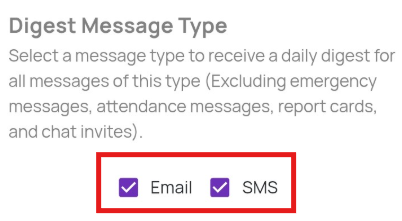
- Under Digest Message Type, select the corresponding checkboxes for the message types you would like to receive in Digest form.
- With the Email box selected, all informational email messages (with the exception of any excluded message types) will send at the specified time in one email message.
- With the SMS box selected, all informational text messages (with the exception of any excluded message types) will send at the specified time in one text message.
- If you check both boxes, you will receive one email message Digest summary that contains all of the emails that were sent to you that day AND one text message Digest summary that contains all of the text messages that were sent to you that day.
- Use the dropdowns to select the email and/or phone number where you would like to receive the Digest summary messages.
- If your preferred email or phone is not listed as an option, see here for help adding additional phones/emails.
- If you already have multiple phones or emails linked to ParentHub, you will have the option here to determine which phone or email you would like to use to receive your Digest messages.
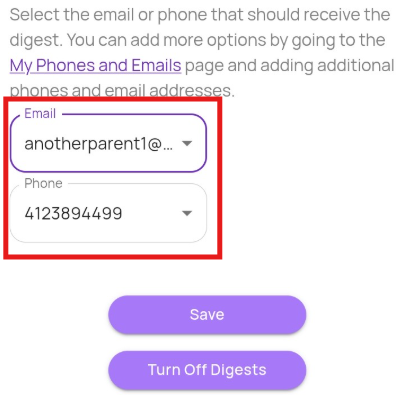
- At the bottom of the page, tap Save to save your changes.


What to expect
If you completed the steps above to enroll in message Digests, you will start receiving informational messages each day at the time your organization has set. You can enroll to receive email messages in Digest form, text (SMS) messages in Digest form, or both. If you enroll in Digests for both email and text, you will receive one Digest email and one Digest text message each day at the specified time.
Text (SMS) Digest
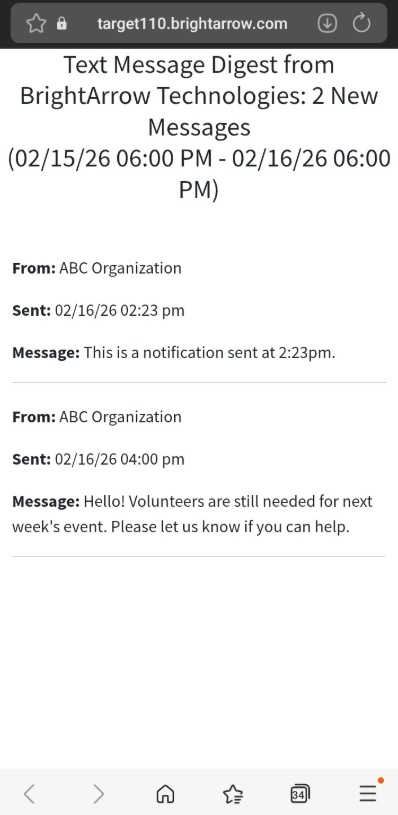
If you enrolled to receive SMS digests, you will receive one text message at the specified Digest time that contains a link. Click the link within the text message to see all informational texts that were sent to you that day. Note that some message types, like emergency messages and attendance messages, will send to you right away but may also still be included in the Digest summary.
The Digest text message you receive each day will look something like this:
 Click the link within the text message to see all of the texts your organization sent to you that day:
Email Digest
If you enrolled to receive email digests, you will receive one email message at the specified Digest time that contains a list of each email that was sent to you that day with a link to view the messages in full. Click the link within the email to see each message in it's entirety. Note that some message types, like emergency messages and attendance messages, will send to you right away but may also still be included in the Digest summary.
The Digest email message you receive each day will look something like this:
 Click the link to "View All Full Messages." A new BrightArrow webpage will open where you can see each message. Some longer messages may be truncated but you can use the "View full message" link as needed to open the full message.
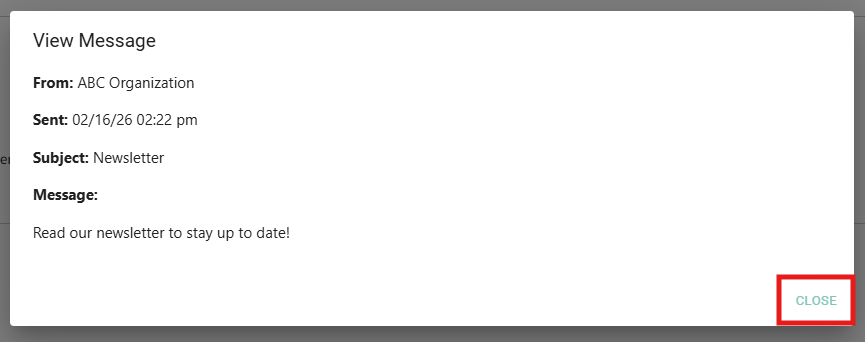
 A window will pop-up where you can view the message in its entirety. Click "Close" at the bottom of the pop-up window to return to viewing your other messages.
Turning off Digests (Recipients)
If you had previously enrolled to receive message Digests but would now like to go back to receiving each message right away, you can do that through the ParentHub app. If you want to receive all text messages right away but still use the Digest summaries for your email messages (or vice versa), you can do that too. ParentHub users can change their Digest preferences at any time, so you can change your preferences as many times as you want until you find what works best for you.
Turning off your Digests completely
- Login to the ParentHub app.
- Tap the Menu tab.
- Tap Settings > Digest
- To completely turn off Digests so that you will start receiving text and email messages as soon as they are sent by your organization, go to the bottom of the page and tap Turn Off Digests.
- A pop-up window will appear to confirm that you successfully turned the feature off. Tap OK.
- Notice that the Email and SMS boxes are now deselected. You will start receiving future messages at the time your organization sends them.
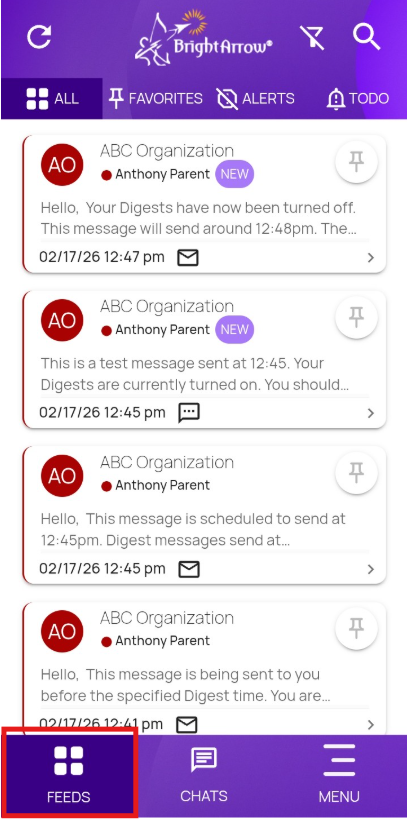
- Note that any messages that were sent from your organization that day PRIOR to you turning off Digests will not be sent to you via email or text. You will not receive a Digest summary for the messages sent to you before turning of the Digest feature. To see your messages, go to your ParentHub Feeds tab and view your messages there.


I want to receive text messages right away but use Digest for email messages
If you want to receive Digest message summaries via email but still receive text messages as soon as the organization sends them, you can do that through the ParentHub app.
- Login to the ParentHub app.
- Tap the Menu tab.
- Tap Settings > Digest
- Mark the check box for "Email" to enable Digests for your email messages only.
- In the email drop-down, choose the email address you would like to receive your Digests in.
- Tap Save.
- A pop-up window will appear to confirm that you successfully enrolled in email Digests. You will now receive a summary email at the specified time that includes any informational emails that were sent to you that day. Your text messages will be delivered to you at the time they are sent from your organization. You will not receive a summary text message.
I want to receive email messages right away but use Digest for text messages
If you want to receive Digest message summaries via text but still receive email messages as soon as the organization sends them, you can do that through the ParentHub app.
- Login to the ParentHub app.
- Tap the Menu tab.
- Tap Settings > Digest
- Mark the check box for "SMS" to enable Digests for your text messages only.
- In the phone number drop-down, choose the phone number you would like to receive your Digests on.
- Tap Save.
- A pop-up window will appear to confirm that you successfully enrolled in SMS Digests. You will now receive a summary text message at the specified time that includes any informational texts that were sent to you that day. Your email messages will be delivered to you at the time they are sent from your organization. You will not receive a summary email message.