Setting up Missing Assignment Summary Exports
Minimum version: BrightArrow Base 2 v26.07.09
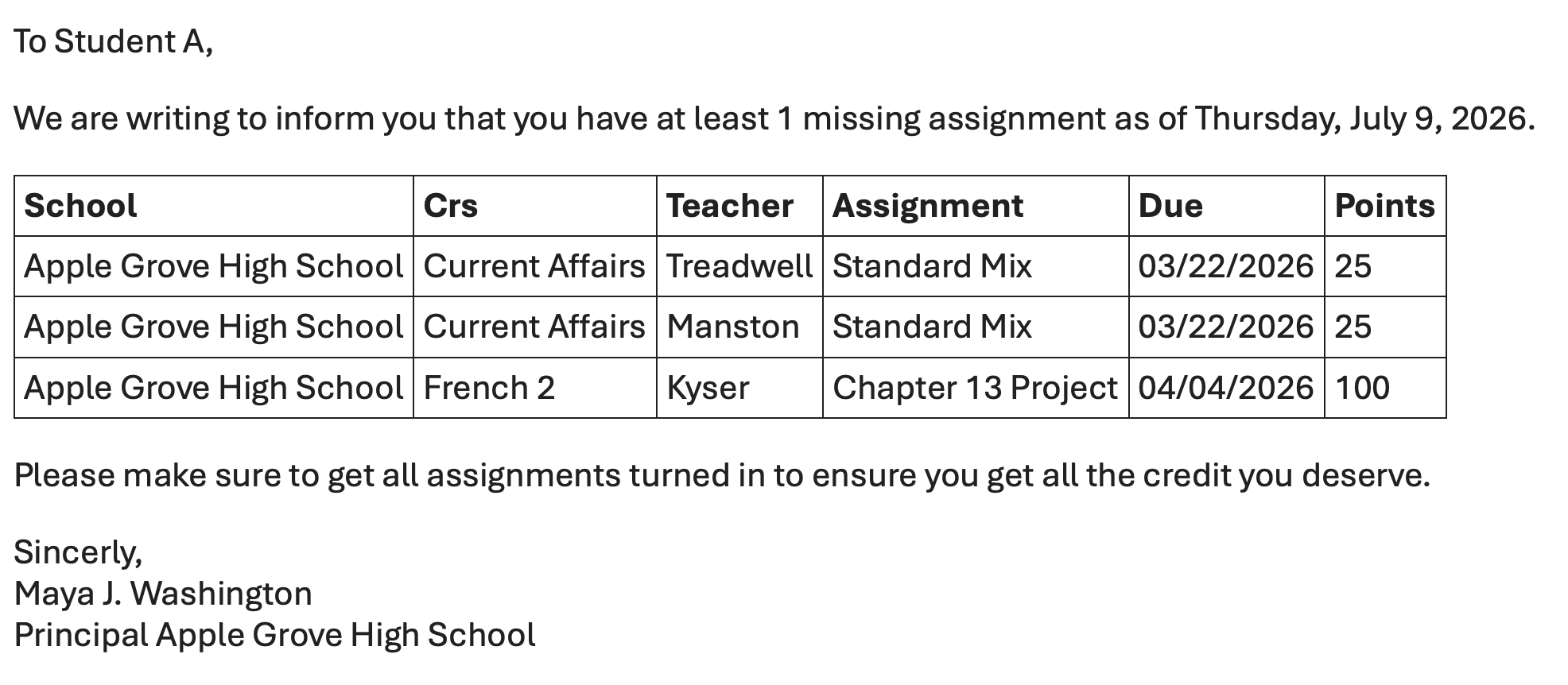
Students sometimes forget to turn in assignments. In PowerTeacher Pro teachers can check a box to indicate that the assignment is missing. Schools can also choose to send reminders of missing assignments on a periodic basis. We recommend sending them weekly and ideally not on the last day of the week so that students can be reminded to bring materials home to complete the task rather than be notified after they've already left school for the weekend.The summary version of the export will display all missing assignments for a student in a single email instead of separate emails per assignment. Which columns are displayed and what the column headers show can be set in the settings page. The resulting email can look similar to this:
Assumptions
- The Exclude All option is not selected for the student
- The Exclude from Missing Assignments exports is not selected for the student
- Gradebook is PowerTeacher Pro
- Assignment is not due in the future
- Assignment was due within the timeframe as set up in the BrightArrow Settings > Filters > Lookup Rules tab > Grading tab
- Each school can have different settings. If one school uses semesters and another uses quarters both can be accommodated.
Filters
This export will respect the settings from the BrightArrow Settings area. For more information on how to change the settings read How to Change the Missing Assignments Reminder Filters. Once the export is set up and scheduled all changes other than export time changes can be done from the settings area.
Setting up Missing Assignment exports
The export should be set up in DEM from District Office. For information on getting to DEM read Getting to Data Export Manager (DEM)
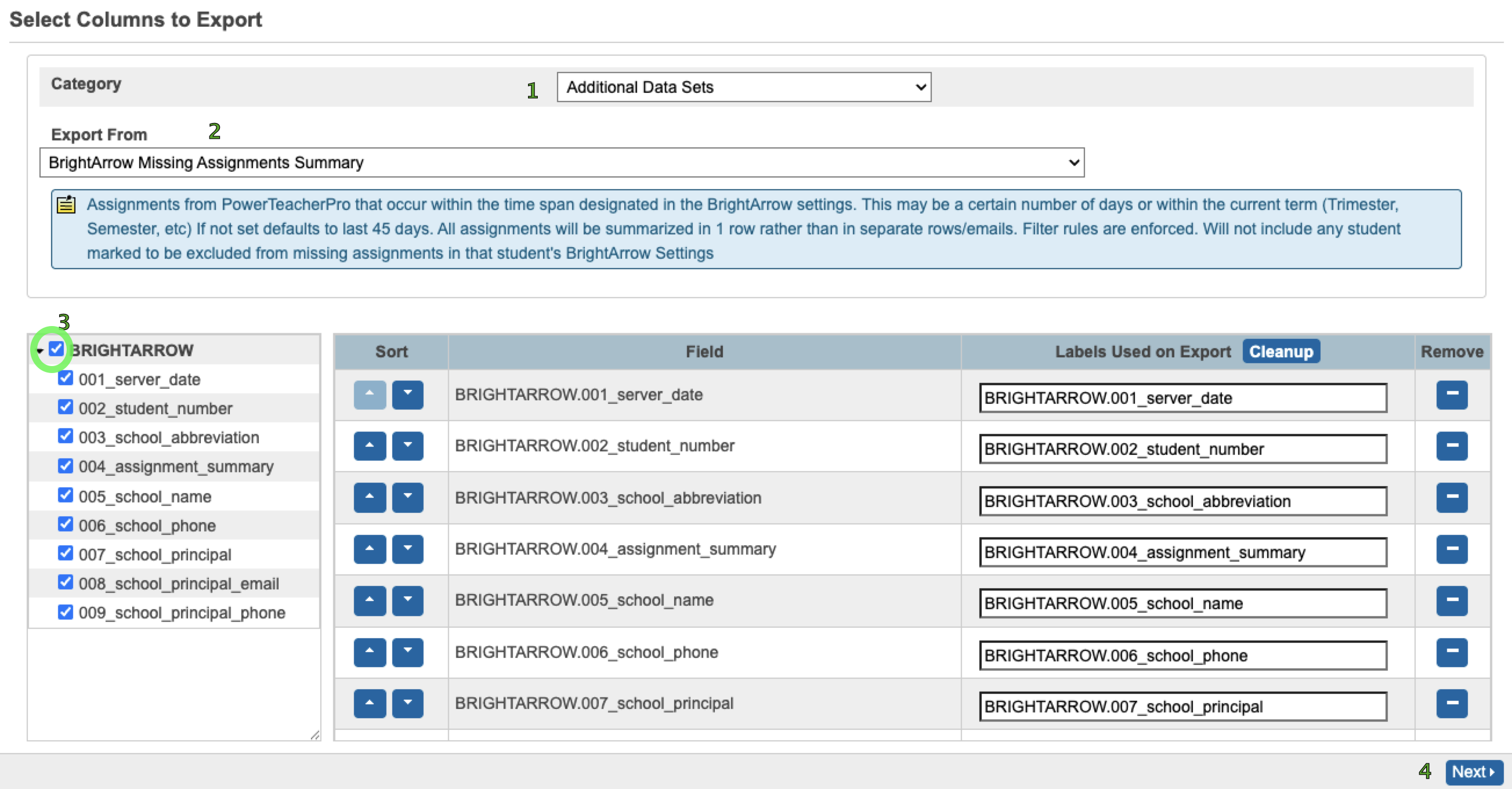
- Category = Additional Data Sets
- Export From = BrightArrow Missing Assignments Summary
- Fields -> Select the checkbox next to "BRIGHTARROW" to select all fields. Fields are already listed in proper order.
- Click Next
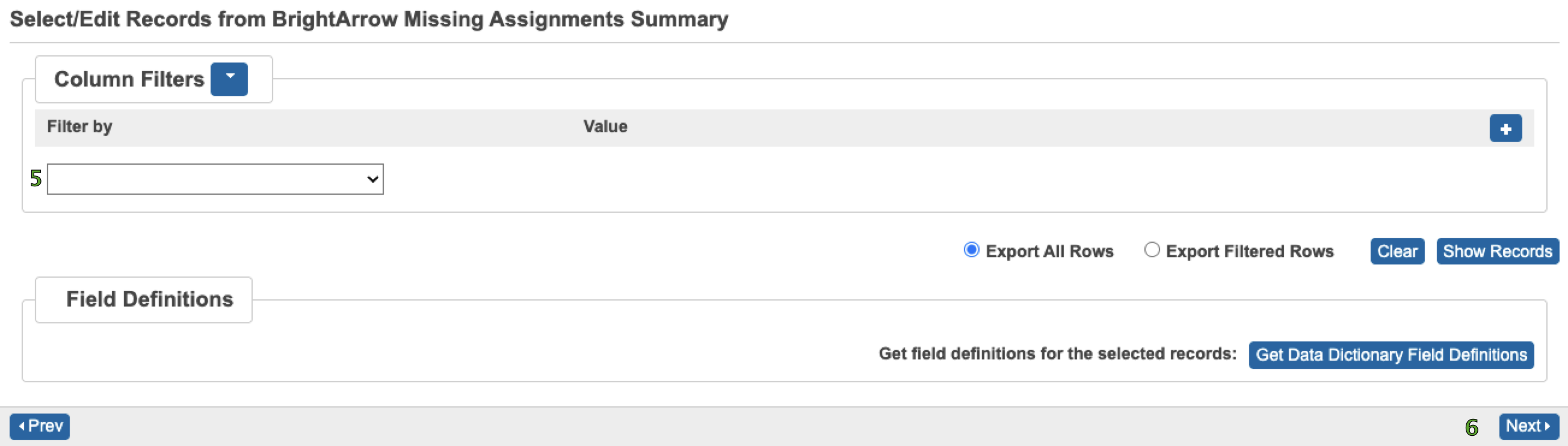
- No filters here, controlled by the settings page filters
- Click Next
Note: Before the next section becomes editable the entire template must run. This is not a quick process and the larger your district the longer this will take.
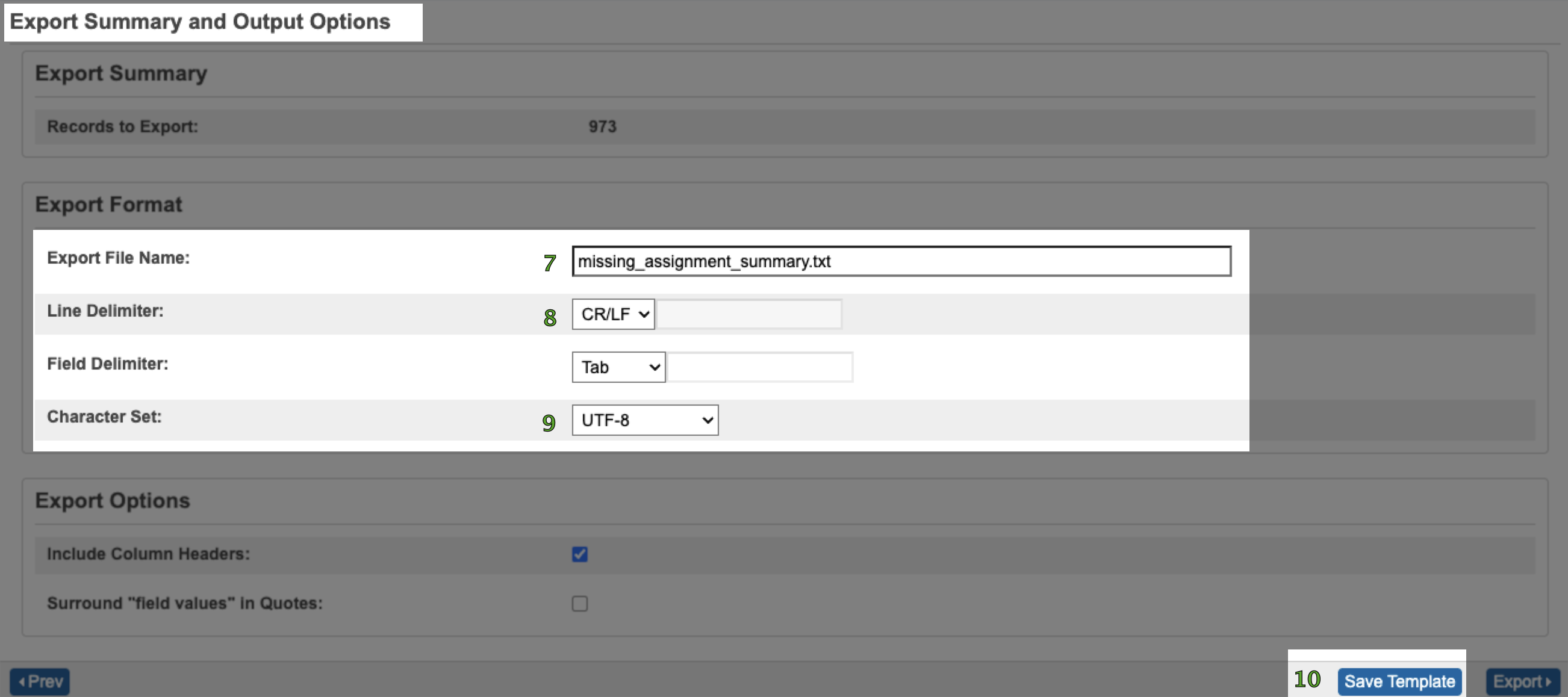
- Export File Name = missing_assignment_summary.txt
- Line Delimiter = CR/LF
- Character Set = UTF-8
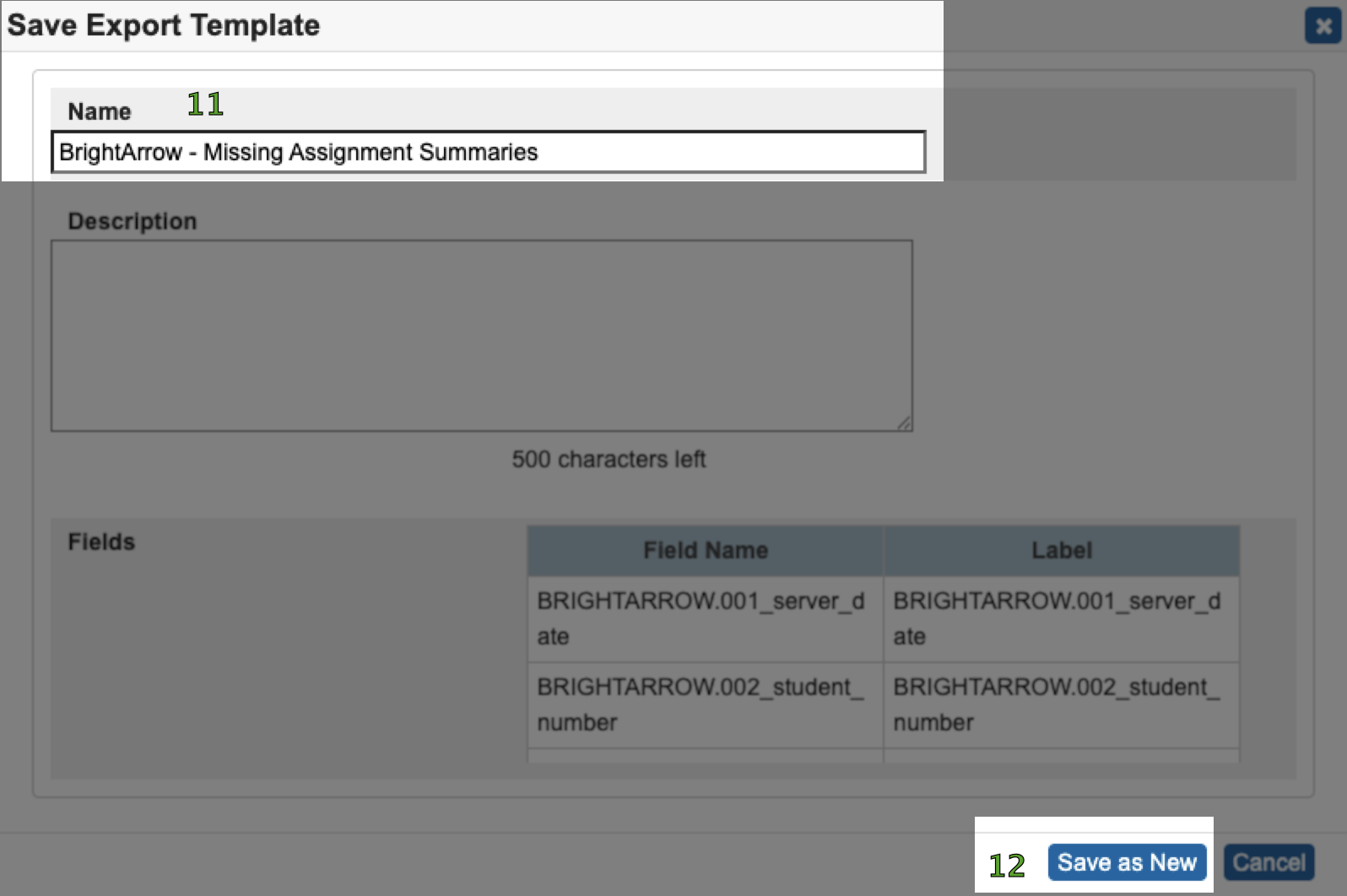
- Click Save Template
- Name = BrightArrow - Missing Assignment Summaries
- Click Save as New
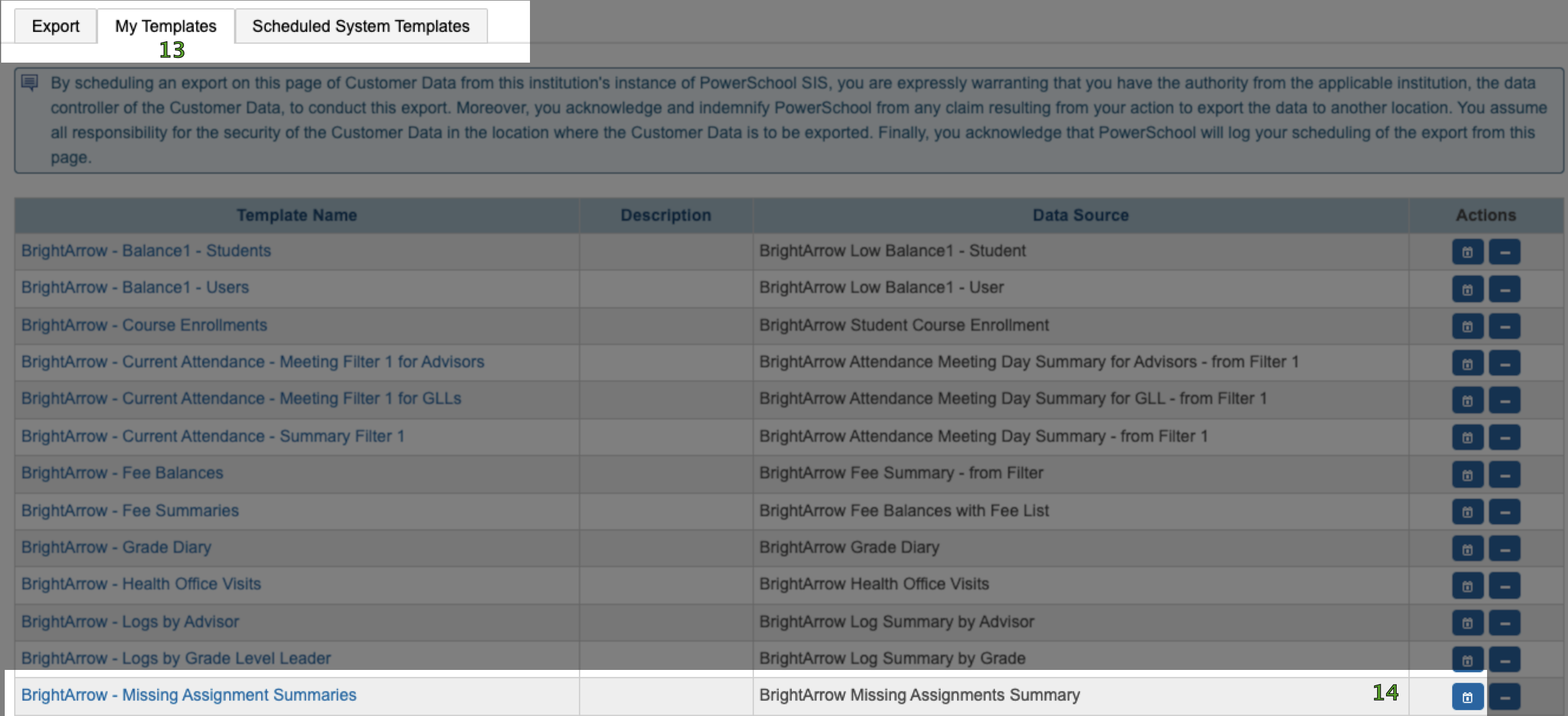
- Switch to the My Templates tab
- Find the row for the new template and click the calendar button to schedule this template. If you do not see the calendar button or the Scheduled System Templates tab you don't have permission to schedule exports. For more information on that read Enabling DEM Scheduling
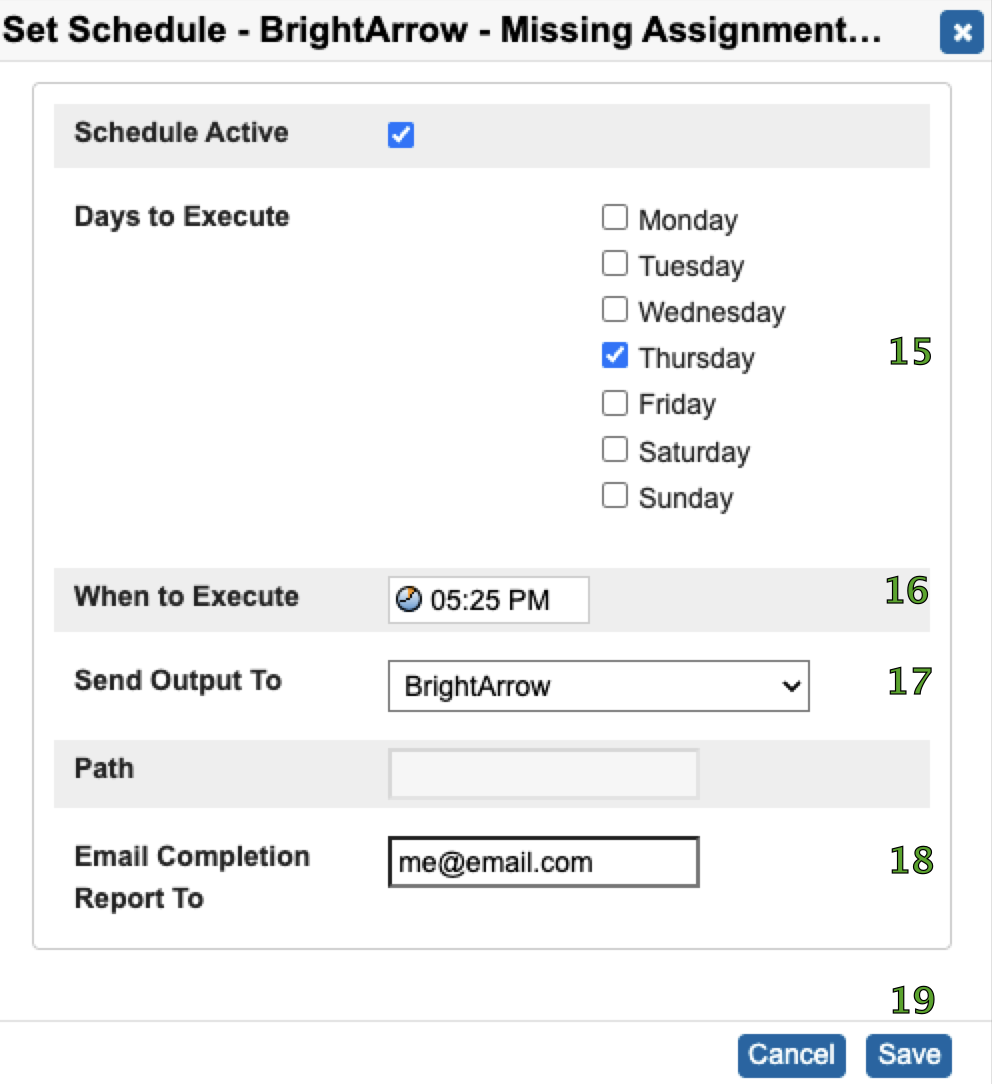
- Days to Execute = Pick a day to run. Thursdays give a chance to notify before the weekend to bring home any materials that might be needed to complete the work.
- When to Execute = Pick a time 5 to 10 minutes before you want the message to go out. There needs to be some processing time for PowerSchool to generate the file and send it to us. If you want the message to go at 10:10am then export at 10:00am.
- Send Output To = BrightArrow
- Email Completion Report To (optional) = Your email or an email to keep a record of if the export and file transfer was successful or if it failed.
- Click Save
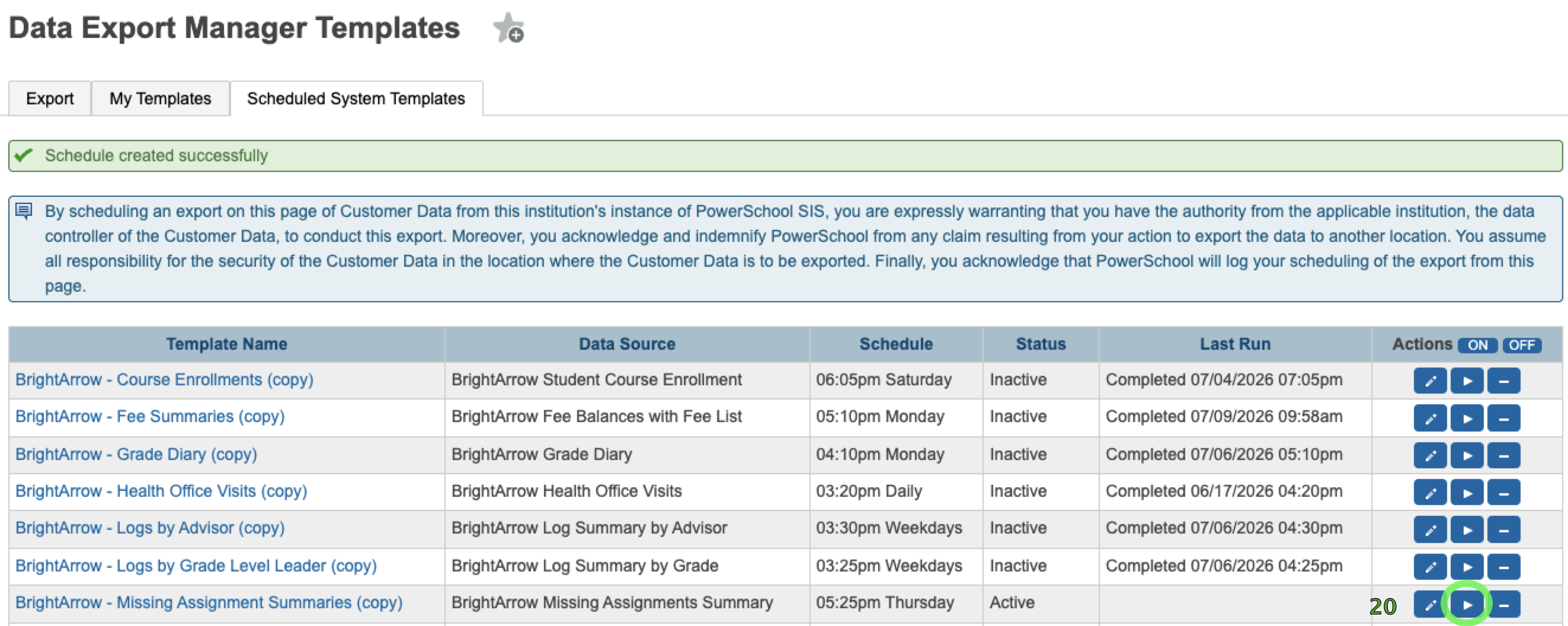
- Your export will go at the scheduled time and day(s). To send a copy now so that we can get started setting up the import of the file you can click the Send Now button which looks like the Play button from a DVD player.
- Let us know that the file is ready so that we can set up your import.
