BrightArrow Forms and Surveys
In BrightArrow, you can build customized forms and surveys and send them to your recipients via email or SMS. The feature allows for creating various question types, applying conditional formatting rules, and organizing content with pages and panels. This article demonstrates BrightArrow's form and survey creation tool from start to finish, including creating and saving forms as templates, attaching them to email or SMS messages, sending to contact lists, and accessing detailed response reports with filtering and export options.
Click here for a printable handout on the basics of the BrightArrow Forms feature.
Forms in Revere
The sections below cover the Forms feature in Revere. For help using Forms in BrightView, see here.
Video Demo
Getting to Forms
Forms can be found on the Compose page. You'll select the message types you wish to send (email and/or SMS) first. With the message type selected the Forms button will be revealed. Follow the steps below to find the Forms feature to either start creating a Form or to load a Form you already saved.
- In your Revere navigation panel, click Compose
- Select email and/or SMS as the message type you wish to send. Forms can be sent via email, text, or both.
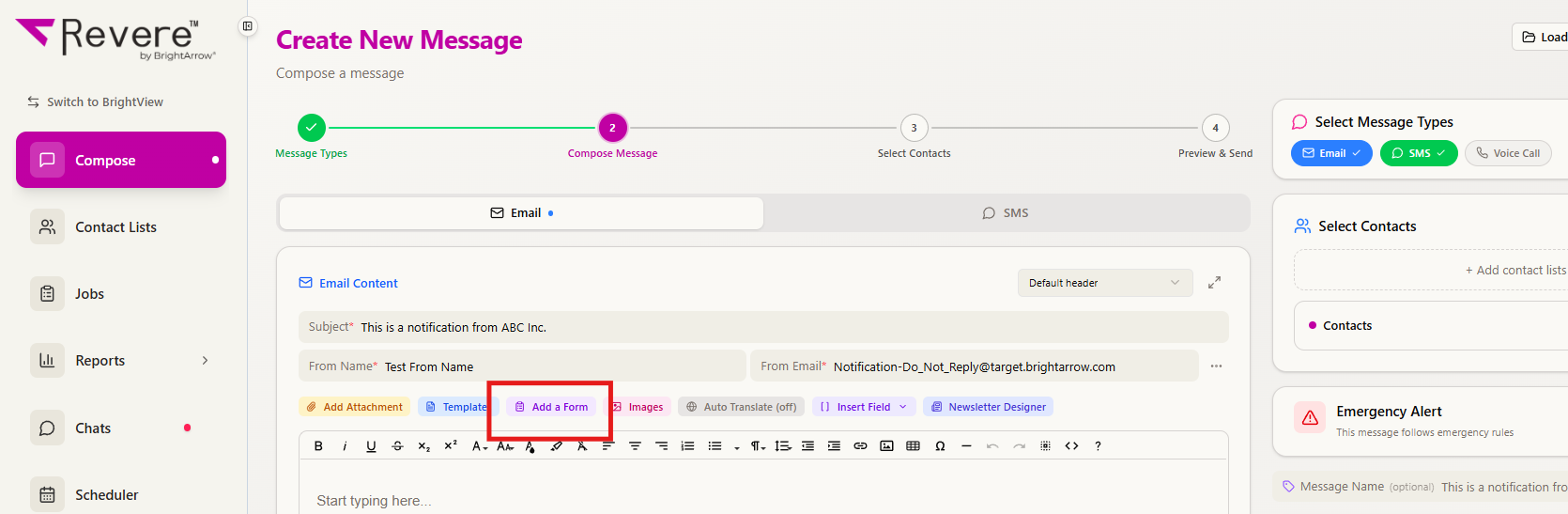
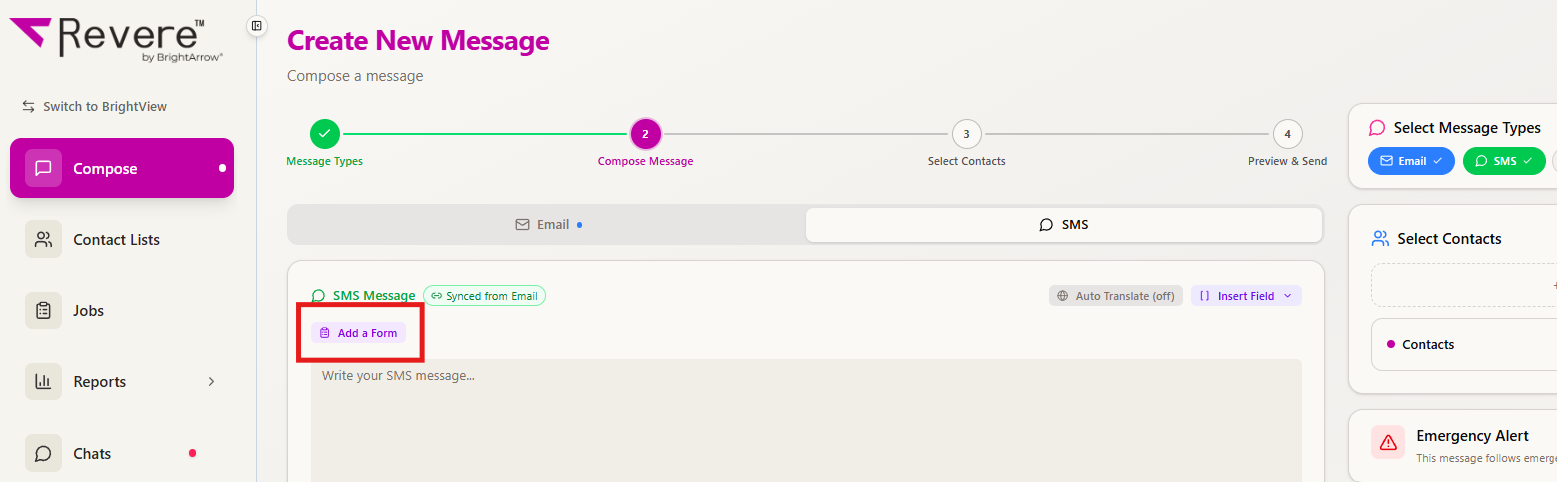
- Click the "Add a Form" button
Add a Form button in email message creator:
Add a Form button in SMS message creator:
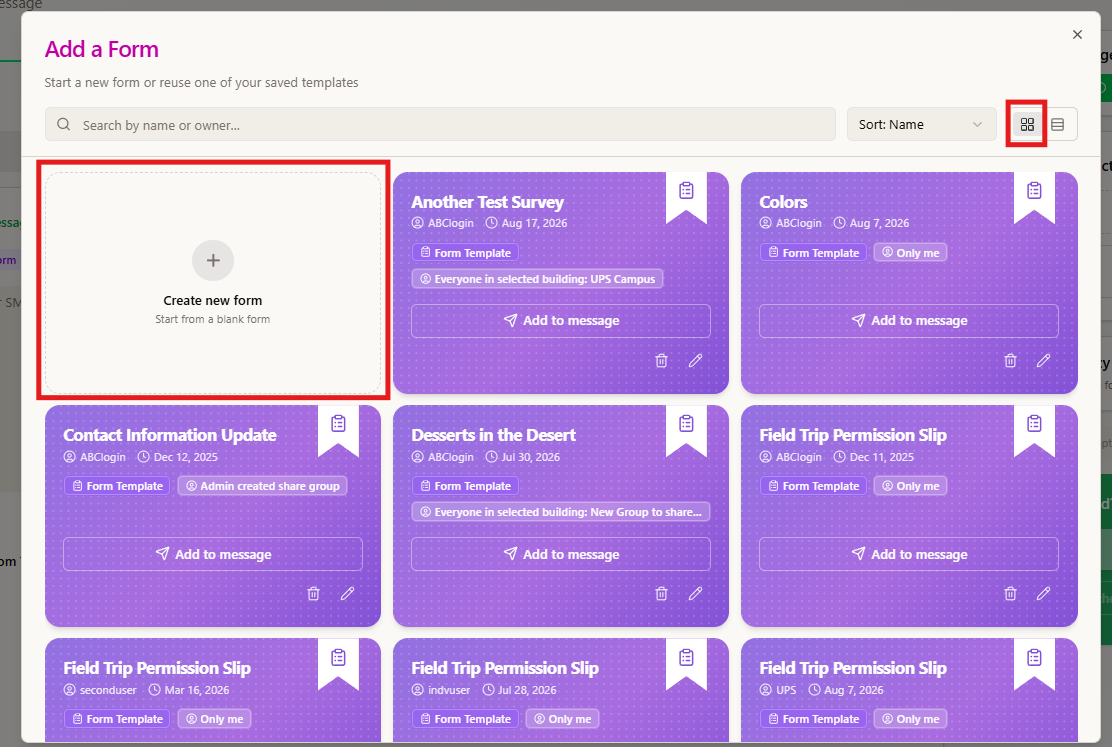
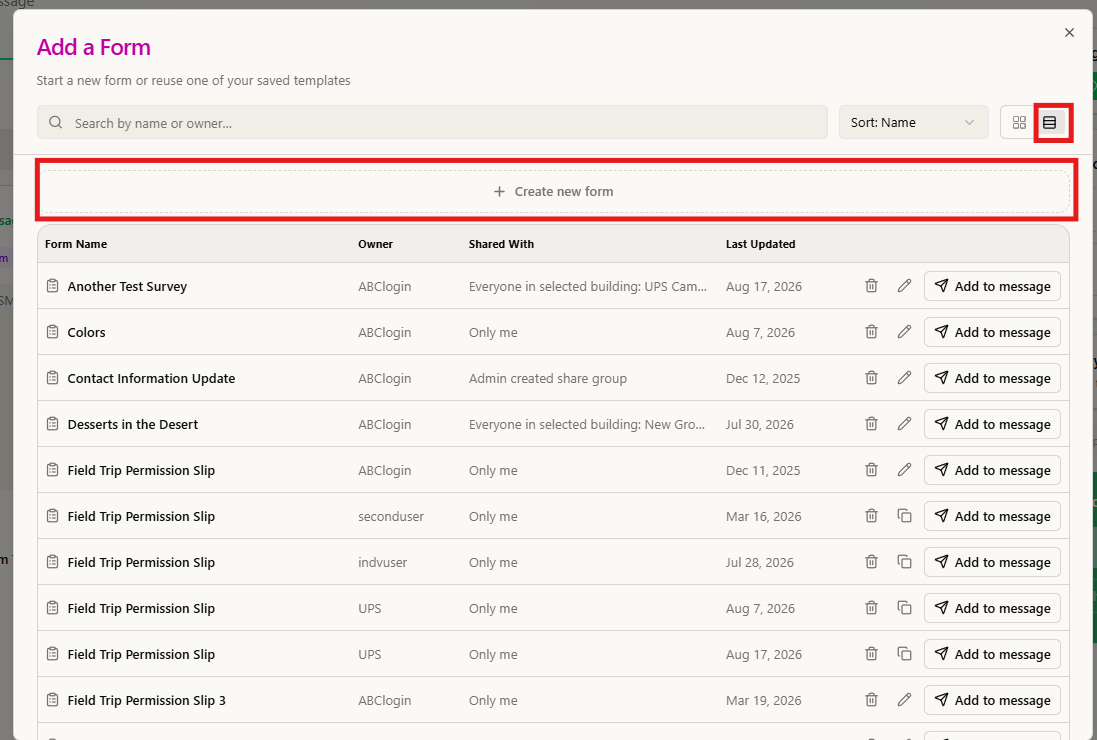
- The "Add a Form" window will pop-up. Here you can select a form template that you've already created or click "Create New Form" to start a new one.
Add a Form window in grid view, highlighting Create New Form option:
Add a Form window in table view, highlighting Create New Form option:
Navigating the Add a Form window
In the Add a Form window, if you are creating a new form you can get started with the Create New Form button. Once you have one or more Forms created, you'll see them listed in the Add a Form window where you can edit them or use them again in the future. Any Form templates that have been shared with you will show here too, even if you weren't the original creator. This section details everything you'll see in the Add a Form window.
View
Depending on your view, you may see your Form templates in grid view or table view. In grid view, you'll see each Form template listed as a bubble. In table view, you'll see a standard list of your Form templates. To change the way you view Form templates, click the icon as indicated in the screenshot below.

Searching and sorting
If you have many Form templates, you can use the Search bar to search for a template by name or by the name of the person or user group who created it. You can also sort all templates to update the order in which they appear in the Add New Form window. The search and sort options can be used individually or in conjunction with one another. For example, you can search for all templates that have the same naming convention then sort those to show which was the most recently updated.
Search for a specific Form by entering the name of the Form or the name of the original creator into the search bar. In the example below, we searched for the Form owner's name. The "owner" is the person who originally created the form, based on their BrightArrow login name.
 Sort Forms to have them show in a particular order.
- Sort Forms by name to alphabetize the list based on the name of the form.
- Sort Forms by the date they were last updated so the most recently updated show at the top
- Sort Forms by the name of the user or user group who created them. Results will show in alphabetical order.
In the example below (shown in grid view), we first searched for all Forms that were created by the user login "indvuser" then sorted all the Forms created by that user to show in order of Last Updated. Using this method, all forms created by "indvuser" now show in order of the last time they were updated. 
Navigating Form templates
In the Add a Form window you will find the options to create new Forms. Here you can also view, edit, or delete existing Forms. You can also add a Form you previously saved to your message to send to your message recipients. In this section we will detail each item you might see in the Add a Form window.
Depending on whether you are in grid view or table view, you should see something similar to one of the two screenshots below. Regardless of which view you use, the options will be the same.
Grid View:

Table View:

- Form Name: This is the name the Form's "owner" gave to the Form upon creation.
- Owner: This is the user who originally created the Form. It may be a user's name, email address, or the name of the group they login to. The name is based on the user's login name.
- Date: This is the date the Form was last updated.
- Sharing/Access: This is who the Form is shared with. Anyone the Form was shared with will have access to use the Form. In most cases, those users will not be able to edit the existing Form but they could create a copy and edit the copy.
- Add to Message option: "Add to Message" will add the Form link to your email and/or text message. You will be prompted to enter a close date and time before adding the Form.
- Trash can icon: Use the trash can icon to delete the Form. Warning: this will delete the Form for everyone who has access to it.
- View/Edit pencil icon: Use the view/edit pencil icon to view the Form or make edits to it. You will only see this option if you were the original creator of the Form or if the original creator gave you editing rights.
- Copy icon: If you were not the original creator of the Form or were not given editing rights to it, use this icon to view or edit the Form. If you make edits, they will be saved to a new copy of the Form instead of overwriting the original.
Building a Form or Survey
When building a new Form or Survey you have many options for various question types. Conditional formatting can be applied to each question as well.
- As detailed in the "Getting to Forms" section of this article, start in Revere > Compose, then select either Email, SMS, or both as your message types. Click the Add a Form button, then choose the option +Create new Form.
- Question types are listed on the left side of the screen and formatting options are listed on the right. Start by clicking on a question type on the left, or by clicking the Add Question button.
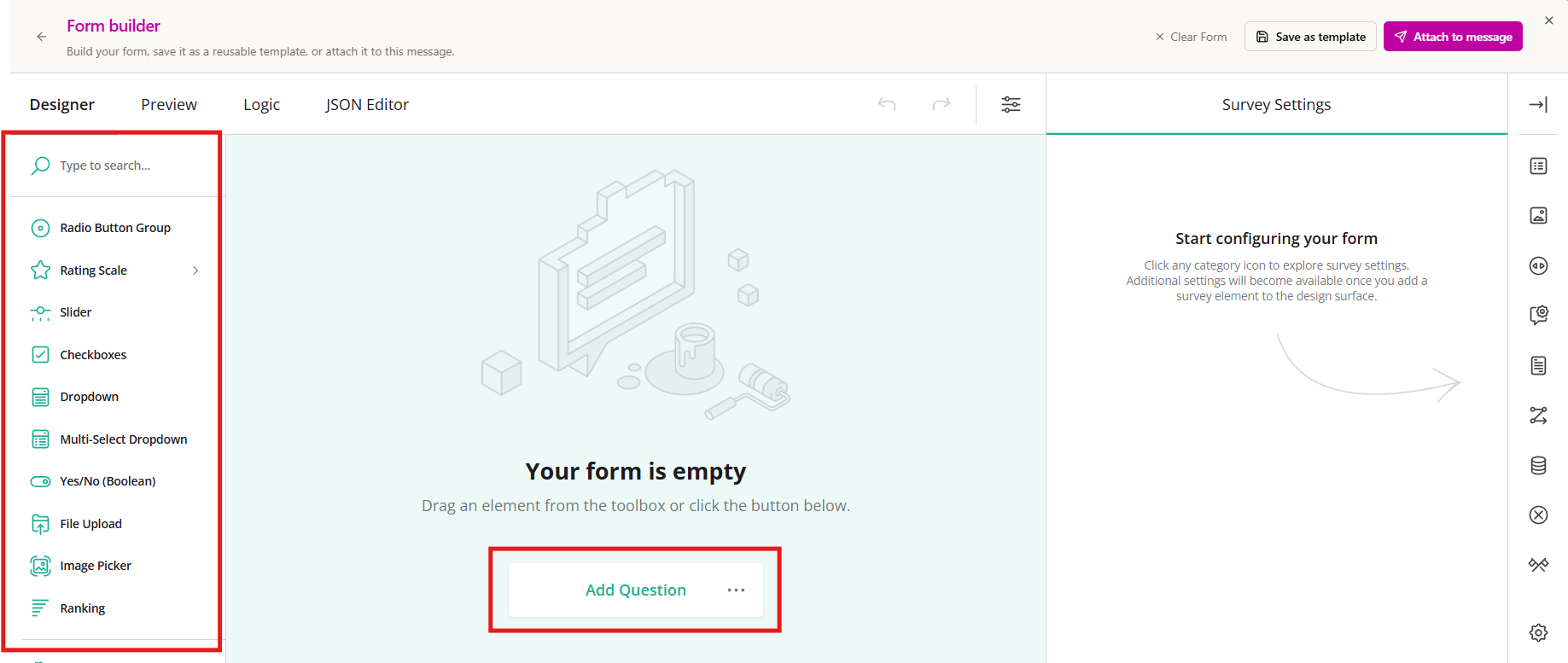
- Adding the first question type will automatically reveal options for the Form/Survey title, description, page name and page description. Edit titles and descriptions if you wish. If you do not want to include the title, pages, or descriptions, leave them blank. If you don't edit them they will not be shown to recipients.
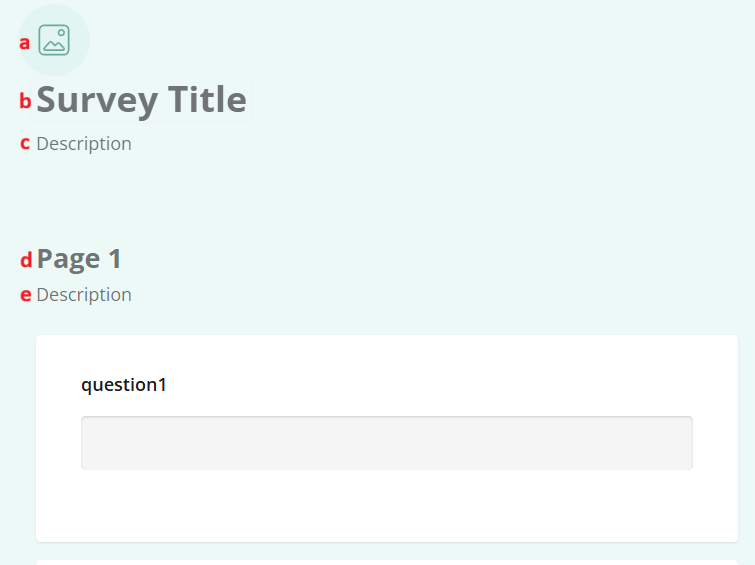
- Click on the picture icon to add a picture or logo to your Form/Survey. Simply ignore the icon if you don't want to add a picture. Recipients will not see the picture icon if you add nothing here - they will only see a picture if you actually add one.
- Click on the Survey Title if you'd like to add a title to your Form/Survey. Simply ignore the "survey title" if you don't want to include one. Recipients will not see the generalized "survey title" if you add nothing here - they will only see a title if you actually add one.
- Descriptions can be added to give recipients a general idea of what the Form/Survey is about. Click on the "description" field located directly under the Survey Title if you would like to add a description for the Form/Survey. Simply ignore the description field if you don't want to add one. Recipients will not see the generalized survey "description" if you add nothing here - they will only see a description if you actually add one.
- Pages are optional and can be used if you would like to segment your Form/Survey into pages to better organize questions. Click on "Page 1" and enter a title for the first page, then repeat for any subsequent pages. Simply ignore the "Page #" fields if you don't want to use pages. If you choose not to use pages, all questions in your Form/Survey will be in a single page. Recipients will not see the generalized "page 1" field if you add nothing here - they will only have the option to click through multiple pages if you actually add them by editing the "page #" fields.
- Page descriptions can be added to give recipients a general idea of what each page is about. Click on the "description" field located directly under the Page # field if you would like to add a description for that page. Simply ignore the description field if you don't want to add one. Recipients will not see the generalized page "description" if you add nothing here - they will only see a description if you actually add one.
- With your question box added, click anywhere inside the question box to select it to start making edits.
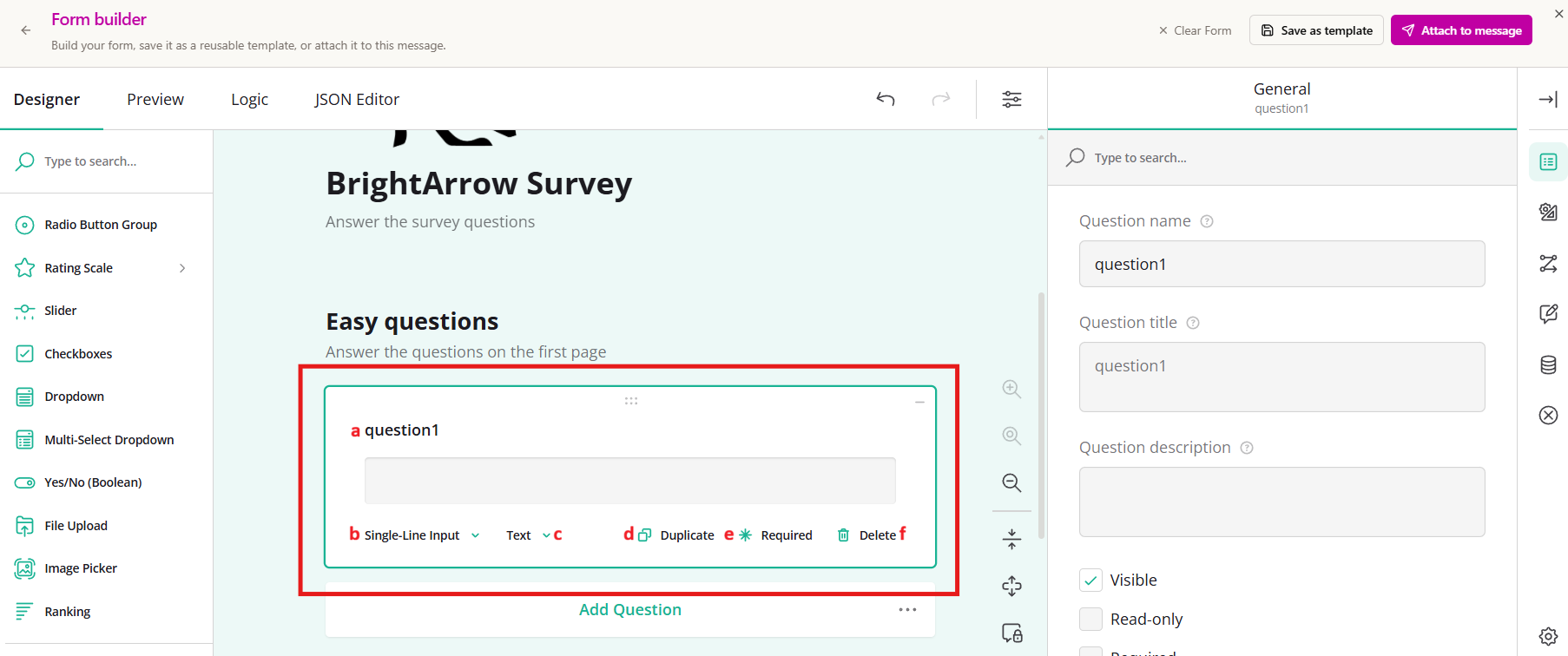
- Click on the question name (shown above as "question1") and type in your actual question.
- Change the question type by clicking on the question type drop-down.
- The input type options will change depending on the type of question it is. Click on the input type drop-down to see what options are available for that particular question type and make changes if you wish.
- Use the Duplicate option to create a copy of your question. This can be helpful if your next question will be very similar with just a few changes.
- If you mark the question as Required, recipients will not be able to submit answers for the Form unless they complete the "required" question. If the question is not marked as required, recipients will be able to skip over it and still submit their answers to other questions.
- Delete the question if you want to remove it from the Form.
- Continue adding additional questions (and pages if you're using them). You can use the Add Question button or simply select your next question type from the panel on the left. There is no limit to the number of questions or pages you can use.
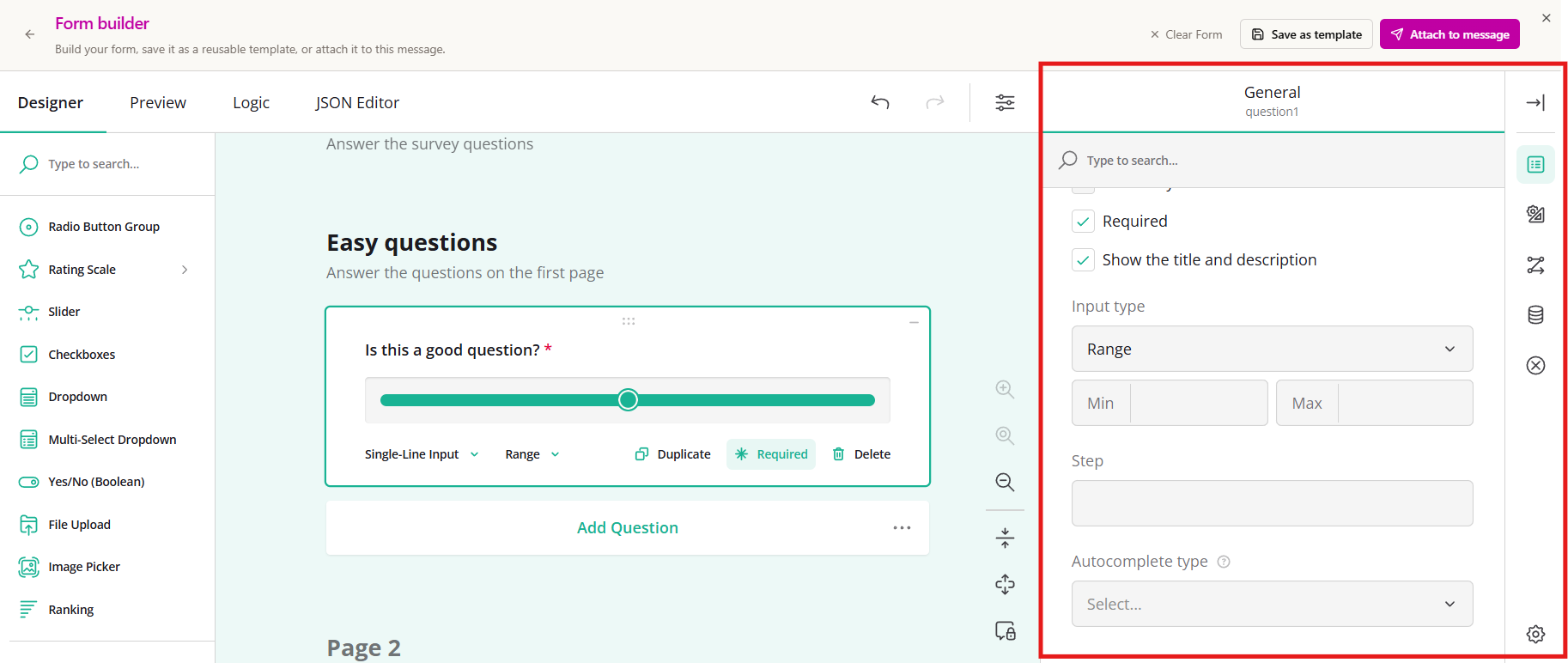
- With your questions added, you can now apply formatting to any question if you wish. The available options will show in the toolbar on the right. Those options will change based on where you click in the Form. Click in the background area of the form to adjust formatting to the overall Form or click on a specific question you'd like to format. Then using the toolbar on the right side of the screen, review the available formatting options.
Viewing Forms results in Revere
Once your recipients complete the survey, their answers will be logged in Revere. Navigate to Reports > Forms Responses to start reviewing Form submissions.

- Use the "Choose a Form" drop-down menu to select the Form you wish to view responses for. It may automatically load a Form for you - simply click anywhere inside the box to choose a different Form to view results for.
- Click "Individual Responses" to see details of what each recipient responded with.
- Click "Summary" to view summary charts that show the overall results of your survey.
- Use the "CSV" button to export the results to a CSV file to filter and analyze the results.
- Search the entire Form to find a specific keyword across any column.
- Show additional entries to see more results on one page.
- Navigate through pages of results using the page navigation arrows.
- Use the adjustment arrows to move columns if you'd like to see the results in a different order.
- Use the Move to Detail option if you'd like to see a more detailed view of that specific column.
- Then, click on the 3 dots to the left of the rows to see those details.
- With the detail open, click "Show as Column" to move it back.
- Use the eye icon to hide columns if you wish.
- If any columns are hidden, a "Show Column" drop-down box will appear. Click in there to find a column if you need to unhide it.
- Use the ascending/descending arrows to change the order of results.
- Search in any column to locate a specific result in that column.
Using Forms in BrightView
In BrightView, you can create a form or survey to be sent to your list contacts by email. For sending surveys through voice or text, see here.
Create the form or survey
- Start by clicking on the name of the list that you want to send the form or survey to, then create a new message.
- Mark the "Email" box as the message type.
- On the email message creation page, click the Add Form button to start creating your form or survey or to open a form/survey you've previously created.
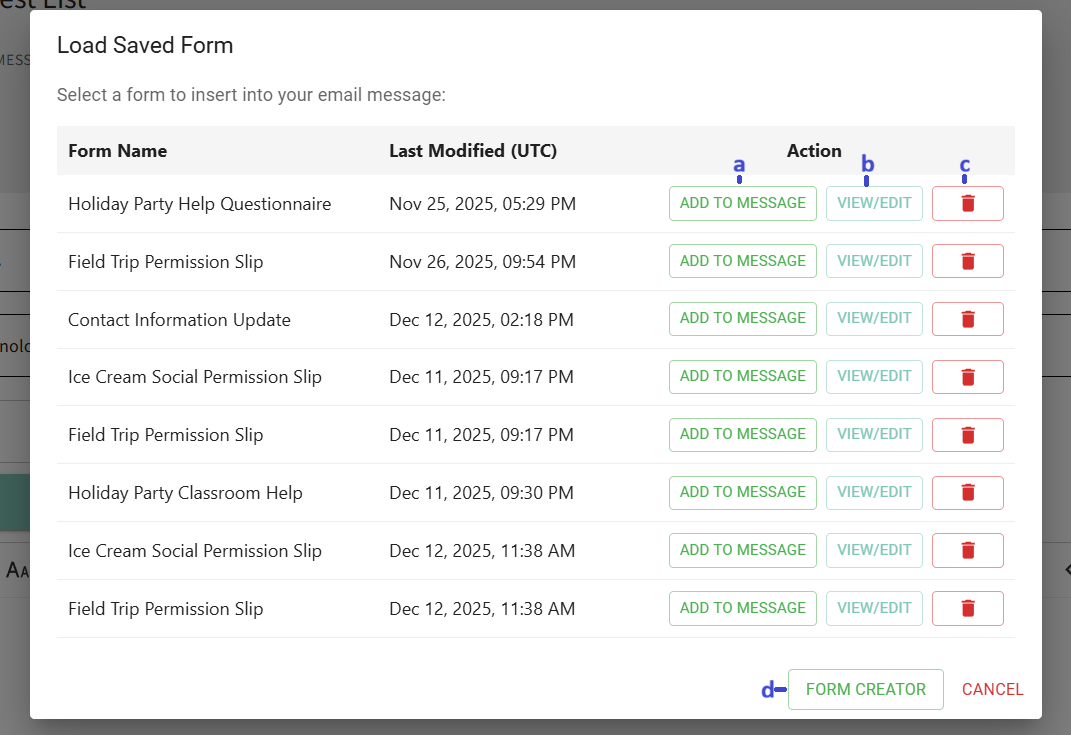
- A new window will open showing a list of all the surveys/forms that are already created in your account.
- Click the "Add to Message" button to add the form directly to your email message.
- Click the "View/Edit" button to view and/or edit the form.
- Click the "Delete" trash can icon to permanently delete the form from your account.
- Click the "Form Creator" button to start creating a brand-new form.
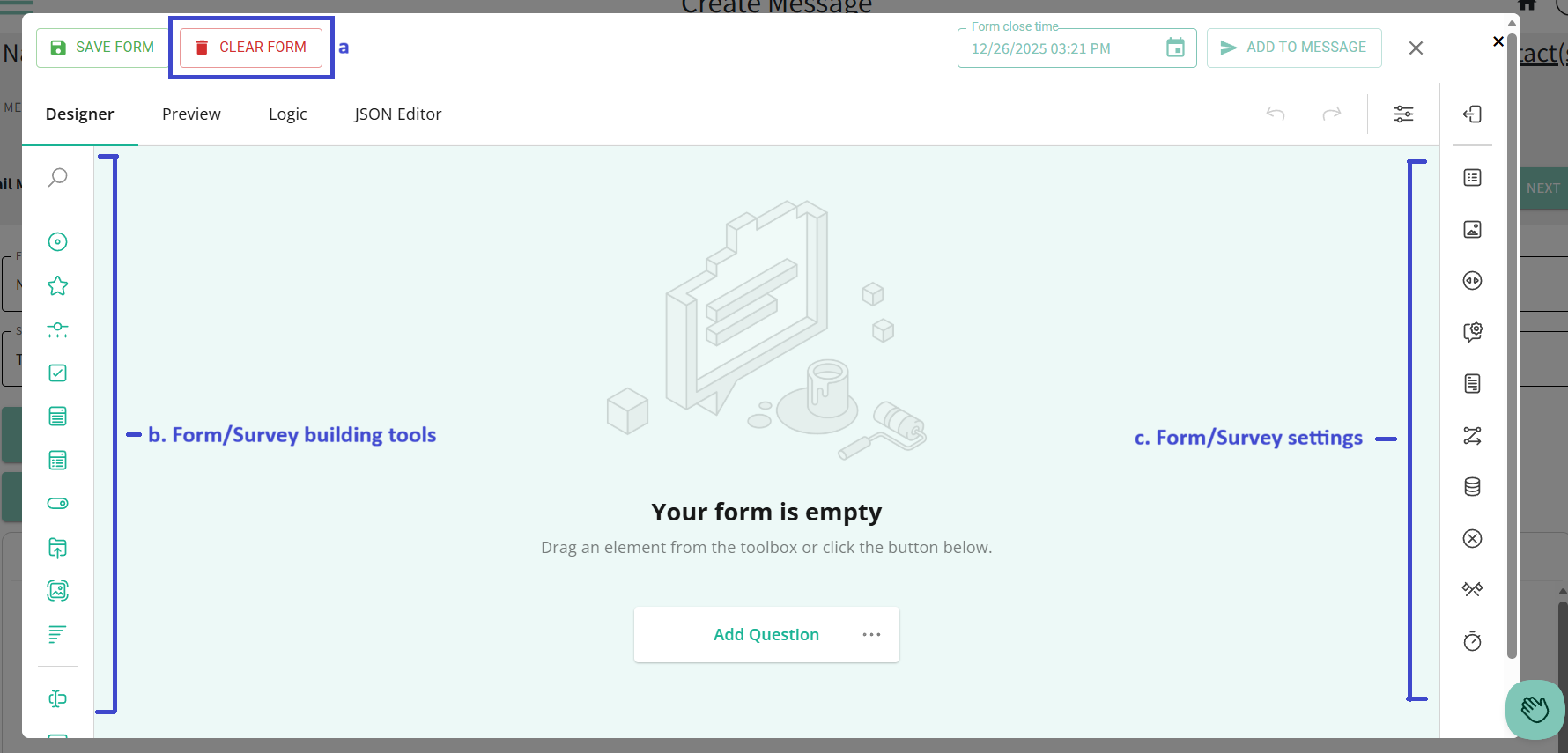
- After clicking either the View/Edit button or the Form Creator button, the Forms/Surveys creation window will open and you can start creating or editing your form.
- When you open the form creator, the last form you were working on will load automatically. You can click "Clear Form" to start a new form.
- Use the icons on the left to build your form or survey. Clicking any of the various options on the left will allow you to create a new question in that format.
- Use the icons on the right to designate settings for the form or survey.
- Click on any item within your form to edit it to your liking.
- As you scroll down toward the bottom of the form designer window, you can add additional questions by clicking the "Add Question" button. If you want multiple pages in your form, click "Add Page."
- Note that the form designer pre-populates the option for additional questions and pages to be added, but don't worry, if you add nothing there they will not populate to your final form that you send out.
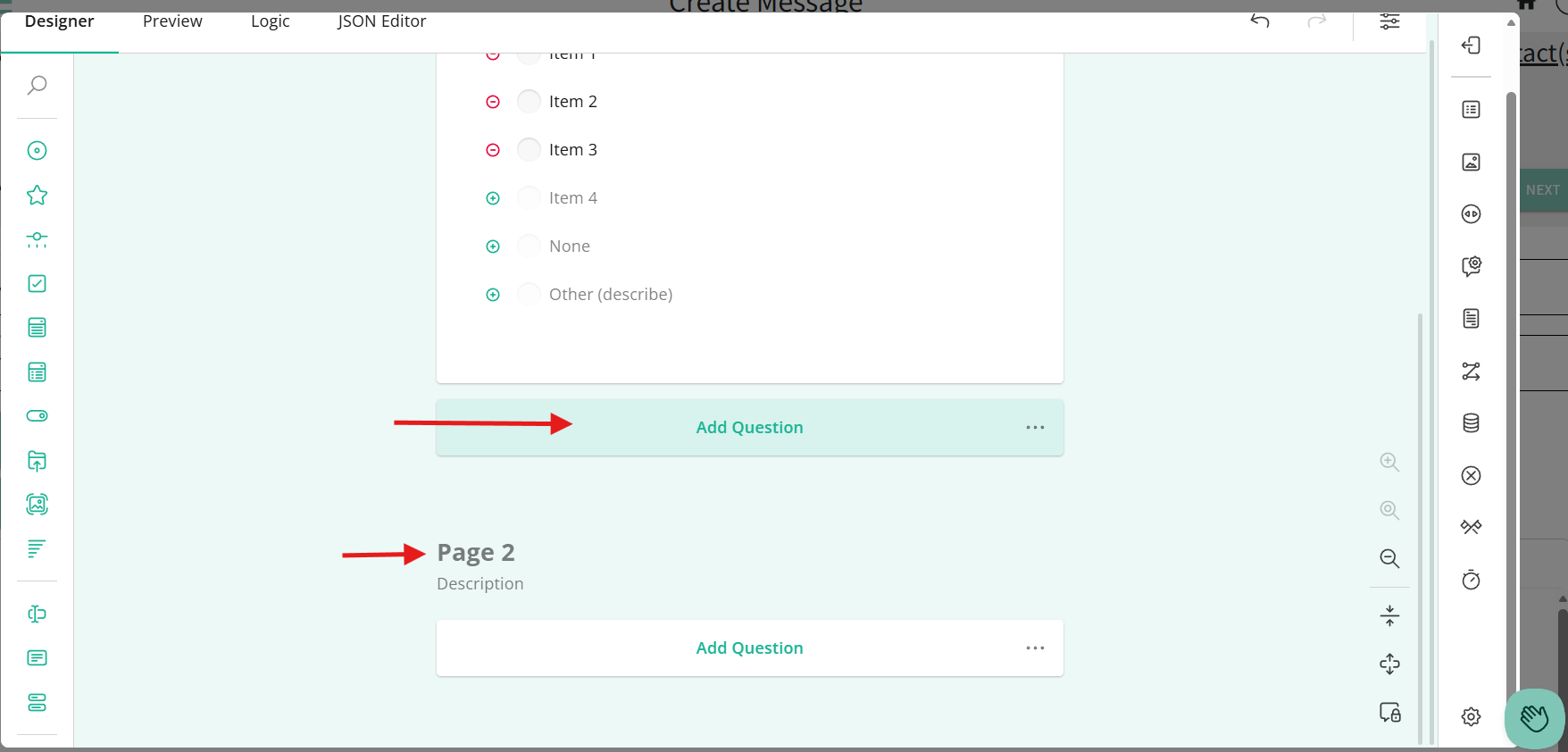
- Clicking "Add Question" will add a new question to your form. Using the options at the bottom of the question panel, ou can choose what type of question you want to use, format how answers are input, mark the question as "required," or even duplicate the question. Duplicating the question is especially helpful if you've added formatting using the settings from the right-side panel that you want to use in your next question too.
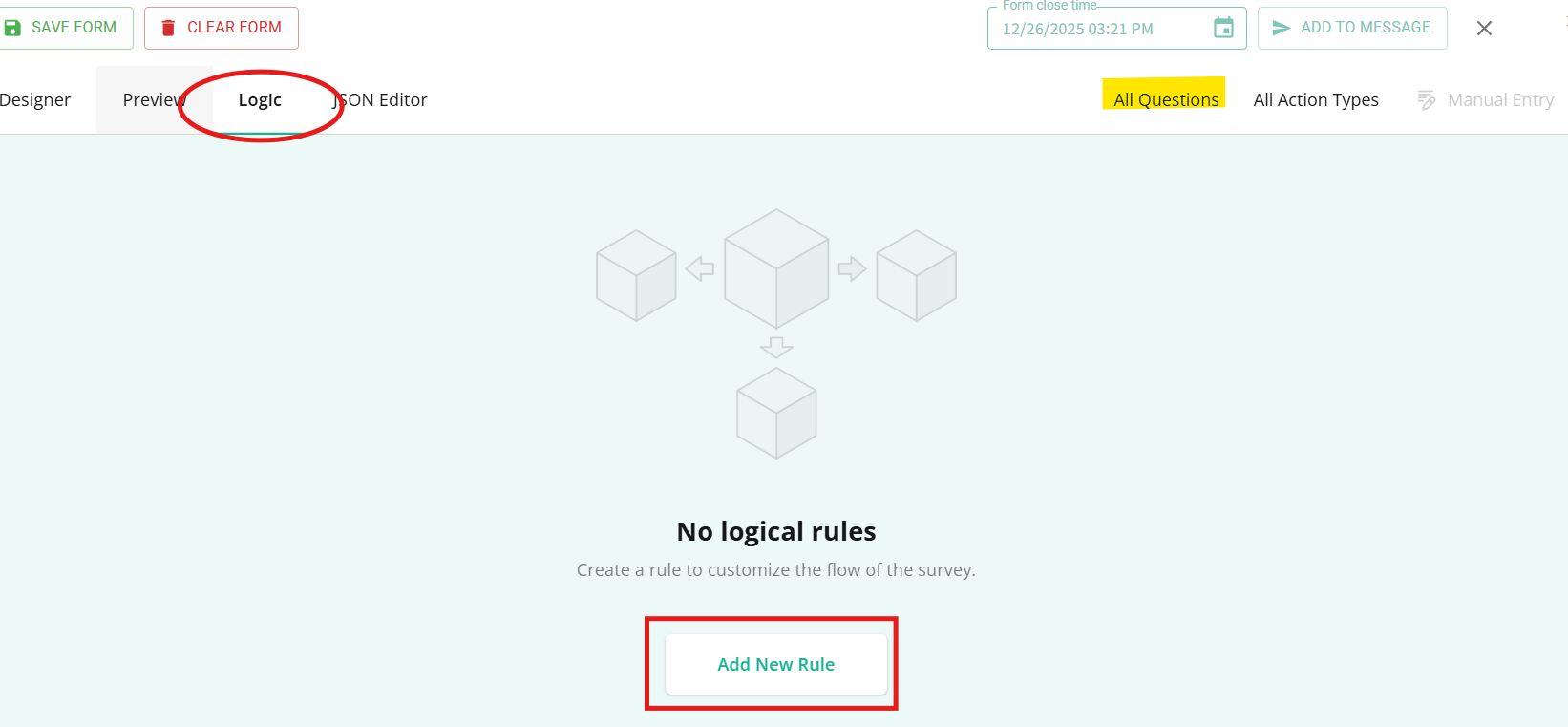
- Add logic to your questions using either the settings panel on the right side of the page or by clicking the "Logic" tab at the top of the screen.
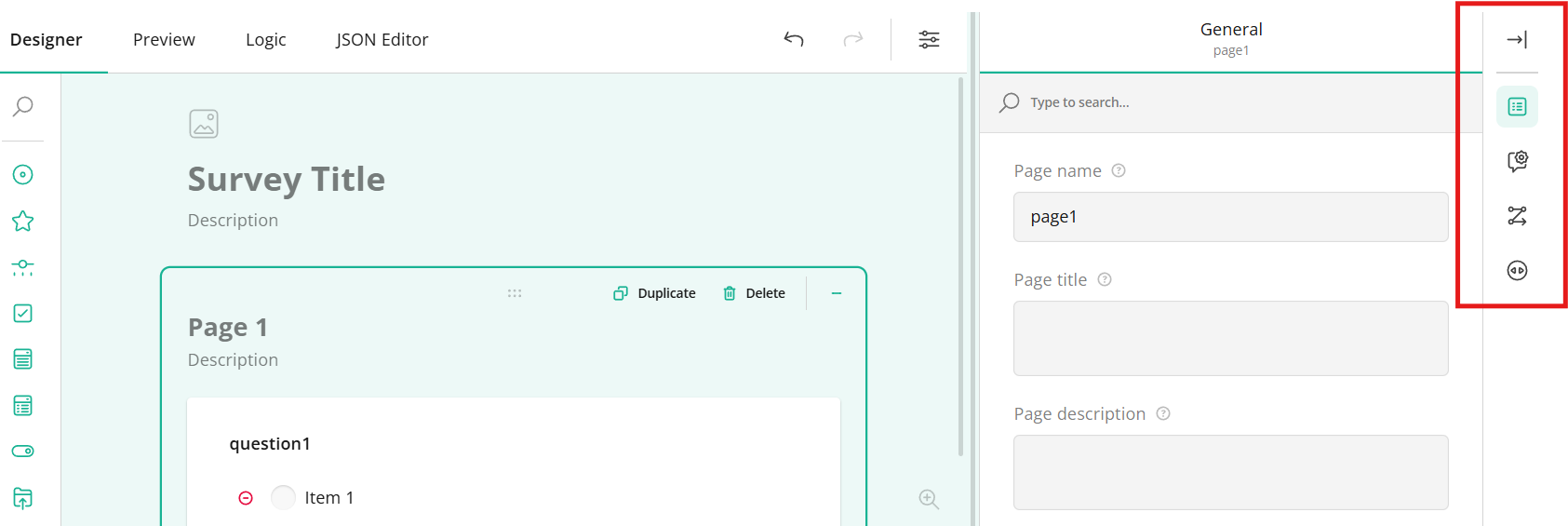
- Using the settings in the right-hand panel, you can name your questions, add logic such as "if question 1 is answered, then show question 2," and determine exactly how your questions will populate for your contacts. The settings panel is great for adding logic and other specifications to individual questions. First, click in the question box, then click any of the icons in the right-hand panel.
- To apply logic to specify the flow of the entire form/survey, use the "Logic" tab located at the top of the screen.
- Once your form or survey is created, you can preview it by clicking the "Preview" tab at the top of the screen.
- Now that your form/survey is to your liking, click the "Save Form" button so you don't lose any changes.
- In the pop-up window, give your form a name that will make it easy to find again in the future and use the "Share to" option to specify if you would like to share the form with any other BrightArrow users in your organization. Then, click "Save."
- With your form now saved, you can pull it up again later (reference step #5 of this article), or add it to your email message right away using the "Add to Message" button. You can also set the "Form close time" if you'd like to set an expiration date/time on your form so that it cannot be completed by your contacts after the Form Close Time has lapsed.
- Once you've clicked "Add to Message" you will be redirected back to the email creation page. A pop-up window will appear asking you to name your form link. Whatever you type there is what the link to your survey will show as to your contacts. After you've given your form a name, click OK.
- The link to your form/survey is now added to the email body. Add any additional text as needed, and remember to change the subject line, from name, etc. before sending your email.
- Click Next to proceed through the message creation pages to send out your message.


Viewing the results in BrightView
Once your survey or form has been sent, you can see the responses in the BrightArrow Reports page under the "Forms" tab.
- Use the "Select Published Survey" drop-down menu to select the form you wish to view responses for.
- Click "Individual Responses" to see details of what each recipient responded with.
- Click "Summary" to view summary charts that show the overall results of your survey.
- Use the "CSV" button to export the results to a CSV file to filter and analyze the results.

Forms FAQ's
Below are some frequently asked questions and answers regarding Forms.
Who can see the results?
Anyone with access to the BrightArrow list that the form was sent to will be able to view the results. System administrators will be able to see the results for ALL forms sent by anyone in your organization.
How can I make sure my recipients only complete the Form one time?
If you want to make sure the same person cannot respond to the Form multiple times, you can adjust the Form's settings before sending it. Note that this adjustment must be made before you send the Form to recipients.
With the Form editor open, in the formatting settings toolbar on the right, click on the icon that looks like a bulleted list to open the General survey options. In the "Limit to one response" box, enter a unique value. This is used for a reference number that runs in the background. It is NOT the number of times a recipient can answer the survey. Enter any number here as long as it is unique to the particular form/survey.

With that value set, your survey responders will be limited to one submission only but if you'd like you can also adjust the wording for what they will see if they try to open the Form to submit a second time. Click on the icon that looks like two flags to open the "Thank You Page" survey settings. In the box "Markup to show if the user already filled out this survey" change the verbiage there to whatever you want. By default, the wording is "You have already completed this survey."

I don't see all the formatting options I thought I would see
If you're looking for a particular formatting option in the toolbar on the right but you don't see it, you likely need to click somewhere else in the Form builder window. The available formatting options that show in the toolbar change based on what you're clicked on. For example, you may need to click in the background of the Form or click on a specific question to access different options.
I uploaded a picture to the survey header area but it's not sized correctly. How can I fix that?
You can adjust the image's size and fit through the "Logo in the Survey Header" formatting option. First, make sure you're clicked in the Form's background to make the correct formatting option available. Then, click on the picture icon in the toolbar on the right. Make any adjustments as needed to the size or fit. The size of the image may not change in the Form builder itself, but your specs will be applied in the version your recipients receive.
