Attendance Responses or Other To-Do Item Responses through ParentHub
BrightArrow's Attendance Responses feature provides an easy way for parents to submit attendance-related excuses for their child who may have been late or absent from school. While this feature is most commonly used for attendance-related purposes, it can actually be used for anything your organization needs to track a to-do item response for. With Attendance Responses through ParentHub, staff and constituents will be able to more easily manage to-do items that require a response to be submitted.
If your organization has a BrightChat subscription, this feature can be enabled for your account at no additional charge.
How it works
BrightArrow will enable the "To-Do Items" feature for your organization's account. Once the feature is enabled, when you send a message that requires the parent to complete an action item like submitting an attendance response or completing a form, the message will populate to the ToDo tab on the ParentHub Feeds page. Parents can then complete the action item directly through the app. Attendance responses will be tracked in BrightView (BrightArrow web version) under the Attendance Responses report.
How does BrightArrow determine which messages require the parent to take action?
The Attendance Responses / To-Do Items feature uses keywords to recognize which messages should post in a recipient's To-Do tab in ParentHub. Certain message types will automatically be included in your recipients' to-do list in ParentHub, but any other list can be added to the to-do settings to make sure it shows as a to-do item for your recipients. When we enable the feature for you, we will mark add certain keywords by default, such as "attendance" and "tardy." Then, when a message is sent to a list with one of those keywords in the list's name, the message will automatically populate to the To-Do items tab in ParentHub for the respective recipient.
Message types that will be added as to-do list items by default (no keyword is needed in the To-Do settings):
Keywords can be added in the To-Do settings for any other list you will need responses for.
Suggested keywords to use:
- Attendance
- Absence
- Tardy
- Tardies
The keyword pulls from the list name so any keywords added should be a word in the list's name exactly. For example, if you have lists named "UPS Absences (sync)" and "XYZ Absences (sync)" your keyword should be "Absences." In this scenario, adding "Attendance" as a keyword will not work because the lists do not contain the word Attendance in the list name.
How to add the keywords
As described above, some message types like Chat invites, meeting invites sent through the Scheduler, and emailed Forms and Surveys will automatically be tagged as To-Do items for your recipients. Any other message can be tagged by your organization as a To-Do item. As a To-Do item, message recipients will have the option to enter an explanation/response through the ParentHub app.
All keywords can be managed by the BrightArrow superadmin through the To Do Settings. When a message is sent to a list containing any of the keywords, ParentHub will recognize it as a To Do item to allow your message recipients to submit a response.
- Login to BrightView (BrightArrow desktop)
- Click the 3 horizontal lines to access the menu
- Click ToDo List
- The To Do Settings panel will open
- In the Keywords box, enter a keyword that will be found in the BrightArrow list's name to associate the message as a To-Do item in your recipients ParentHub Feed.
- Enter keywords contained in the list's name. It must be the exact word/spelling found in the list name (Example: If your lists are named UPS Attendance and XYZ Attendance, enter "Attendance" as a keyword. If your lists are named UPS Absentees and XYZ daily absences, enter both "Absentees" and "Absences" as keywords)
- Enter as many keywords as you need, one per line
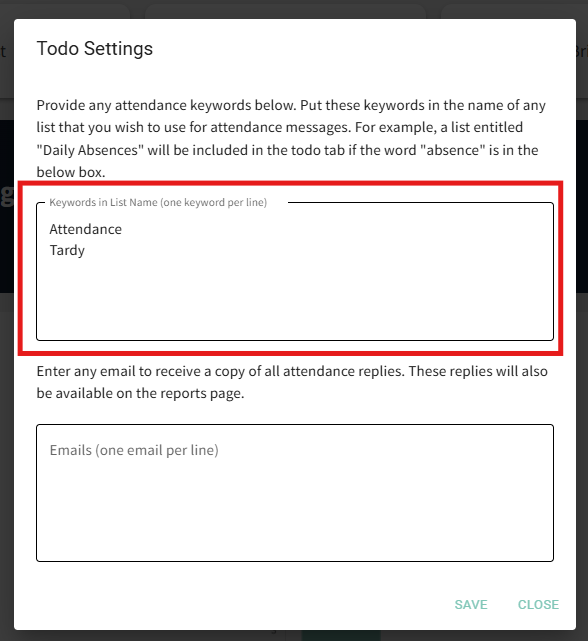
- You can enter an email address in the Emails box to receive a copy of attendance responses in your email, however, best practices are to add each attendance clerk under the Manage Attendance Clerks button on the Attendance Responses Report page. More information on that below.
- When you're finished adding your keywords, click Save

How will parents know to submit a response?
When recipients receive the attendance message (or other to-do item if we've set it up for you), they will find the option to submit their excuse/response in ParentHub when they view the attendance message, or by going to the Feeds > ToDo tab in the app. Through the To-Do tab, parents will also be able to submit a new item without needing to wait for a message from the school. For example, if a parent knows their child will be absent on a future day, they can submit that information in advance of the child's absence.
When a parent opens the message in the app, there will be an option for them to add their explanation and submit their response.

See here for more details about the process of submitting a to-do item response.
How to view the responses
You can view any to-do item responses in BrightView (the web version of BrightArrow) under Reports > Attendance Responses.
- From the BrightArrow Central homepage, navigate to Reports
- Open the Attendance Responses tab
- Attendance To-Do item responses will be listed in order of newest to oldest


Managing the Attendance Clerks
You can add attendance clerks for each school so that they can receive each attendance to-do response in an email message.
- In the Attendance Responses report page, click the Manage Attendance Clerks button >
- The Attendance Clerks window will open. Click the drop-down arrow to choose a school building to assign an attendance clerk to
- Click Add to add an attendance clerk's email address for the school. You can add as many clerks as you'd like, but they need to each be added individually.
- Enter their email address and click OK
- Repeat the steps above until all attendance clerks are added.
- When a to-do response is submitted by a parent, the associated attendance clerk will now receive an email notification with the response.


