Creating Text (SMS) Messages in Revere Message Center
This article will walk you through the steps of creating a text (SMS) message in the Revere Message Center.
The basics
The landing page in the Revere Message Center is the message creator, but if you need to navigate to it from somewhere else in the interface you can get there by clicking the "Compose" button in the left panel.

- On the Create New Message page, click the "SMS" bubble found in the Select Message Types section. If you are also sending an email and/or voice call, you can select those too.
- If you only selected SMS as the message type, the SMS creation screen will show. If you also selected email, click on SMS in the top bar to get to the SMS creator screen. Note: If you are sending an email and text message together, create the email first. The verbiage from your email will automatically copy to the text message (but you can edit it).
- Click inside the text box to start typing your text message.
- Use mail merge fields to dynamically insert recipient-specific information into your text message.
- If your recipients' preferred language is saved in your BrightArrow custom fields, you can use the "Auto Translate" button to have the message automatically translate for each recipient's language.
- If you want to load a message you sent in the past, use the "Load Prior Message" option in the upper-right of the page.
- If you won't have time to finish your message, you can use the "My Drafts" button in the upper-right of the page to save it as a draft to come back to later.
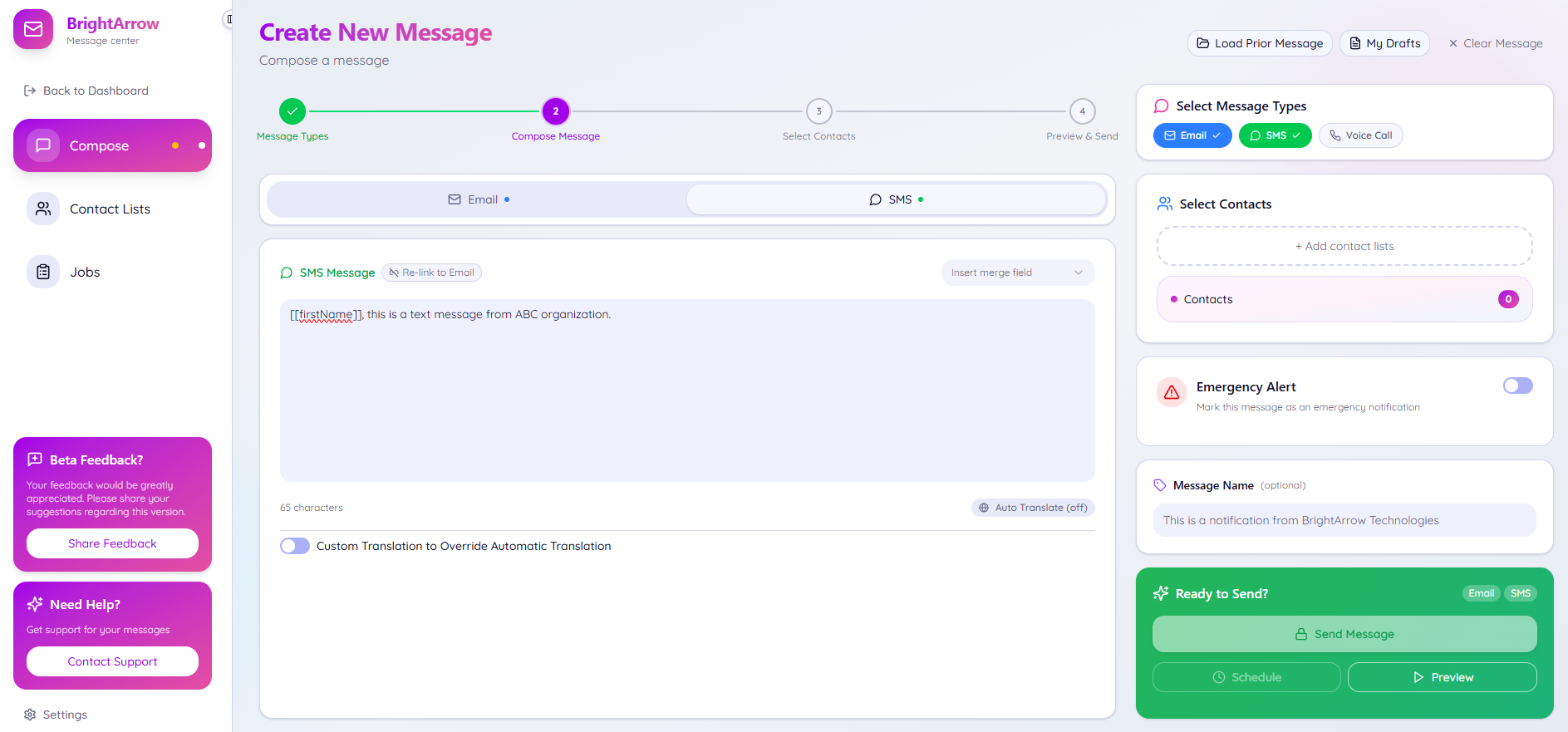
- With your message created, you will now choose the contacts to send it to. In the Select Contacts box, click "Add contact lists"
- Mark the checkbox next to each contact list you want to send your message to, then click "Confirm"
- Use the search bar at the top of the Add Contact Lists window to search for a list by name.
- Click on any of your folders in the row underneath the search bar if you want to only look at lists within a certain folder.
- Use the little arrow located in the right of the list's row to select specific contacts to send the message to.
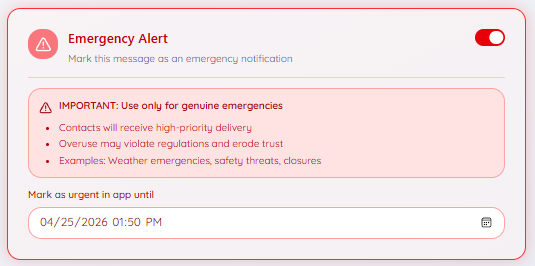
- If your message is an emergency, turn on the Emergency Alert toggle.
- ParentHub App users can also mark the message as an urgent alertin the app. Set an expiration date for the urgent alert using the provided box.
- Give your message a name (optional). The subject line from your email message will automatically be added as your message name, but you can change it if you wish. The message name will not be shown to your recipients. It will make it easier for you to find the message in the future via BrightArrow Reports or if you're using the Load Prior Message option.
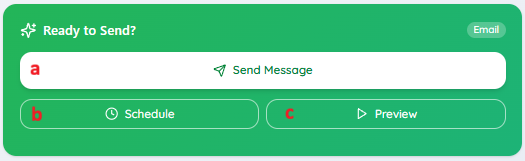
- You can now send or schedule your message.
- Send Message: send the message immediately
- Schedule: schedule your message to send at a future date/time
- Preview (recommended): send a "preview" of the message to yourself before sending it to your contacts
- After clicking "Send Message" you will see a pop-up window. Confirm the details of your message and click "Confirm & Send" if all looks good.
- Your message has been sent! In the pop-up window click "Go to jobs" to watch the message send or to find the report of the message or click "dismiss" to stay on the message creation screen and start a new message.


